.png?width=500&height=91&name=CG-Logo-Blue%20(1).png)
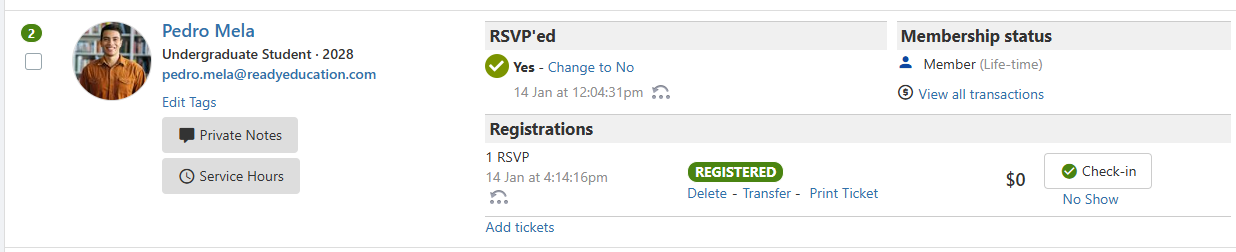
All users who register for your event appear on the Attendees list. You can also add or invite users manually.
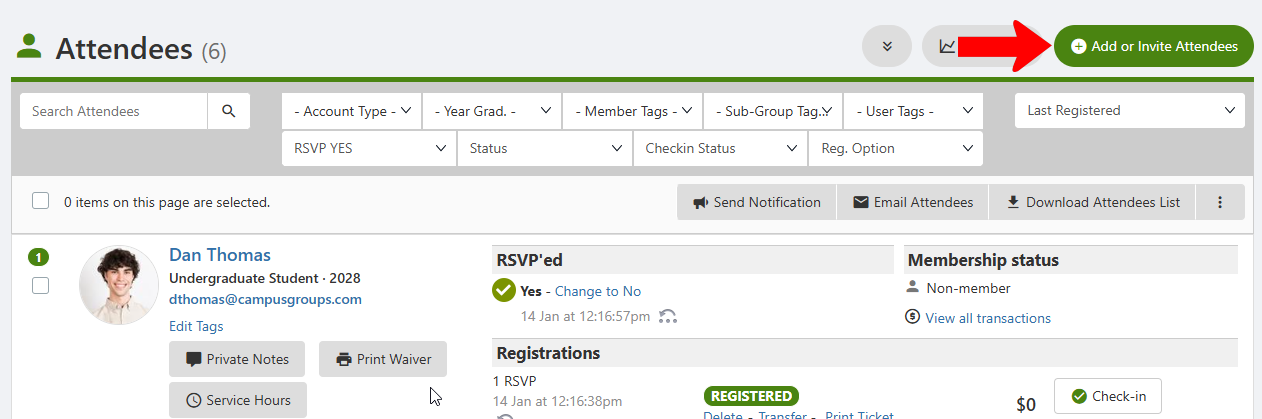
At the top of the event’s Attendees list, click Add or Invite Attendees.
In the Action drop-down, choose whether to add or invite attendees.
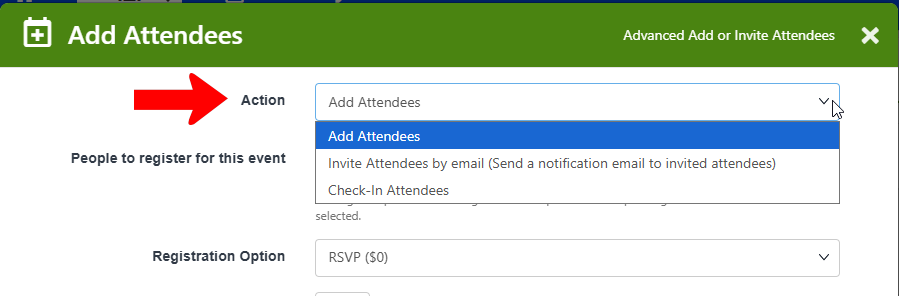
Note: There is also an option to check-in attendees, which can be used at the door to check-in a user who was not previously registered.
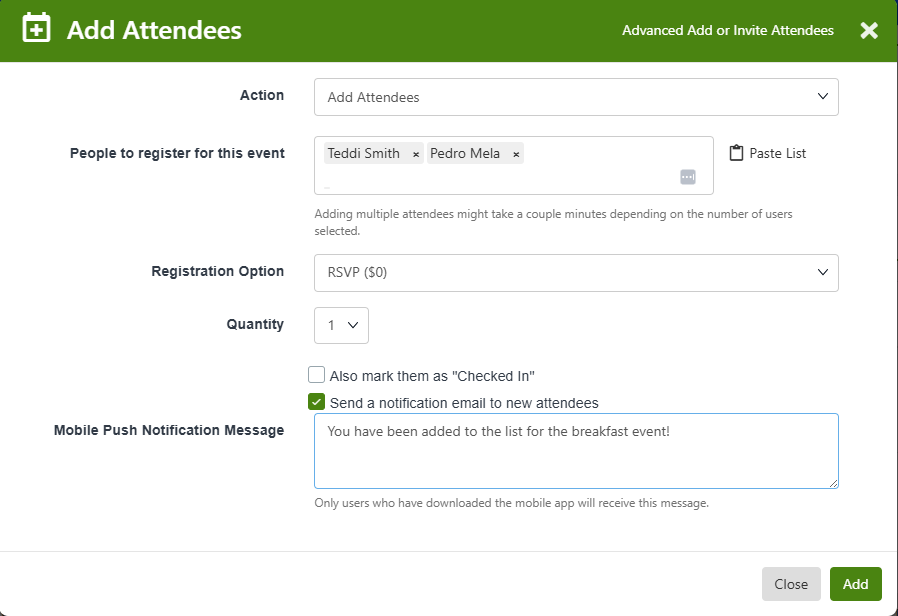
The Add Attendees action enables you to add users directly to the list of attendees.
You can enter names manually or paste a list, choose the registration option, set the quantity per user, and opt to follow up with a notification.
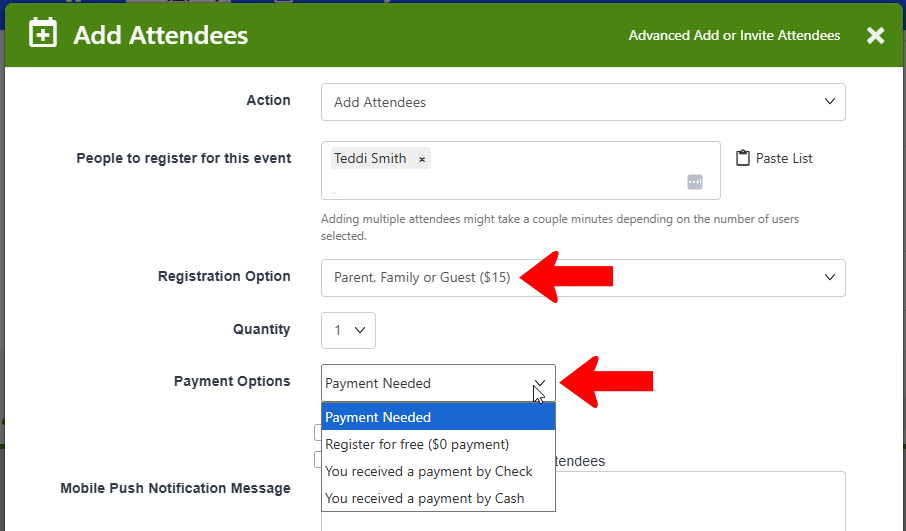
If the registration requires a fee, the Payment Options drop-down will appear.
Users added this way are added to the Attendees list, with Registered status.
The Invite Attendees action is similar, but sends an email to the selected user, along with a notification.
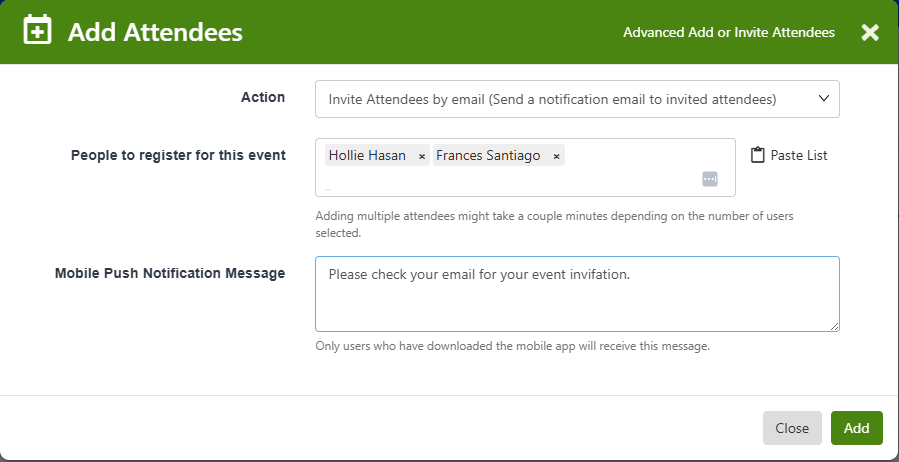
Invited attendees will not appear on the Attendees list until they register.