.png?width=500&height=91&name=CG-Logo-Blue%20(1).png)
Group officers can manage nearly all Group Settings. But the last tab, Advanced (Admin Only) is for admins only.
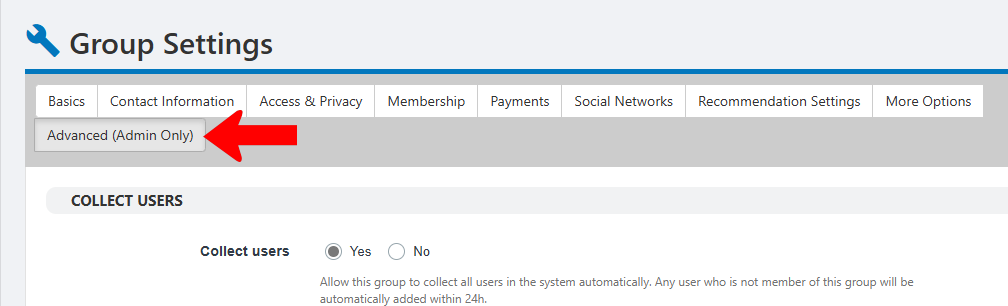
- Collect Users: The options in this section enable you to automatically add certain types of users to the group. If enabled, you can choose the users, either by Account Type Tags, graduation years, or User Tags. There is also an option to make these users contacts rather than full members.
Note: User collection works seamlessly with the automation of user uploads via API or SFTP.
- Collect Officers: This feature is handy for gathering officers of one or more other groups into the current group. For example, if the current group is “Club Sports Officers,” you can bring in all officers from all Club Sports groups. This makes it easy for admins to manage officer communication and provide resources.
- Waiver: If the group requires a waiver to join, enter custom waiver text, or select an existing waiver configured in Custom Values.
- Money: Options to enable online revenue and budgeting / accounting online revenue modules, and deactivate or disable refunds budgeting / accounting.
- Jobs & Resume: Posting and displaying jobs require the Job Board Posting Jobs. Activate resume book enables officers to download a PDF of uploaded resumes from the Members, Events and Virtual Fair modules.
- Group status: Set status to approved, rejected, requires re-registration, or rejected.
- Give ability to create events which cannot be hidden from calendar: If enabled, users cannot hide group events from the calendar.
- External group: Used with Blackboard integration
- Allow user verification: If enabled, when an officer validates validates a new group member a new group member, the user will be verified platform-wide.
- Hide group menus: Choose any platform features that group officers will not be able to access.
- Activate badges module: Choose whether this group will give badges Group Badges.
- Dashboard custom message: The message group officers will see at the top when managing their group Managing Group Officers.
- Hide from cohosting list: If the group is a co-host managing their group for another group’s event, choose how or whether this group will be listed.
- Unlimited event hubs: Choose whether group officers can create unlimited Event Hubs.
Collecting Users as Members
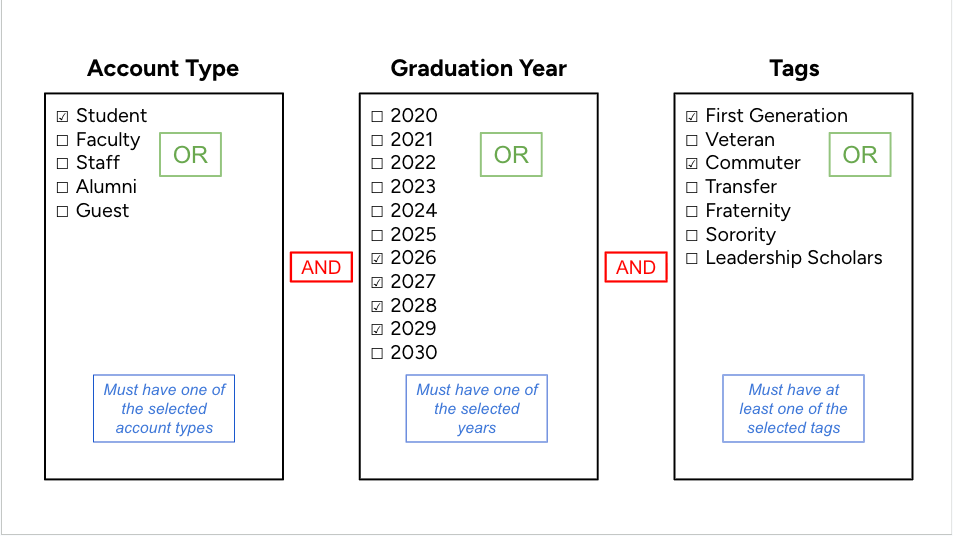
Similar to applying filters applying filters in lists in lists, when using multiple user collection criteria, AND and OR logic is used.
In the example below, all users with the Student Account Type AND who have graduation years 2026, 2027, 2028 OR 2029 will be included. Tags limit the list further to students with either (or both) of the selected tags.
Keep in mind: If collection criteria are used for a group, and either the criteria or member properties change, those members will become Group Contacts. Examples could include when a student becomes an alumni or leaves a fraternity, or when graduation year collection criteria change from year to year.