.png?width=500&height=91&name=CG-Logo-Blue%20(1).png)
When setting up an admin approval process, you must link the process to a form. This form enables you to configure the workflow steps that are triggered by different form responses.
Before getting started with approval processes forms, we first recommend reading the following general articles on forms:
- Creating a Form
- Questions and Question Types
- Form Logics Questions and Question Types
- Form Settings Questions and Question Types
Admin approval processes are similar to what group officers can do, with a few extra steps. Therefore, it is also crucial that you first read group officer articles on:
- Creating an Approval Workflow
- Workflow Logic Example Creating an Approval Workflow
The admin approval scenario: A student wants to form a chemistry club.
This simple example will demonstrate the following steps:
- Step 1: Prepare the workflow and form (admin or officer)
- Step 2: Create the approval workflow (admin)
- Step 3: Approval request (user)
- Step 4: Approval workflow (admin and workflow teams)
Step 1: Prepare the Workflow and Form (Admin or Officer)
Before creating the approval workflow, the approval form and its linked workflow steps must already be set up. These should exist in the group (most likely a department Groups and Departments) that has final approval.
In this example, the hosting group is Student Engagement. The workflow is “New Group Registration," found in the Workflows list.
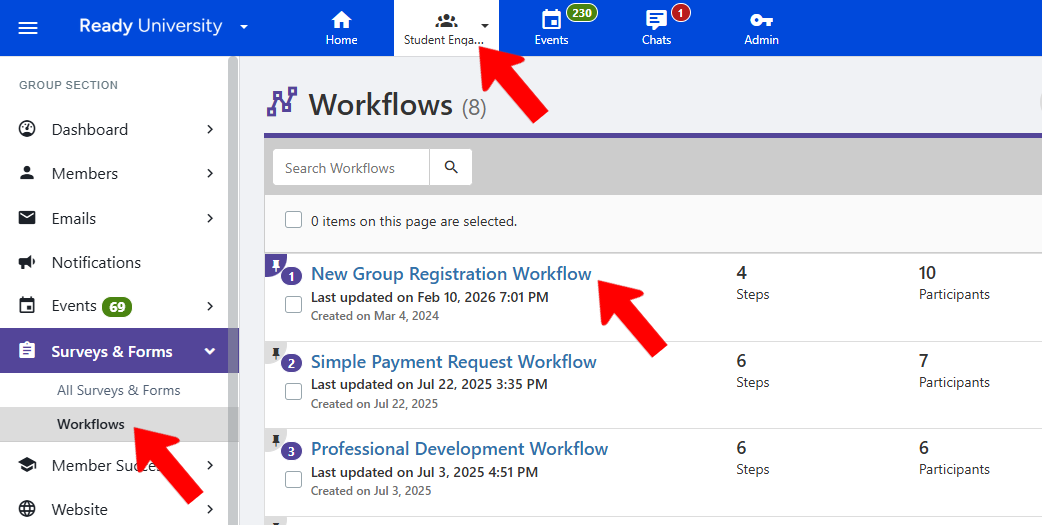
Open this workflow’s Steps.

This workflow has four steps.
The first three are not active by default; they will only appear if triggered by an answer in the form. These steps include potential approvals by three teams:
- Professional Affiliation
- Academic Affiliation
- Finance Committee
The final workflow step, “Student Engagement Approval,” is active for all submitted forms.
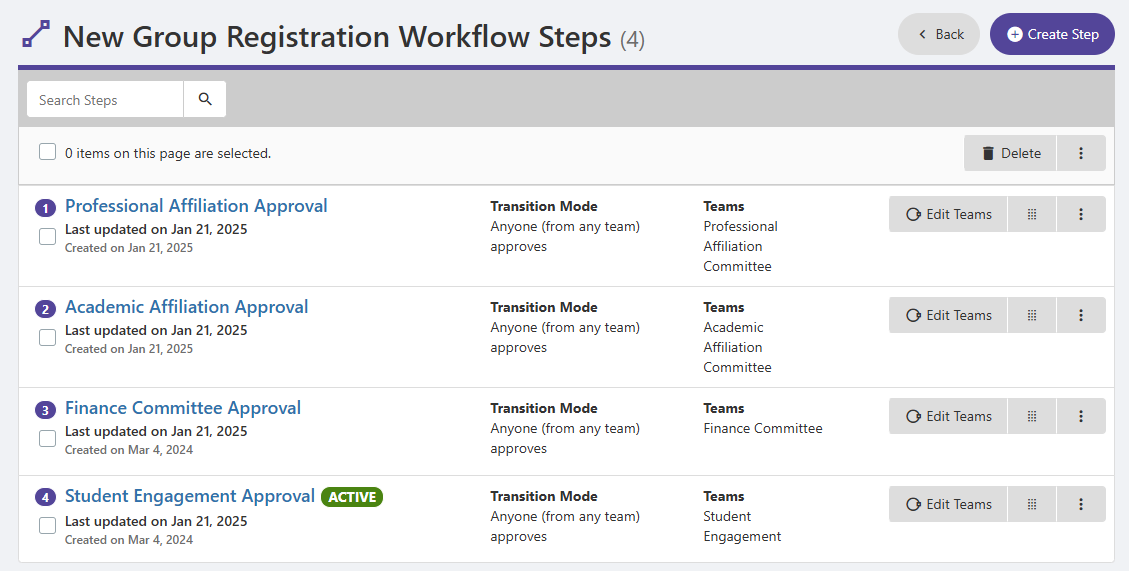
Note: Each workflow step is connected to the Workflow Team responsible for approving the step. This team can be configured by clicking Edit Teams.
Now let’s look at the approval form.
The form for this scenario is hosted by the same Student Engagement group, and is named “New Group Registration."
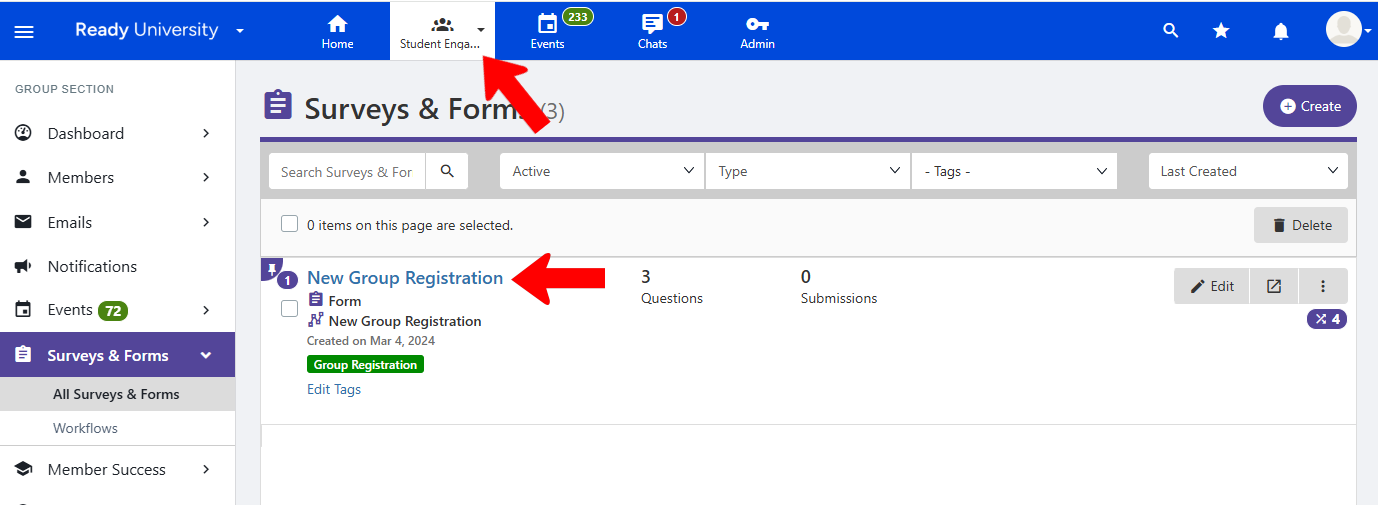
To link the workflow to a form, open the form’s Settings Form Settings.
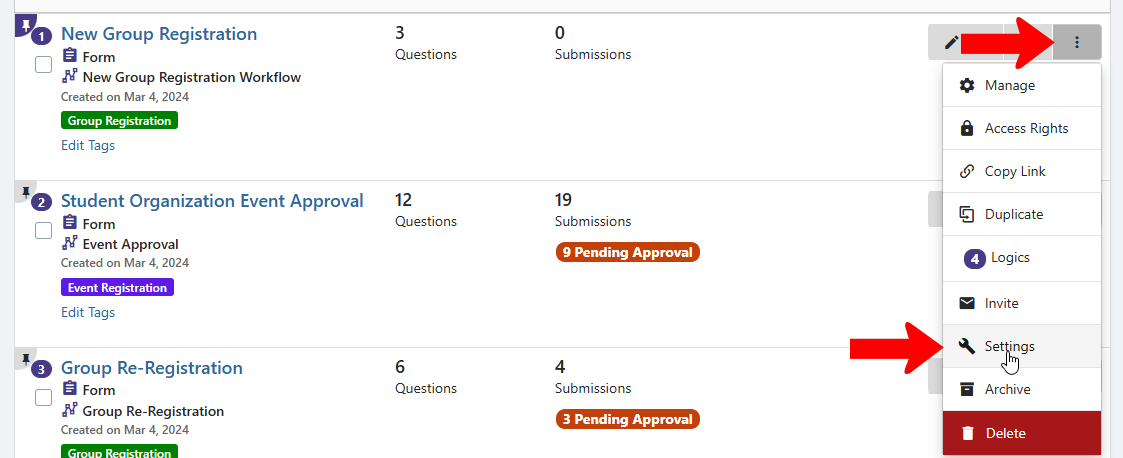
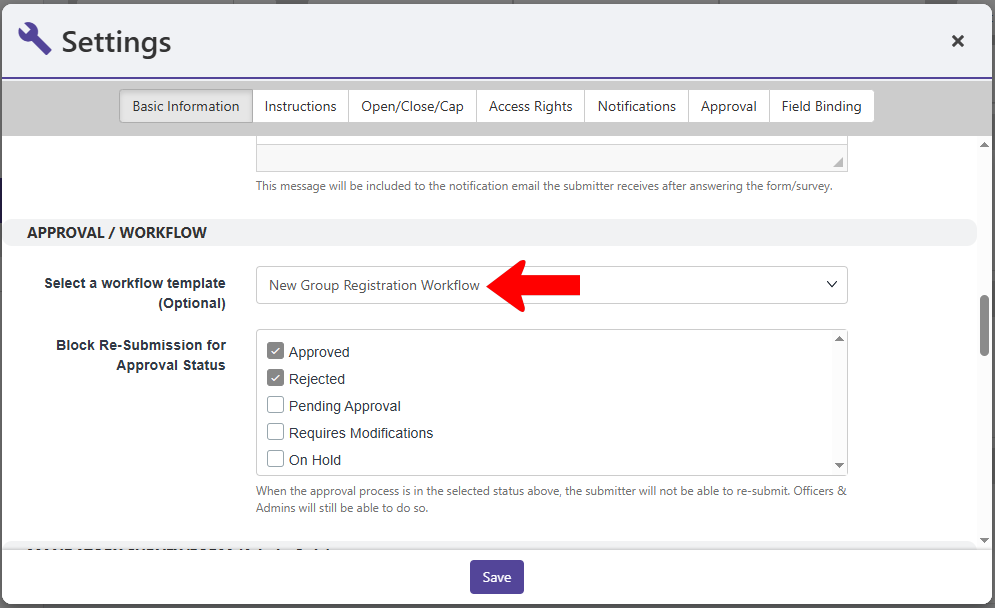
The “New Group Registration” workflow is linked in the Basic Information tab.
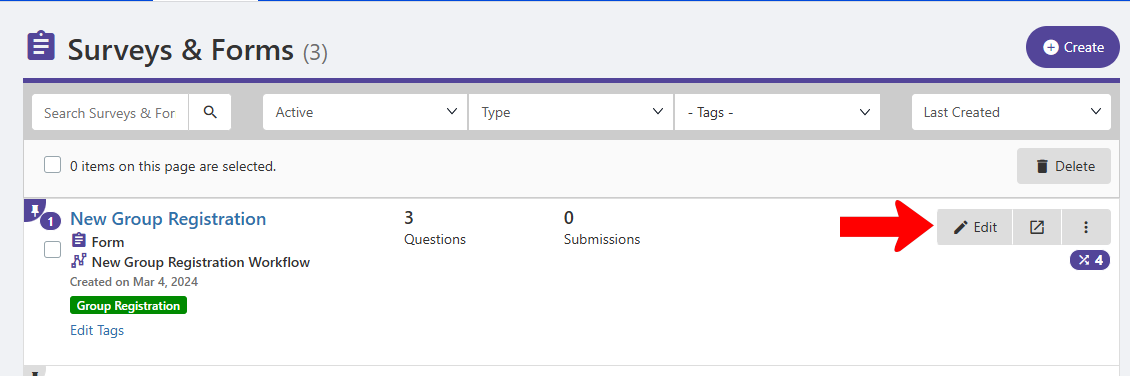
To see how these workflow steps are implemented in the form, edit the form.
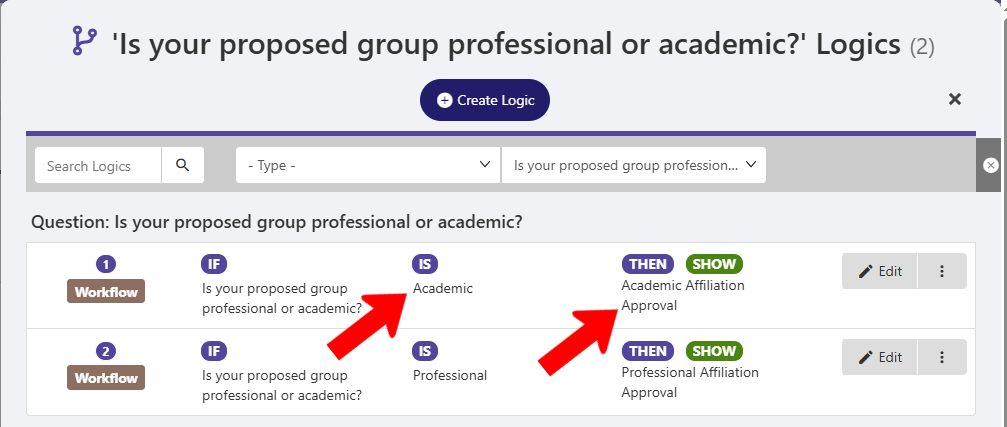
Question 1 is multiple choice, asking whether the group is professional or academic. This question has two logics, based on user answers.
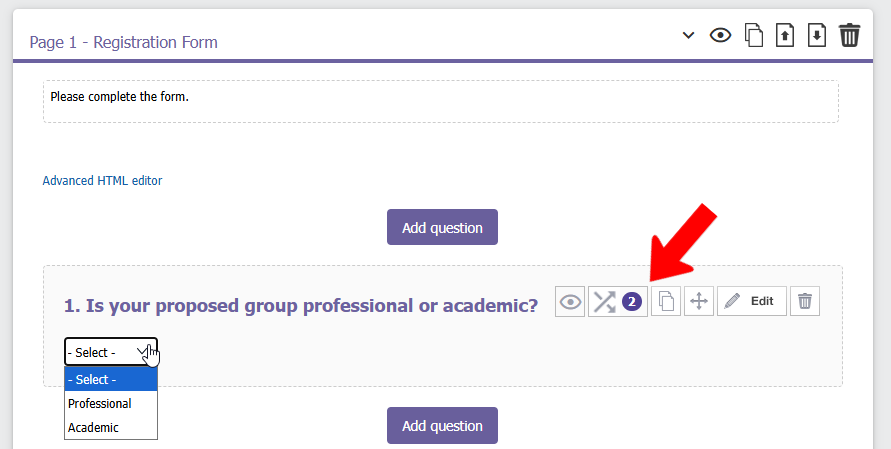
In this scenario, the student will answer “Academic” for Question 1. This will trigger the Academic Affiliation Approval step in the New Group Registration workflow.
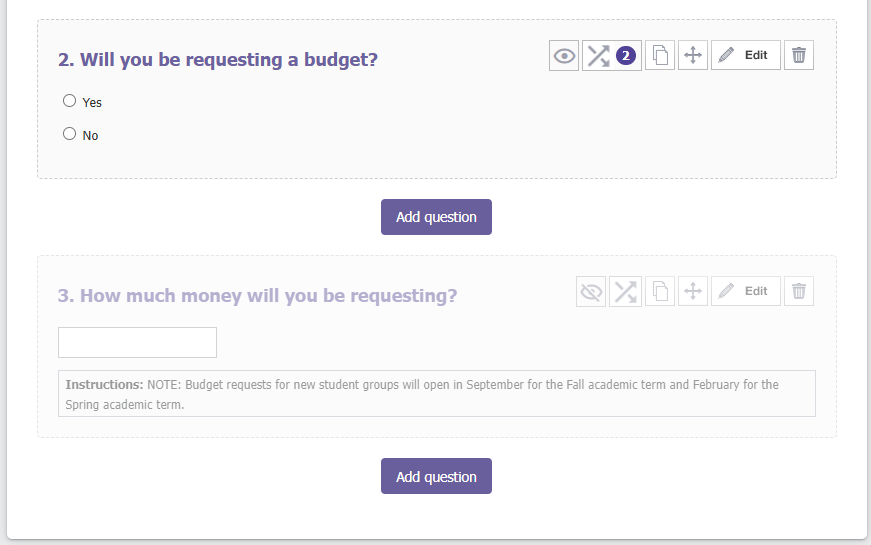
Question 2 of the form asks whether the group will need a budget, and Question 3 asks how much the budget will be. Question 3 is hidden by default, and is only displayed if Question 2’s answer is Yes. This question has two logics.
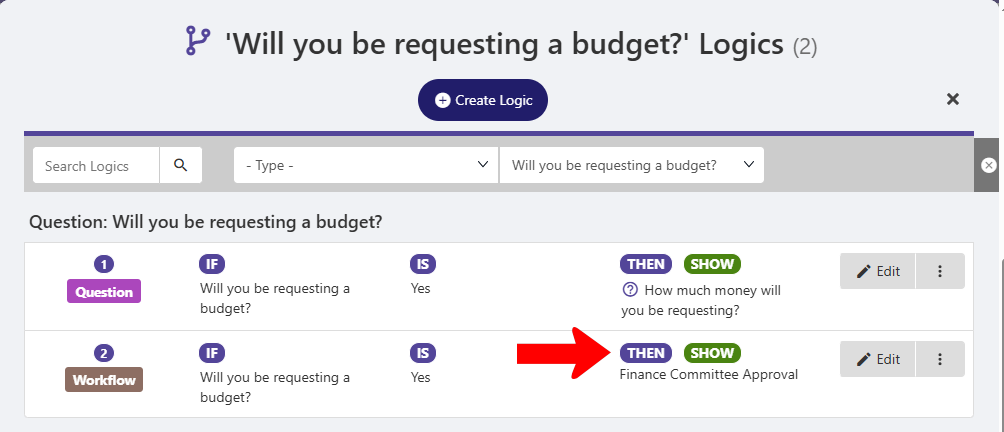
Here are Question 2’s logics. The first logic triggers the budget question for a Yes answer (as described above). The second logic triggers the Finance Committee Approval step in the linked workflow.
Step 2: Create the Approval Workflow (Admin)
With the form and linked workflow ready to go, switch to Admin mode. Open the Approval Processes list Approval Processes and click Create Process.

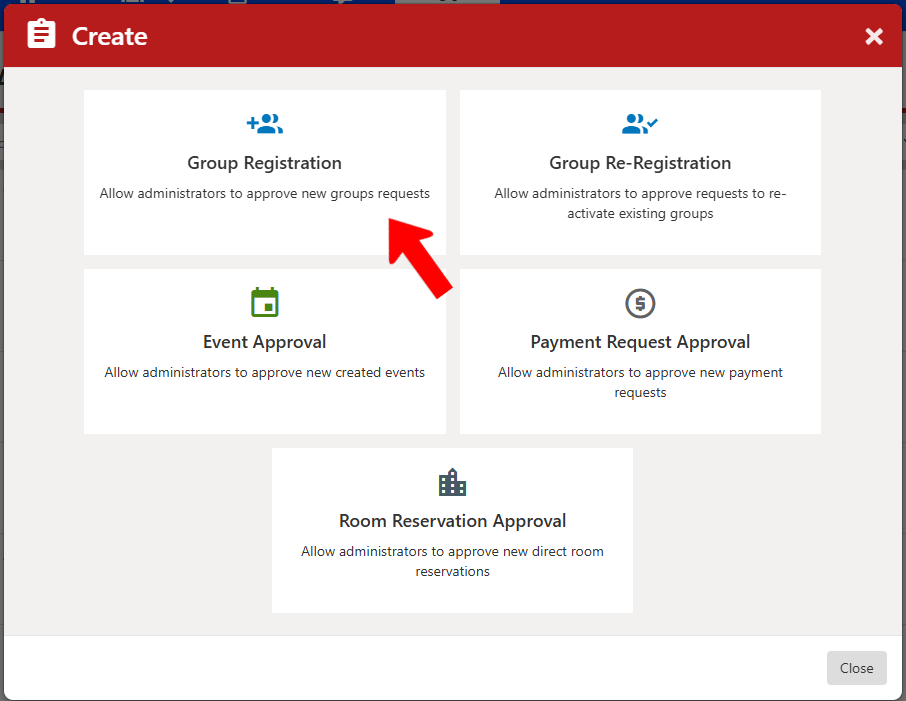
Choose Group Registration. (All approval types work in a similar way, with different options as needed).
In the Group Registration popup, choose the Group Type(s) to which this approval process will apply. (Group Types are Custom Values.)
This is also where you link the form: “New Group Registration" from the Student Engagement group.
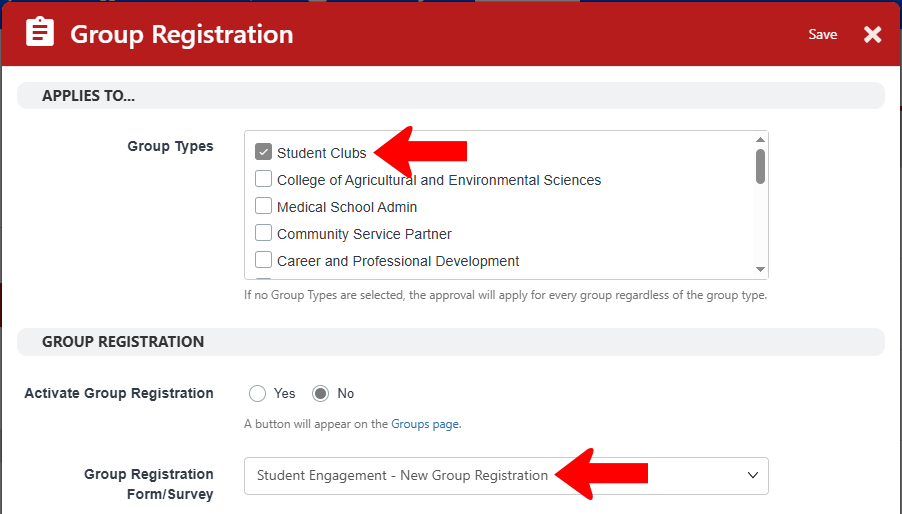
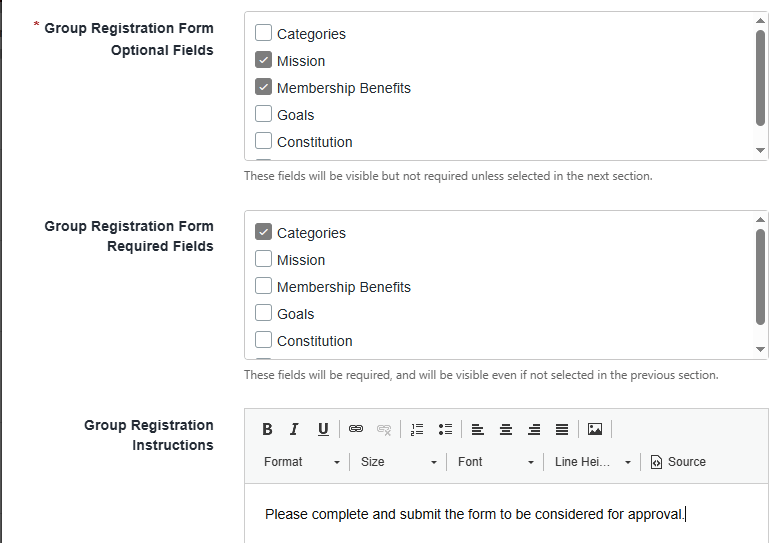
The next fields on the popup determine fields users will see before they get to the form itself. In this example, Mission and Membership Benefits will be optional fields, while Categories is required. All responses will be added to the group once approved.
You can also include instructions for the user, and registration start and end dates and times.
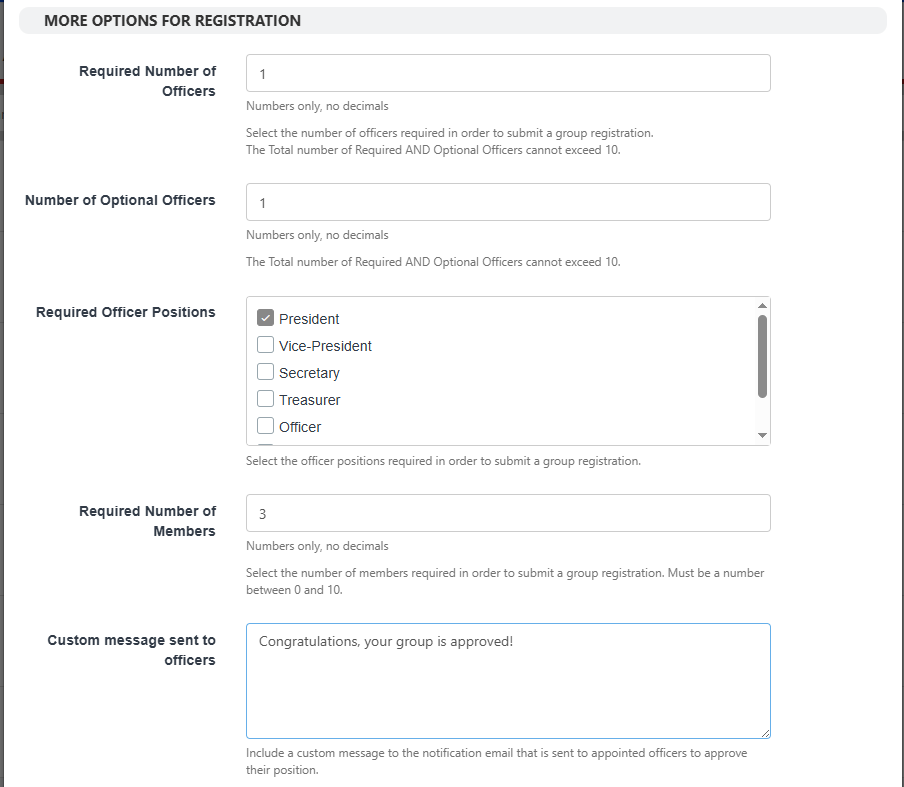
Farther down, you also need to set minimum numbers for officers and members. In this example:
- One officer is required, with the position of President.
- One optional office can be added.
- Three members must be added (as a starter for the group).
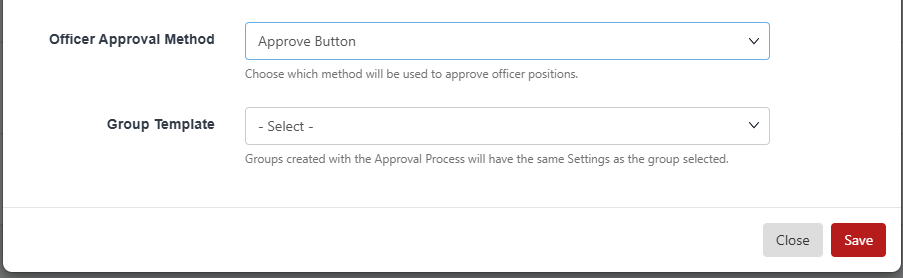
Toward the bottom of the popup is Officer Approval Method. In this example there will be a simple Approve button. But other options include requiring officers to complete another form, or complete a checklist.
You can also choose a Group template. If a template is selected, all groups approved through this process will receive the same settings as the template.
After saving, the approval process is added to the list, named according to its Group Type(s). As long as it is Activated, users will have to go through this process each time they attempt to register a group of this type.

Note: Be careful that each Group Type has only one active approval process.
Step 3: Approval Attempt (Student or Other User)
The form and workflow are ready, the approval process is ready, and now a user can go through the approval steps.
Because the process in this example is for group registration, the Register button appears at the top of the user’s Groups page.
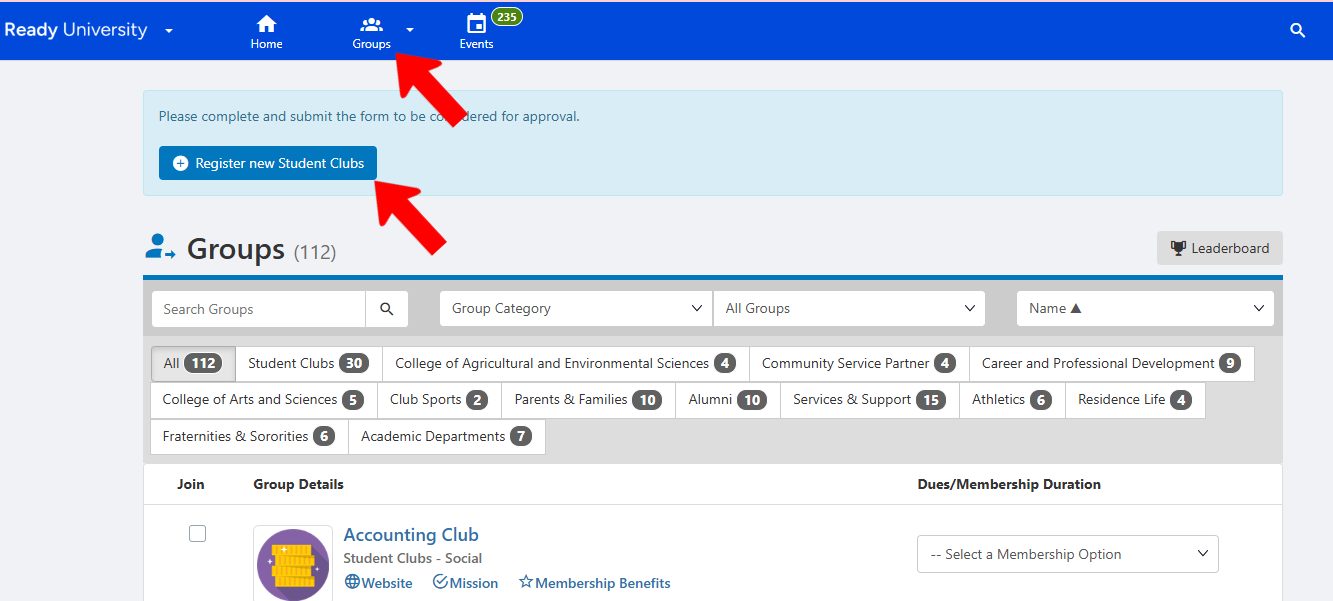
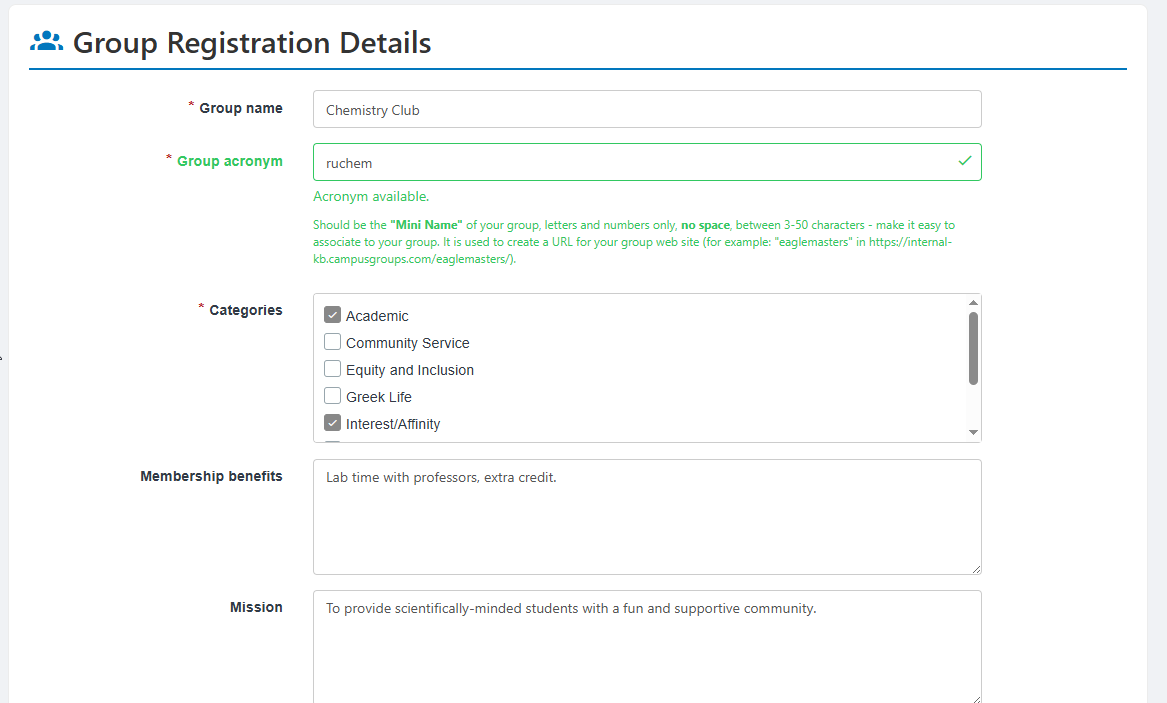
The first part of the approval process, after group name and acronym, is to complete the required and optional fields defined in the approval process. (Completing the approval form comes later.)
The approval process requires one named president, and an optional second officer. The process also requires that the user name three group members.
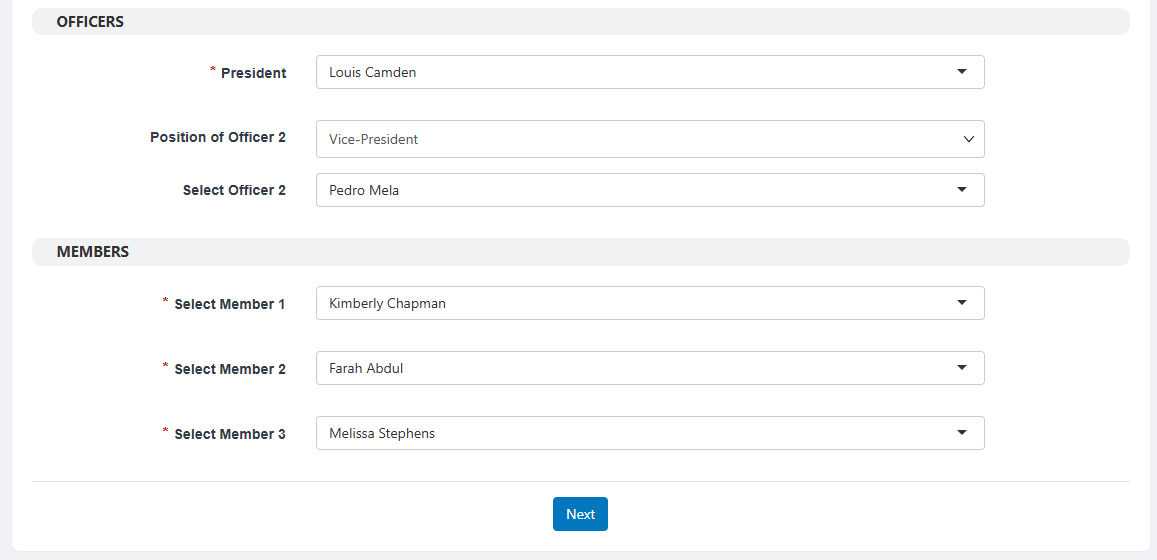
Clicking Next moves the user to the second part of the process: completing the “New Group Registration” form linked to the approval process.
The answer of “Academic” will trigger the Academic Affiliation Approval workflow step. Because they are requesting a budget, the “how much”question opens, and the Finance Committee Approval step is also triggered.
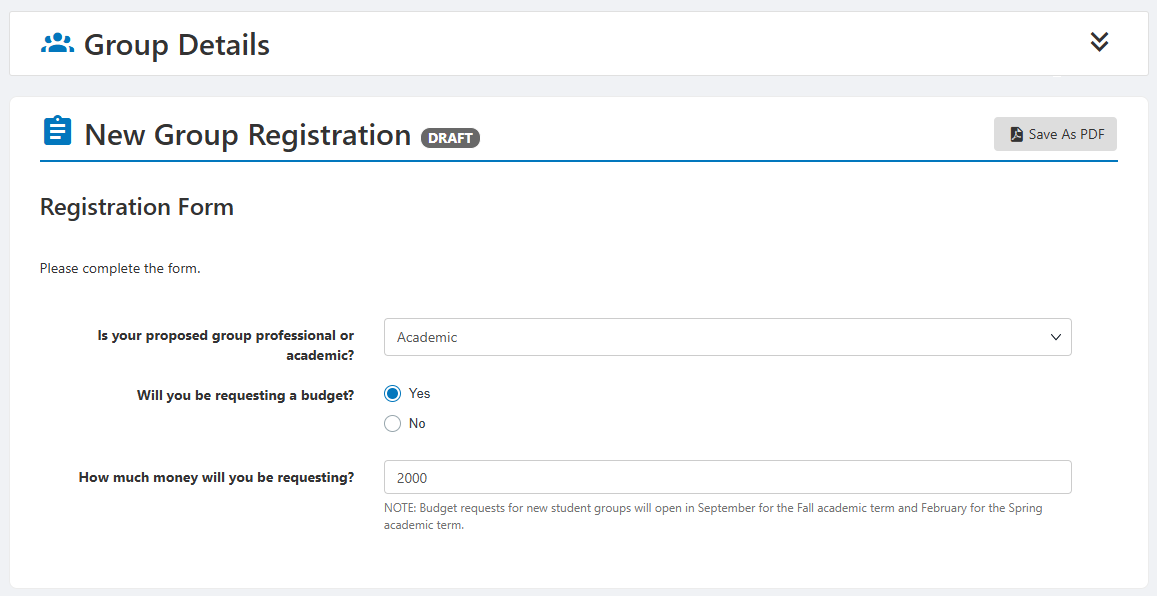
The user submits the form, and awaits the result from the approval process.
Step 4: Approval Workflow (Admin and Approvers)
The user form has been submitted, and now the approvers on the approval workflow teams can start the approval process. Each approver receives a notification when their approval is required.
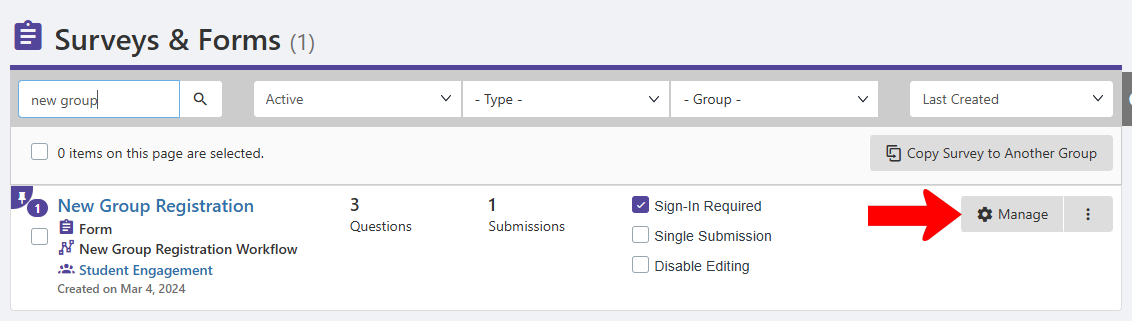
To track the process, switch to Admin mode Surveys and Forms List if needed, and open Surveys & Forms. Because admins see all forms from all groups, a search may be needed to find the form just submitted. Click Manage to track progress.
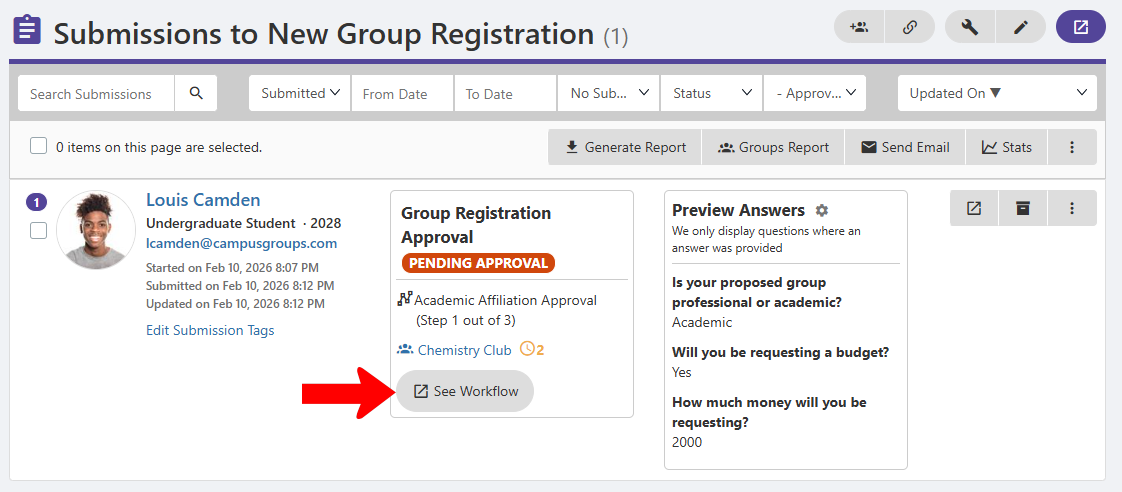
Each submitted form includes the current step and number of upcoming steps. To track progress, click See Workflow.
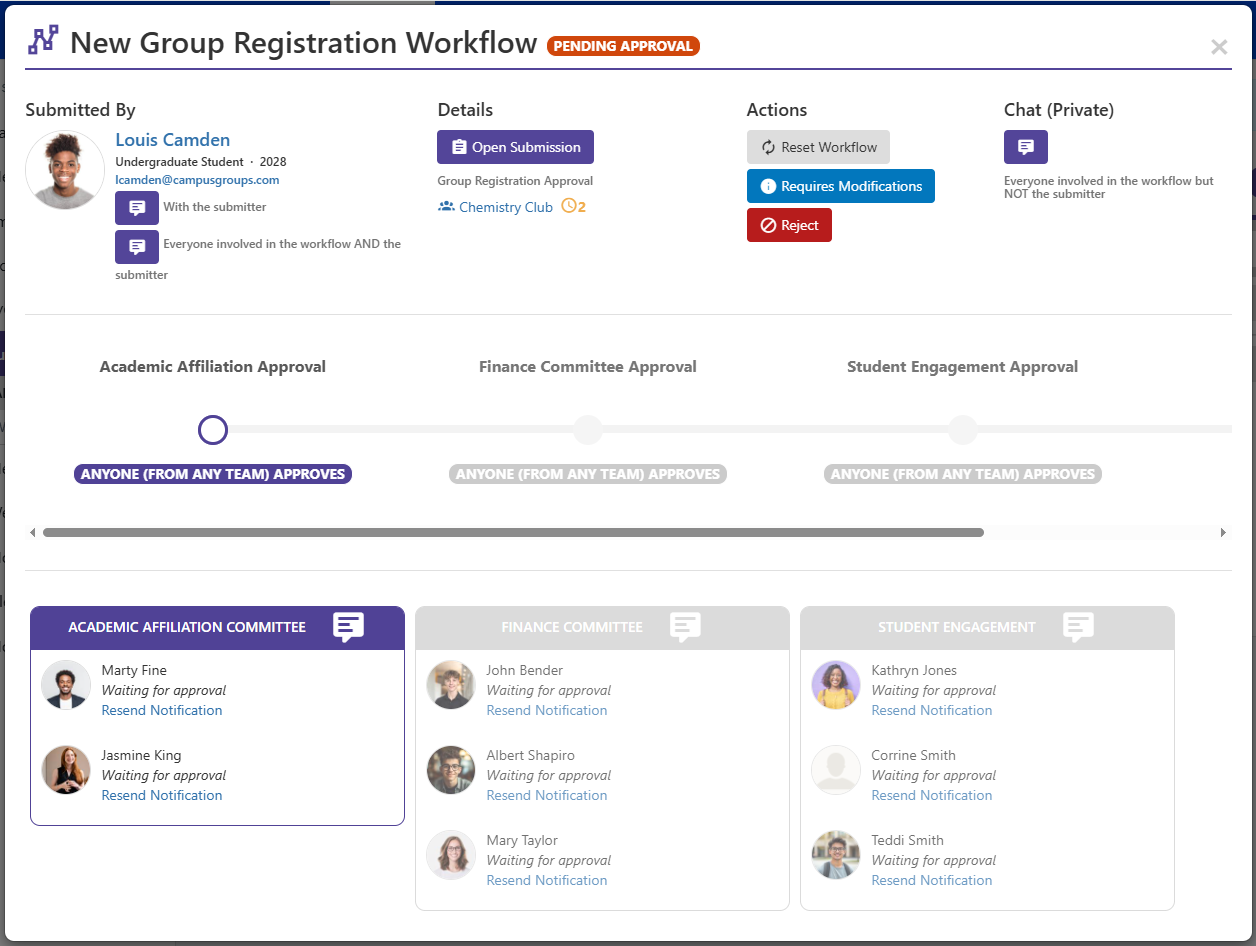
The three approval steps are listed here:
- Academic Affiliation
- Finance Committee
- Student Engagement (the workflow step required for all submitted forms)
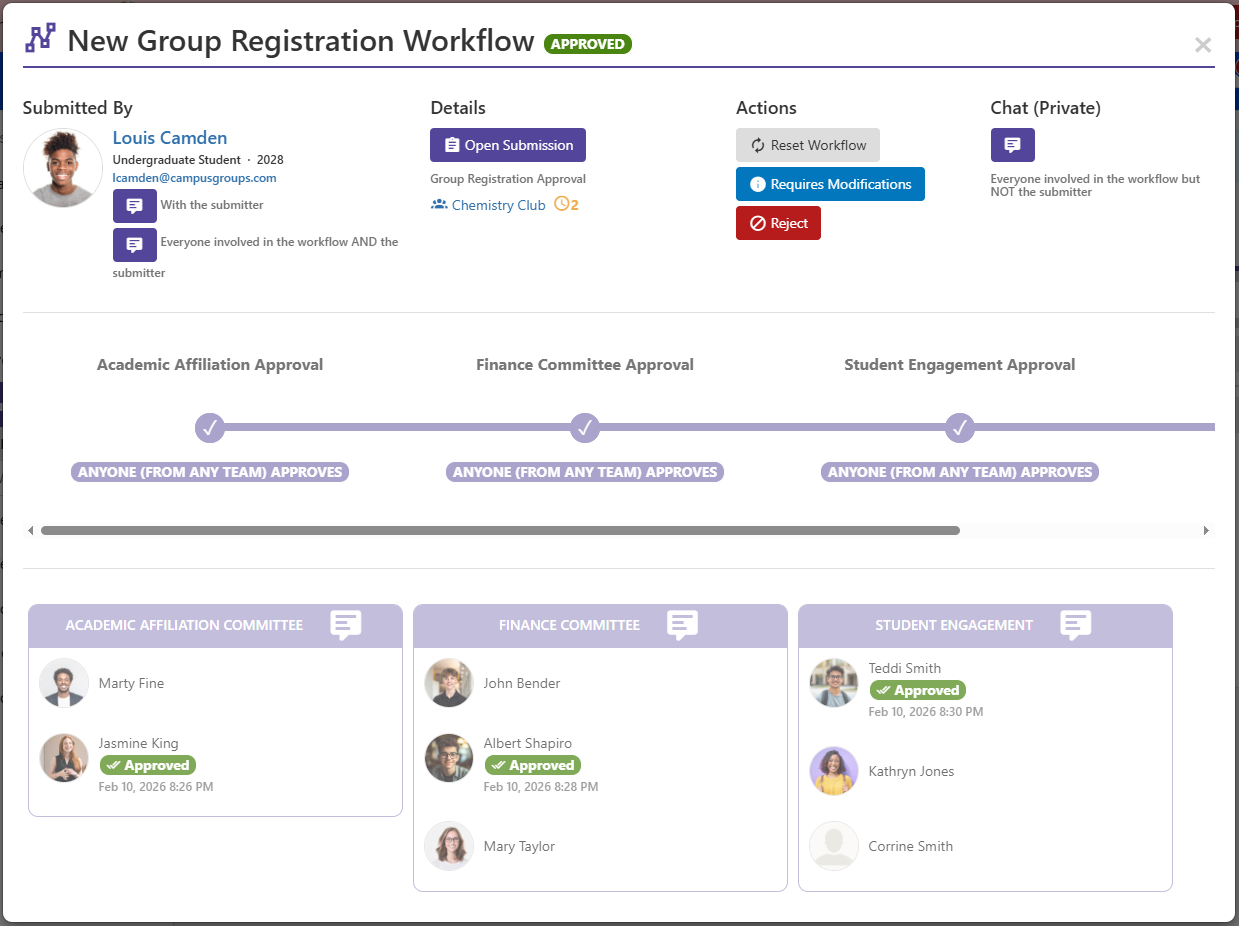
When all approvers have had their say, the request is approved.
Approval status is also listed in the list of form submissions.
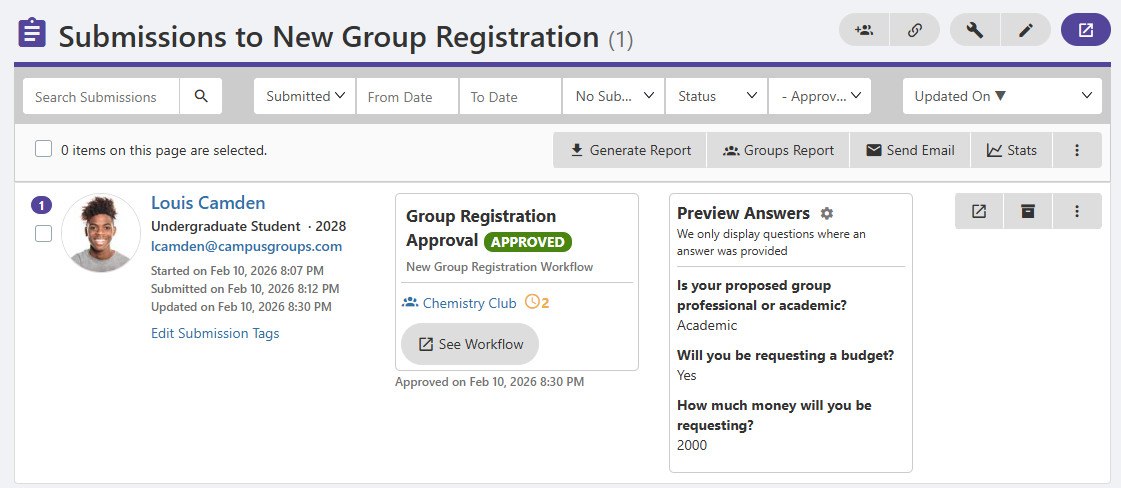
The new group is created and added to the Groups list.
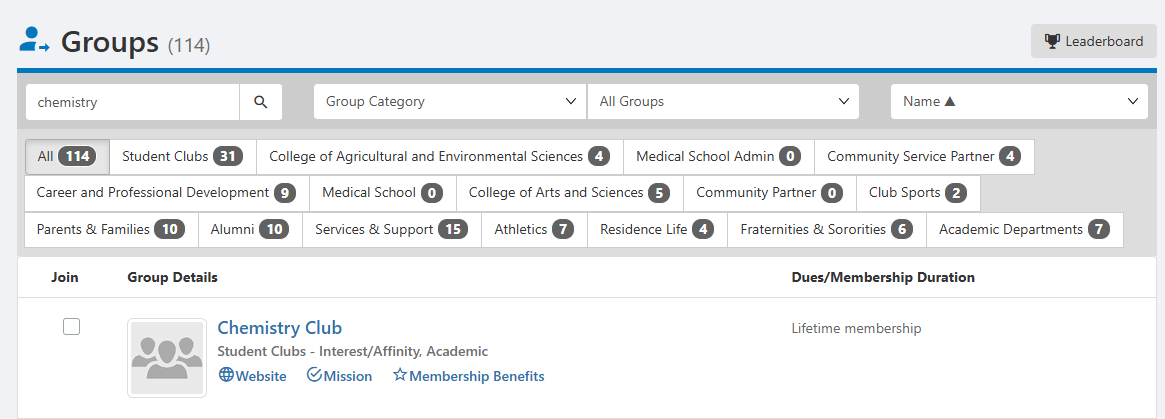
All information provided in the approval request is automatically added to the Group Settings, including categories, mission members, officers, etc. Admins should look over these settings for accuracy and completeness.
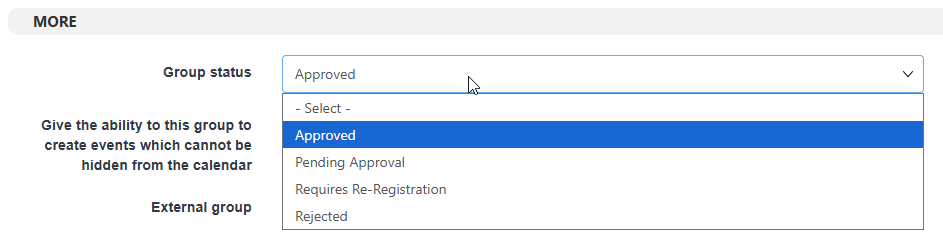
Admins should also open the Advanced (Admin-Only) settings Advanced Group Settings and configure user collection, waivers, and other settings. One important setting on this tab is Group status, where you can determine whether the group will require re-registration Requiring Group Re-Registration.