.png?width=500&height=91&name=CG-Logo-Blue%20(1).png)
Approval processes are customizable workflows used to facilitate several types of processes.
For example, you can create one type of Group Registration approval for sports clubs and another type for academic clubs. Or you can create one Event Approval process for fraternities and another for professional development groups.
For the user, the approval process starts with a list of commonly-used required and / optional fields. Then the user completes the linked form.
- If the form is linked to a workflow, the submitted form starts the approval process.
- If the form is not linked to a workflow, the approval process is a simple Approve / Reject (or Requires Modification or On Hold).
Note: The Approval Process Example walks through the creation of a group registration approval process. The process is similar for other approvals.
For each type of approval process, final approval creates or updates an item. For example:
- Approving a group registration creates the group, populating it with the content submitted during the approval process.
- Approving a group re-registration replaces group officers and updates group details.
- Approving an event publishes the event.
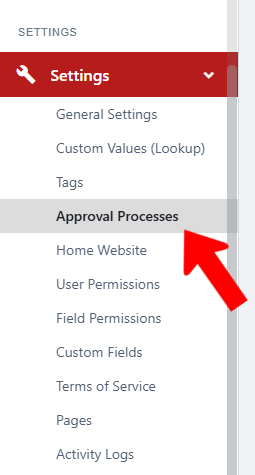
To access approval processes, switch to Admin mode if needed. Open Settings on the left, and choose Approval Processes.
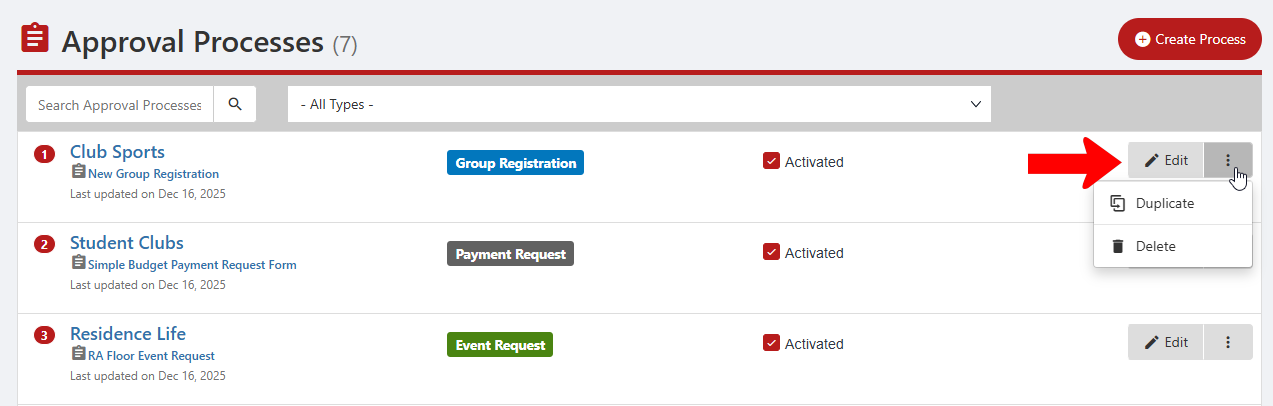
Any existing approval processes are listed here, with their type (Group Registration, Event Request, etc) and Activated box. Each process can be edited, duplicated, or deleted.
Click Create Process.

Choose the approval type (available options depend on modules purchased):
- Group Registration
- Group Re-Registration
- Event Approval
- Payment Request Approval
- Room Reservation Approval
Approval Process for Group Registration
This process is for proposed new groups proposed by users Group Types.
- Group Types: Select the Group Types for which this approval process will apply. (Group Types are Custom Values.) If none are selected, the process will apply to all group types.
- Activate group registration: If enabled, the Register button for new groups will appear on the Groups page Register button.
- Group Registration Form/ Survey: Select the approval form.
- Group Registration Form Optional Fields, Required Fields: Choose the predefined fields that users will complete for approval. (The approval form is activated after the user completes these fields.)
- Group Registration Instructions: Enter instructional text users will see when starting the approval process.
- Group Registration Start / End Date and Time: Define the period during which the approval process will be available.
- Required number of Officers, Number of Optional Officers: The number of officers required for approval. The total number from both fields cannot exceed 10, and registrants will have to list the officers as part of the approval process.
- Required Officer Positions: Select the positions required for approval. (Officer positions are Custom Values.)
- Required number of members: The minimum number of non-officer members that will need to be specified during the approval process
- Custom message sent to officers: Enter the text officers will see when their group is approved.
- Officer Approval Method: For a simple approval, choose the default Approve Button option. You can also require that officers complete a form checklist or checklist.
- Group Template: Many users create group templates Duplicating Groups, Group Templates for common types of groups (sports clubs, fraternities, etc.) Choosing a template group here means that all group settings will be taken from the template.
Approval Process for Group Re-Registration
The re-registration process is for existing groups to renew their approval each year, semester, etc.
Approval options here are similar to Group Registration with a few differences:
- Block Officer Access Until: If enabled, officers will be unable to manage their groups until the group re-registration form is either submitted or approved. Group members will still be able to access the group page, respond to forms, and RSVP to events. Non-members will still be able to join the group.
- Open Re-Registration to Non-Officers: If enabled, a user can re-register a group even if they are not a current officer.
- Approve Pending Officers: If enabled, officers will be added even if they did not yet approve their positions. (Incoming officers are sent emails requesting their approval to service as officers, with their approval granted via Approve button or via a form.)
- Remove Only Officers added through a Group Approval or Group Re-Registration: By default, when re-registration is approved, all existing officers are replaced with incoming officers. But if group officers include school staff or admins, you may not want those officers automatically removed.
Approval Process for Events
- Group Types: Select the Group Types for which this approval process will apply. (Group types are Custom Values.) If none are selected, the process will apply to all group types.
- Group Selection: Select one or more individual groups for which the approval process will apply.
Note: You can select group types and individual groups if needed. The approval process will apply to anything selected.
- Activate Event Approval: If enabled, the approval process will start now.
- Event Approval Form/ Survey: Select the appropriate approval form.
- Event Confirmation: Enter the notification text informing of approval.
- Automatically approve recurring events when the parent event is approved: If enabled, all recurring events Parent - Child Events based on an approved parent event will automatically be approved.
- Reset approval on any change made to the event: If enabled, the approval process resets after any changes are made to event settings. If disabled, changes to major fields will still trigger a reset. By default, these fields include event name, dates / times, description, and location. To change these default fields, contact your CampusGroups Customer Service Manager.
Note: Admins who are also officers of the group hosting the approval form will always be able to make changes to event settings without triggering a reset.
Approval Process for Payment Requests
This type of approval process is relevant for both simple budgets and advanced budget. When a group officer creates a payment request, they will need to complete this process, fill out the linked form, and await admin payment request approval.
- Group Types: Select the Group Types for which this approval process will apply. (Group types are Custom Values.) If none are selected, the process will apply to all group types.
- Activate Payment Request Approval: If enabled, the approval process will start now.
- Payment Request Approval Form/ Survey: Select the appropriate approval form.
- Payment Request Form Optional Fields, Required Fields: Choose the predefined fields that users will complete for approval. (The approval form is activated after the user completes these fields.)
Approval Process for Room Reservations
(Requires the CG Room Module)
This simple process enables an individual user to make a direct room reservation CG Rooms Module for a meeting, study space, etc. If the requested space is owned by a particular department, such as an interview room owned by Career Services, this approval form can be configured so that the request goes to the correct person.
If no room approval process is put in place, rooms can be booked automatically. If you do use an approval process, be sure to link a form.
Note: Adding a Binding Field question to the approval form will ensure the right person or group is notified.