.png?width=500&height=91&name=CG-Logo-Blue%20(1).png)
There are two types of attendees lists:
Attendees of a Specific Event
To view event attendees, find the event in the relevant Events list. Click the event name or its Gear icon.

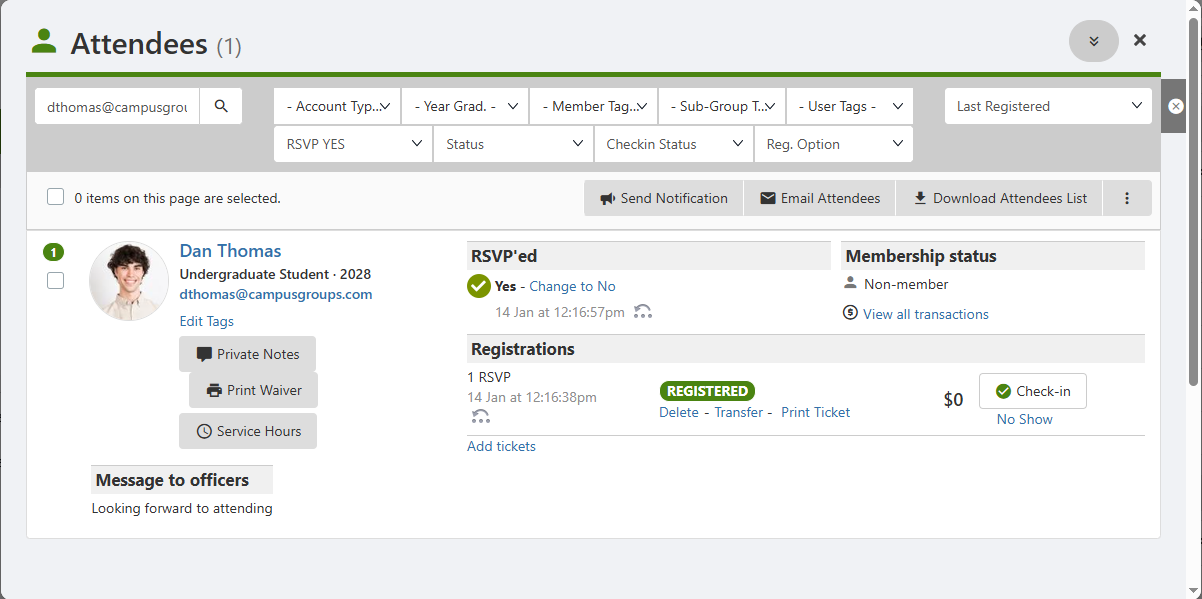
Scroll down to the Attendees list, which you can search and filter the list Event Page. This list includes all users who have registered via your Event Page.
Note: In addition to users who self-register, you can add attendees manually.
At the top of the list are options to:
- Send Notification or Email Attendees (preselect some or all recipients)
- Download Attendees List
- Click the More (three-dot) icon for options for pre-selected attendees: download waivers Tags if applicable, add or remove Member Tags, print name badges Tags, or add service hours Tags.
For each attendee you can:
- Edit their Member Tag Tags or create a new tag
- Send them a private note Assign service hours
- Print their waiver Assign service hours
- Assign service hours
- Change their RSVP from Yes to No (delete the reservation)
- Add tickets to their reservation
- Transfer their ticket to another user
- Print their ticket(s)
- View financial transactions for this event
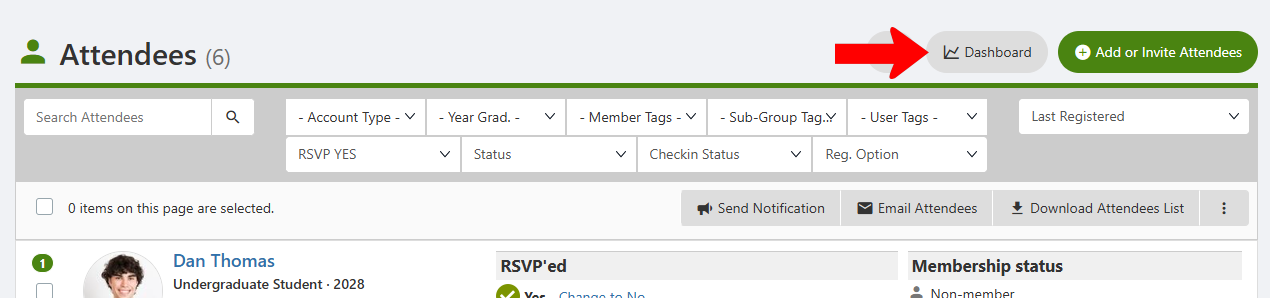
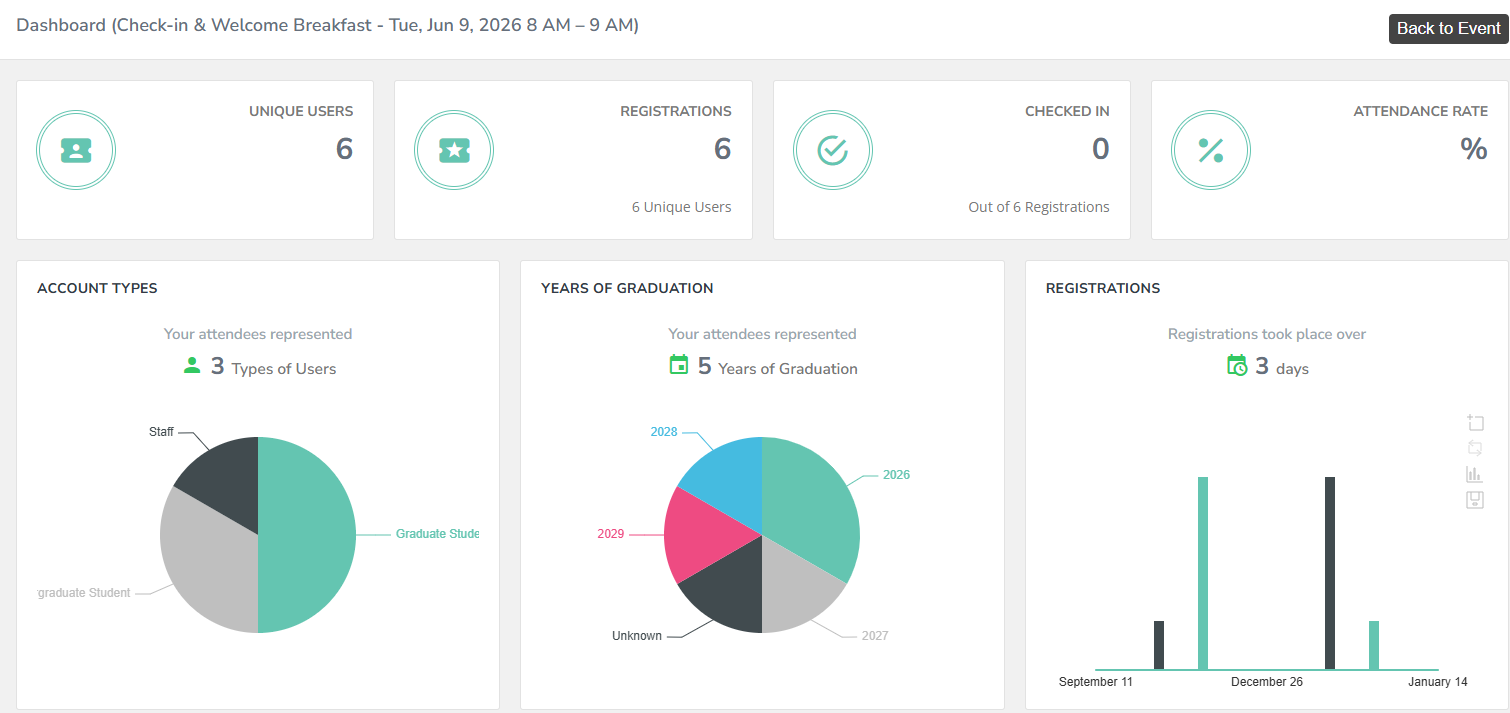
For a breakdown of registration and attendance, click Dashboard.
This presents total numbers broken into several factors including Account Type, registration time, organizer stats, check-ins and check-in methods, etc.
Attendees of Multiple Events
To see attendees lists for some or all events, open the relevant Events list and click All Events & Attendees at the top.
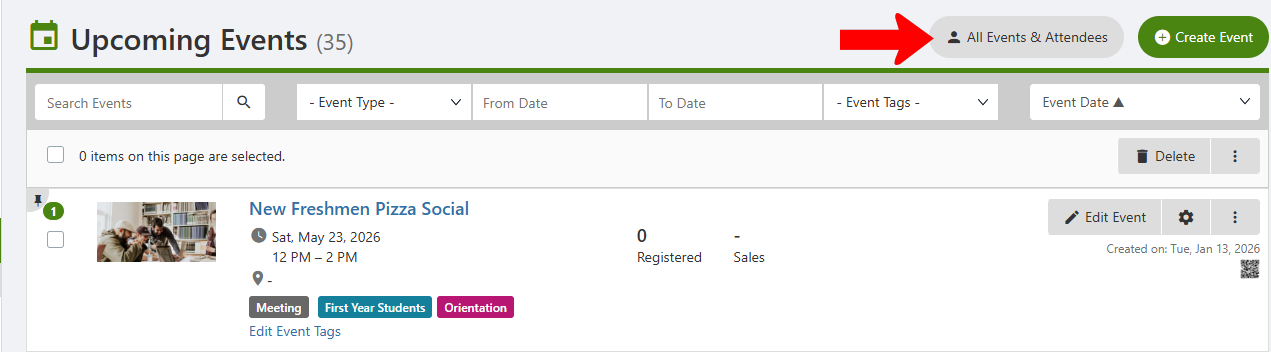
This produces a list of all events and their attendees. This list can be searched and filtered.
For pre-selected events, click Generate Report at the top for an attendee spreadsheet.
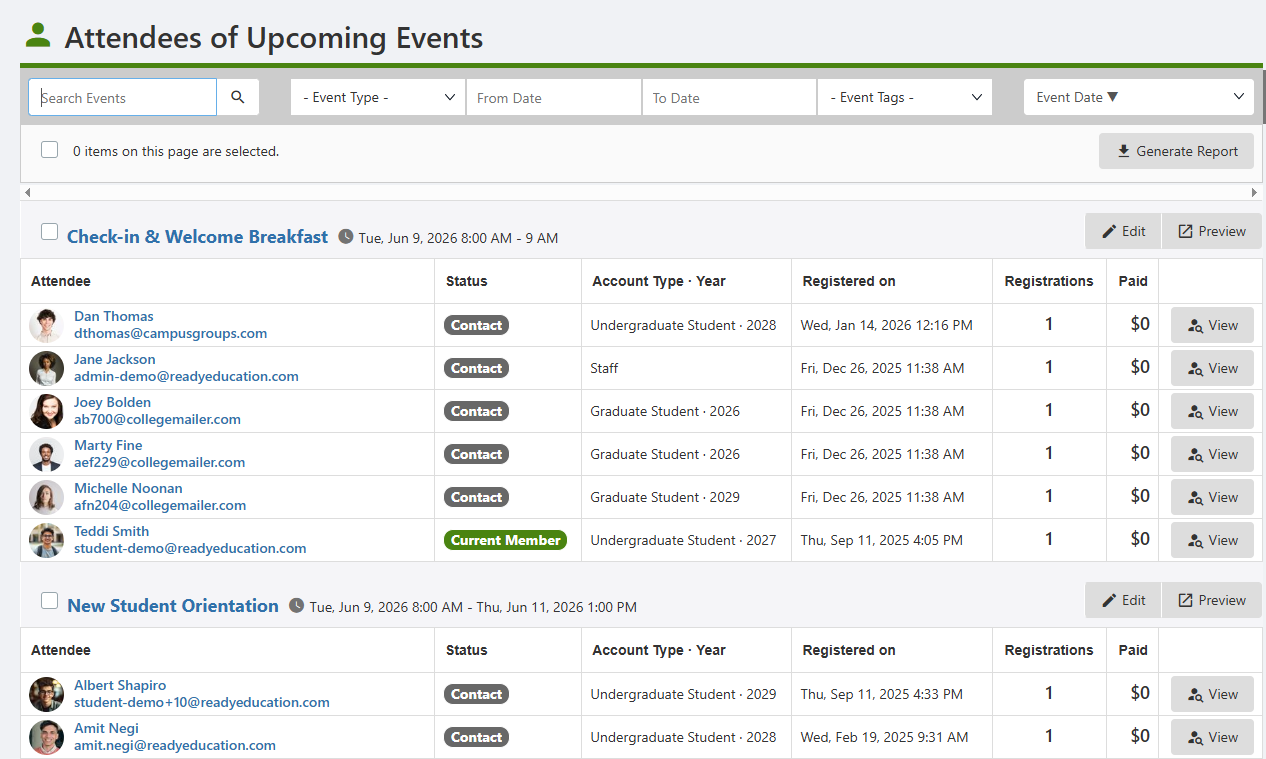
Clicking an attendee’s View button shows their details for this event. These are the same user details you would see in the attendees list for a single event.