.png?width=500&height=91&name=CG-Logo-Blue%20(1).png)
When an event needs to be canceled or rescheduled, you can update the event so people see its new status, stop new registrations, and notify everyone who already registered. If the event is canceled, you can then delete it and arrange refunds for any tickets sold.
Who can do this: Group officers who manage the event. Refunds are issued by a platform admin.
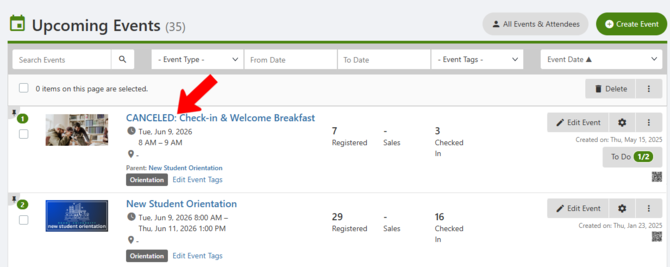
If the event has a new date or time, edit the event. In the When step, enter the updated details.
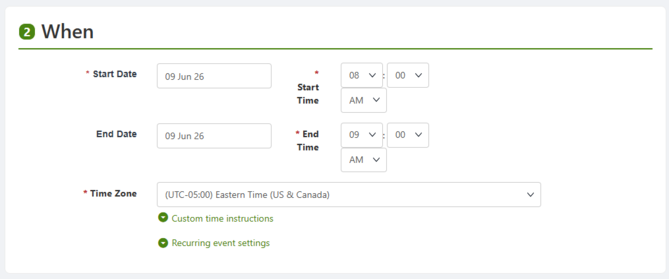
⚠️ Caution: If the event requires approval and is already approved or pending approval, changing its name, description, date, or time restarts the approval process.
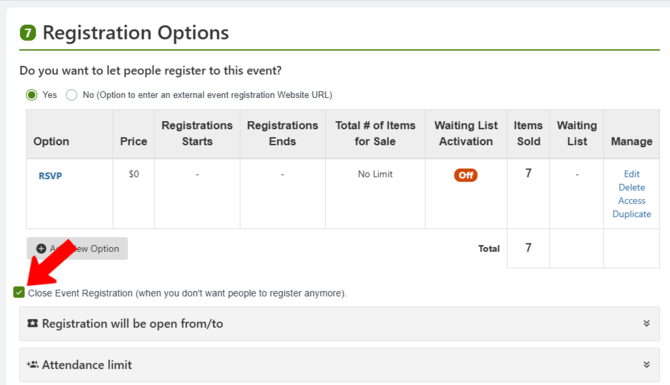
To stop new registrations, edit the event. Scroll down to Registration Options. Check Close Event Registration.
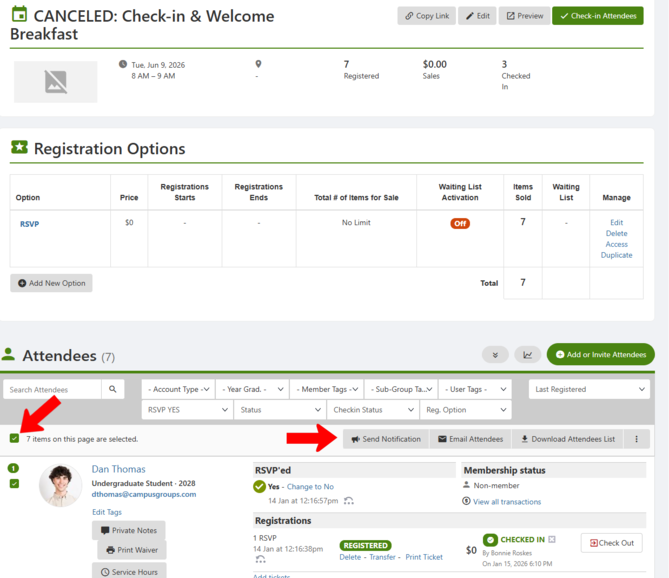
Open the Attendees list for the event. Select all attendees. Click Send Notification, Email Attendees, or both.
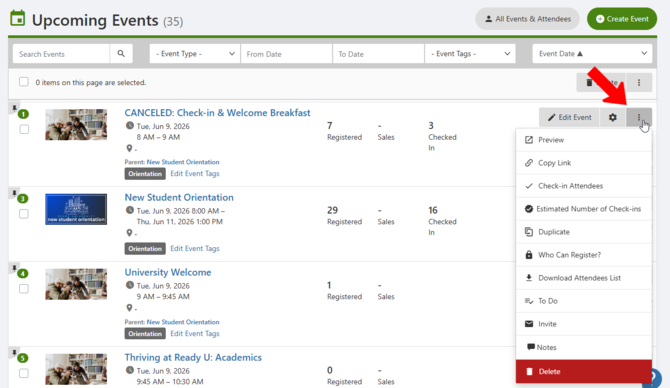
 After all attendees are notified, you can delete the event. Find the event in the Events list. Click its More button. Choose Delete.
If tickets to a canceled event were already sold, ask a platform admin to refund all tickets. For details, see refund requests.