.png?width=500&height=91&name=CG-Logo-Blue%20(1).png)
Computer check-in is one of several ways to check in attendees and track attendance. It works well when you have a staffed check-in table with a computer or laptop, so someone can record attendees as they arrive.
Who can do this: Group officers with access to the event.
Opening the check-in screen
Start from the page where you're managing your event, then click Check-in Attendees at the top.

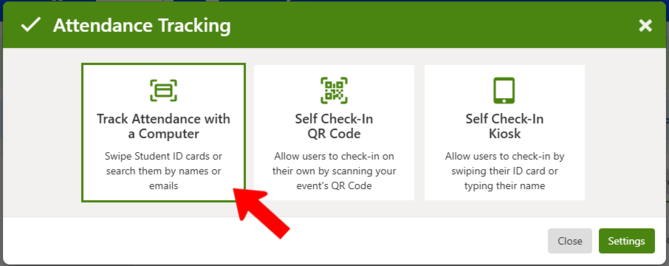
Choose Track Attendance with a Computer.
Checking in attendees
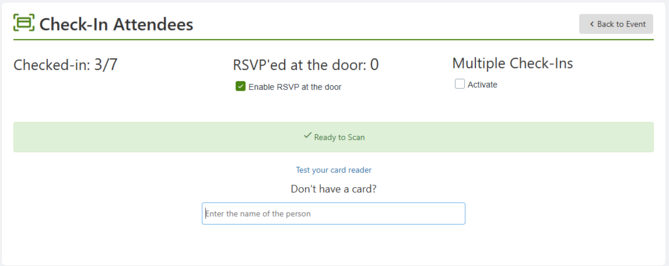
If your campus has a card reader connected, scan attendee cards here. Otherwise, enter attendee names manually to check them in.
Additional check-in options
Two settings on this screen change how check-in behaves:
- Enable RSVP at the door — lets you add attendees who didn't register in advance, so walk-ins are still recorded in your attendance data.
- Multiple Check-Ins — lets you check the same person in more than once for this event, which is what you want when an event runs across multiple sessions.
ℹ️ Note: Card scanning depends on your campus having a card reader set up. If you don't see a scanning option, use manual name entry instead.