.png?width=500&height=91&name=CG-Logo-Blue%20(1).png)
Your Co-Curricular Transcript (CCT) is a record of your campus involvement. It highlights your group memberships, leadership positions, event attendance, and more. You can choose what your CCT shows, then save it or share it to showcase your achievements.
Opening your CCT
On the CampusGroups (CG) website, open the My Activity menu. Depending on how your campus has set it up, choose one of these paths:
- My Activity > My Co-Curricular Transcript
- My Involvement > My Co-Curricular Transcript
What your CCT shows
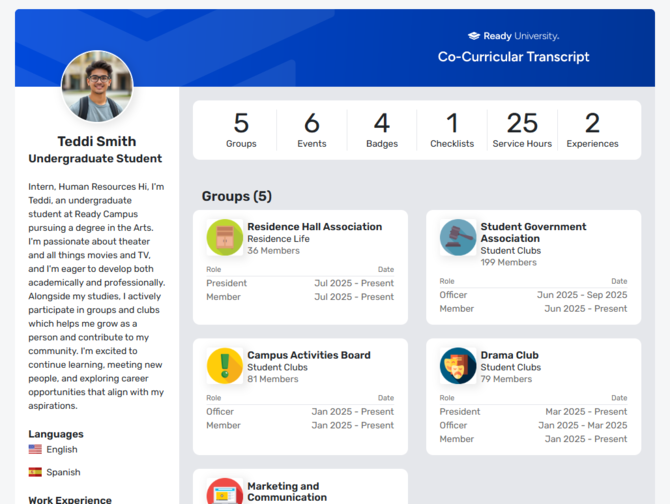
What appears in your CCT depends on the sections your campus has turned on and on your own involvement.
Your profile details appear along the left. Along the top is a summary of your groups, events, badges, checklists, service hours, and experiences.
Saving or sharing your CCT
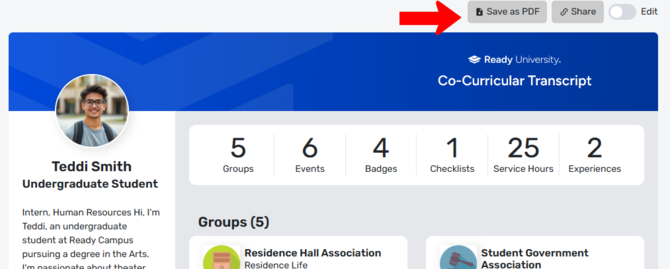
Use the options at the top of the page to save your CCT as a PDF or to get a link that shows your CCT on its own web page.
Editing your CCT
Turn on the edit slider at the top of the page.
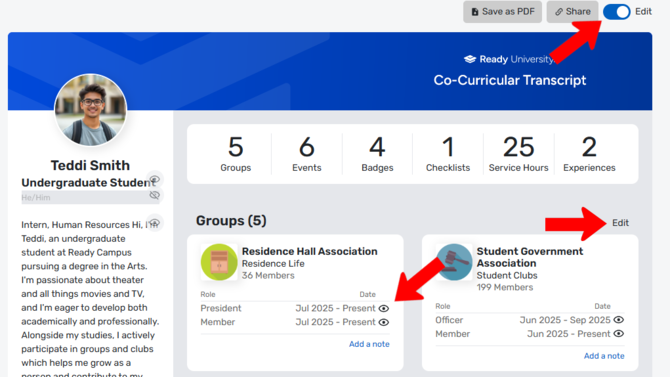
In edit mode, every section has an Edit link. Items also show a visibility icon you can use to hide them from your CCT. Optionally, add explanatory notes in sections that allow them.
Choosing which groups appear
Click Edit in the Groups section. All the groups you belong to are listed.
Choose the groups you want to appear in your CCT.
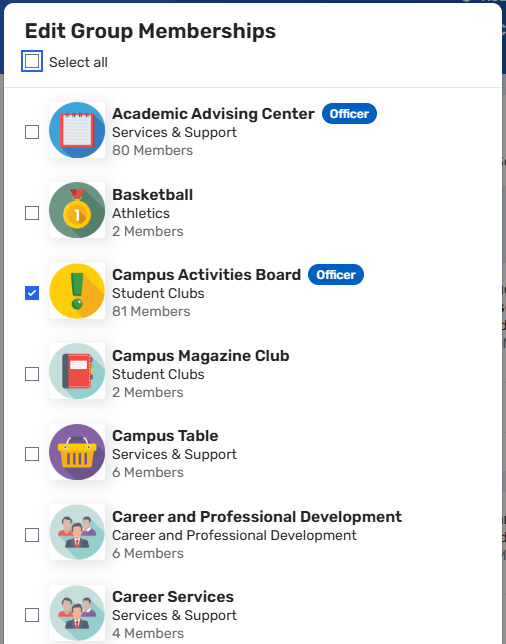
Other sections work the same way.
Adding experiences
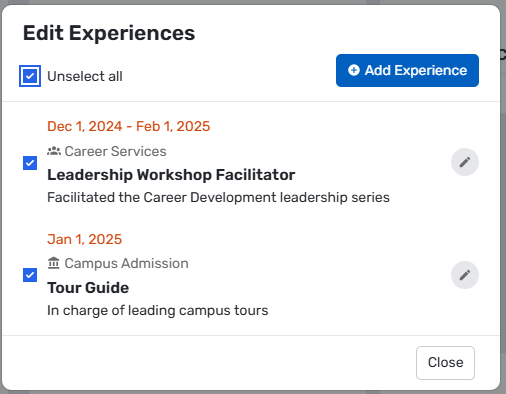
Experiences is the only section that doesn't pull in data from CG. Use it to add involvement that doesn't fit another section, such as off-campus events, department certifications, or awards.