.png?width=500&height=91&name=CG-Logo-Blue%20(1).png)
If your group is included in an advanced budget created by an admin, you will see that budget in your Accounting Book Managing the Group Budget: Accounting Book.
Unlike a simple budget, an advanced budget has a hyperlinked name. Click the link to get started.
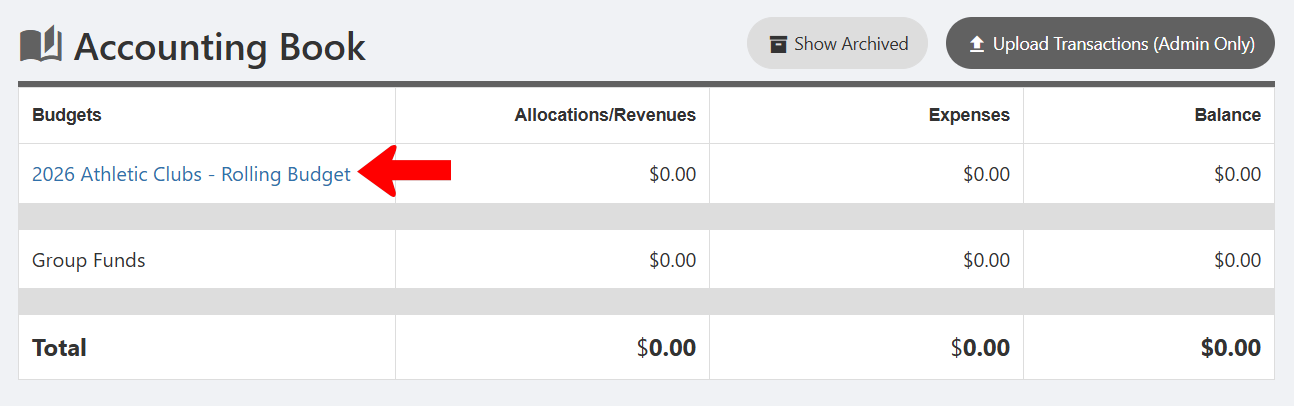
Note: You can also click Payment / Budget Request and select the advanced budget from the drop-down.
At the top of the budget page, look for any special instructions from your admin. The budget steps are listed below, and these steps can be customized by a platform admin. In this example, the first process step is Budget Submission. Click Create Budget Request.
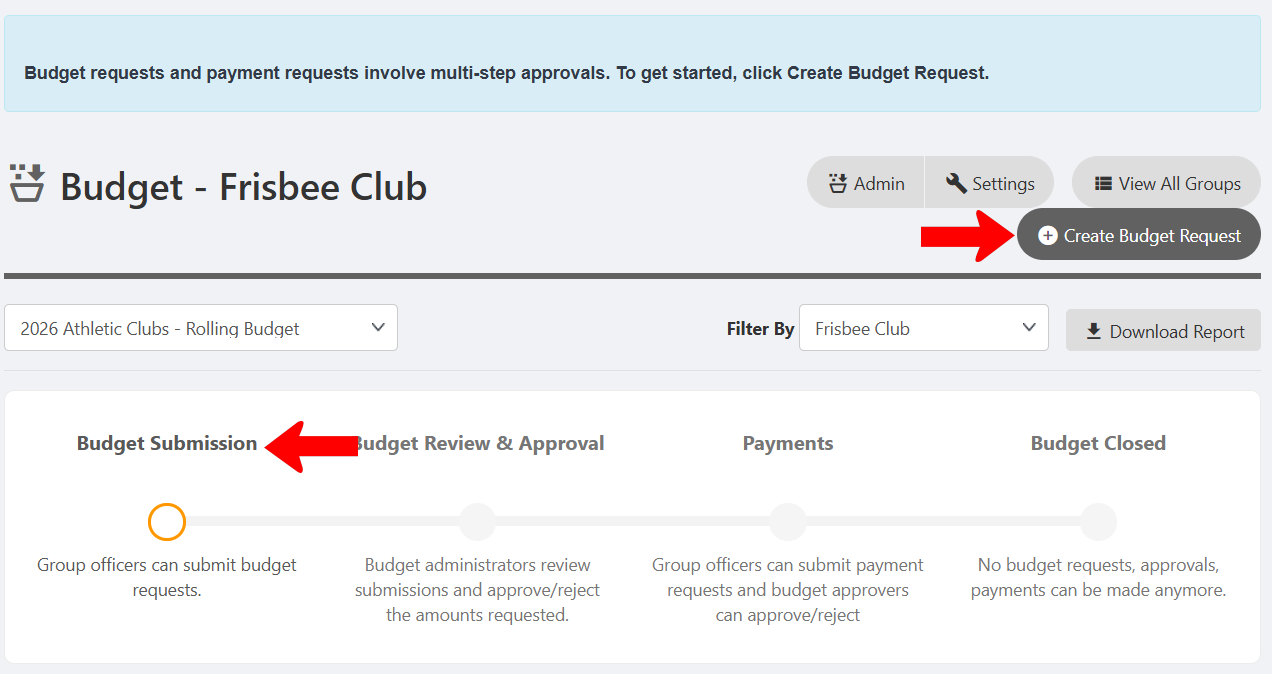
Note: The steps shown above reflect the four default budget steps. Your admin can customize a budget so that some steps are combined.
Choose the Budget Request Type, and add a title and optional description. Other fields that appear depend on what your admin has configured for this budget.
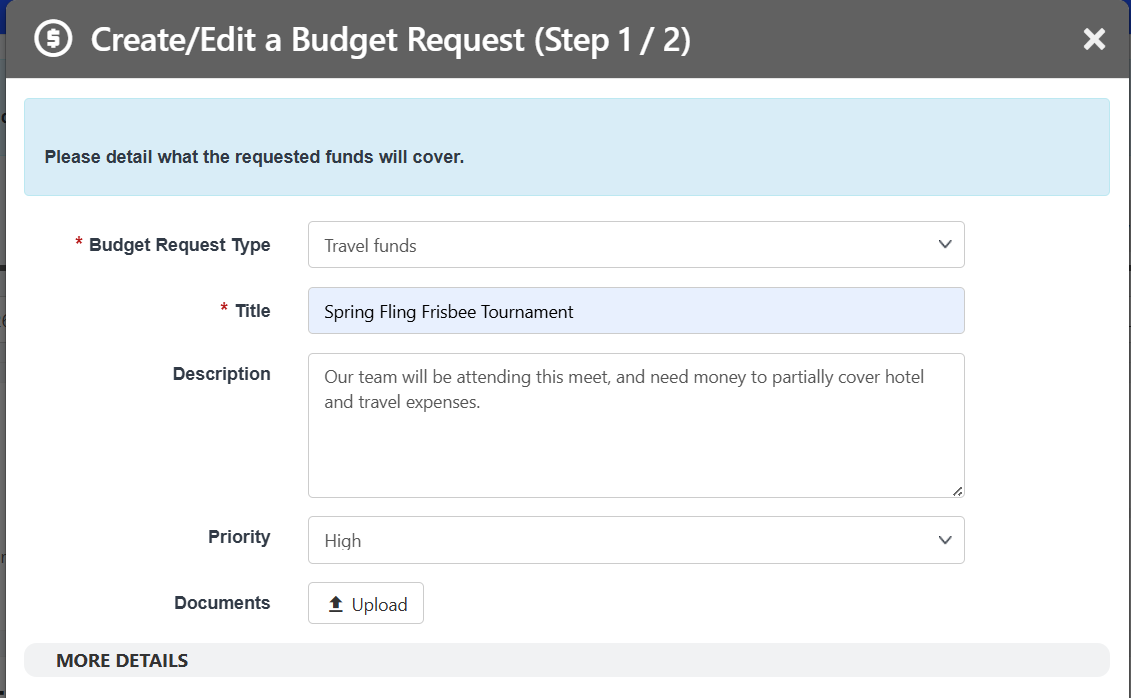
Click Next to proceed to Step 2. Enter each line item for the request, clicking Add Item as needed. If your group will be contributing any of its own funds, be sure to list those in Amount Financed by Group.
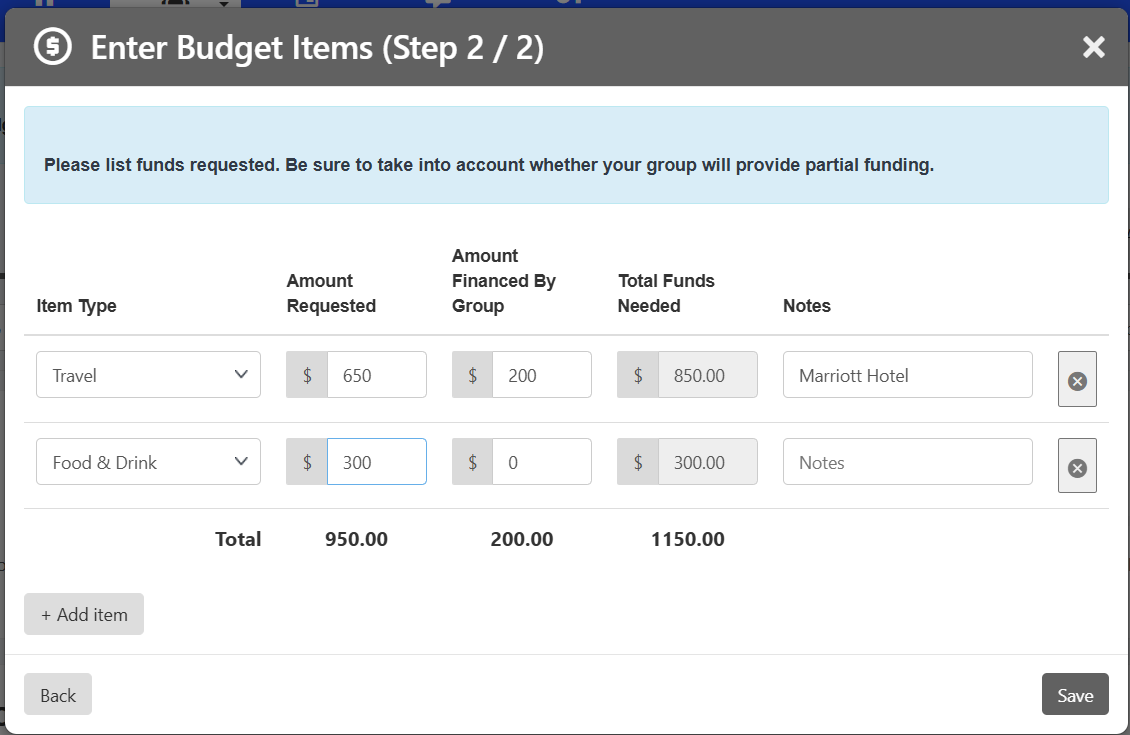
If your admin has attached an additional form for budget requests, clicking Save will open that form, which you can complete and submit. If there is no extra form, click Save and your request is complete.
The budget request is listed in the table, with running totals across the top.
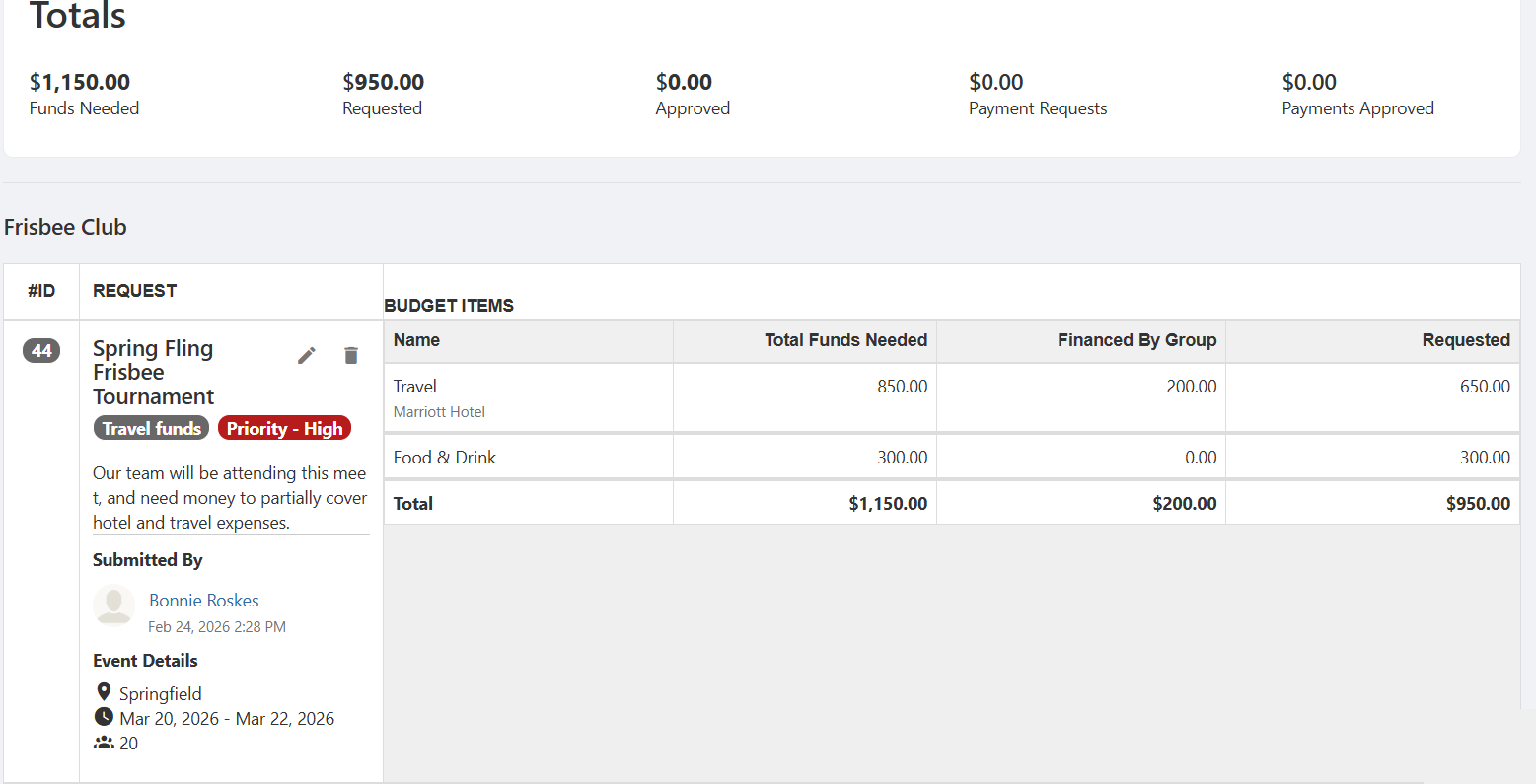
The budget request is now sent to a staff member with approval permissions. When their part is complete, you will receive a notification and can check budget status.
Your Accounting Book will list all allocations, with source, date, and approver. For details, click the budget name.
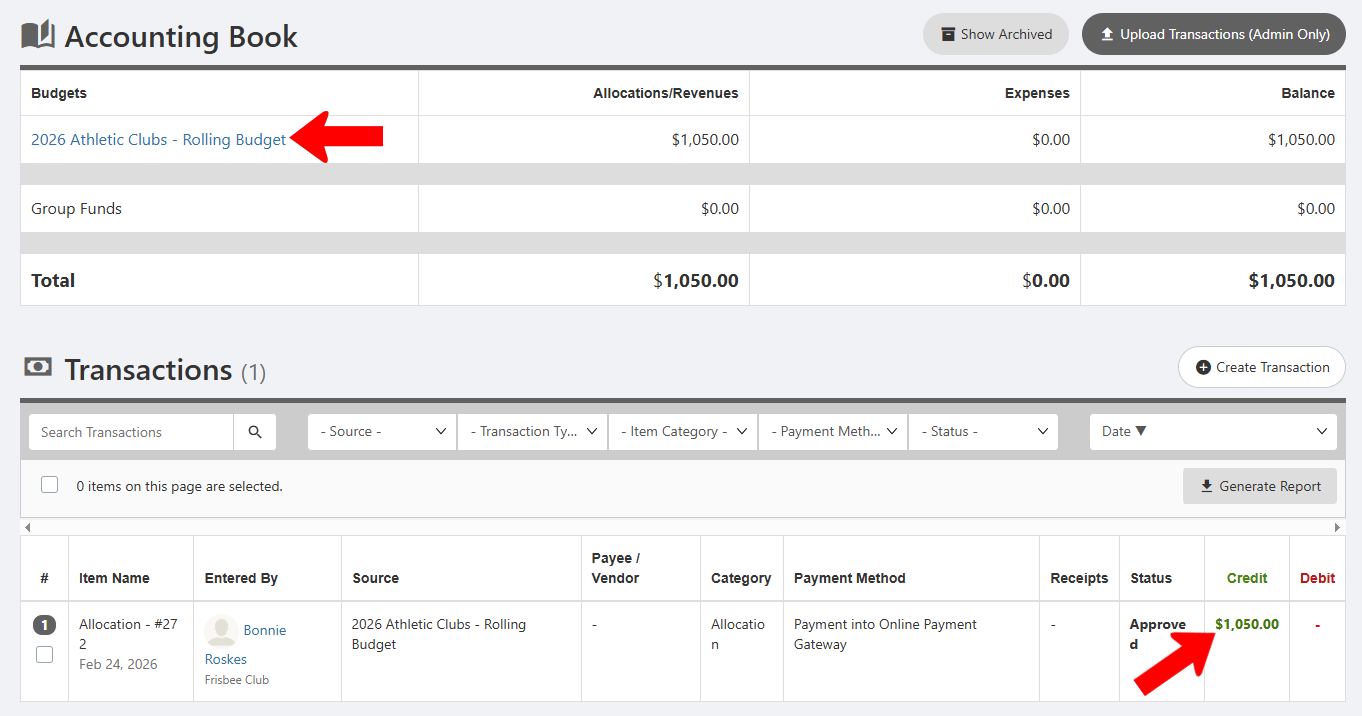
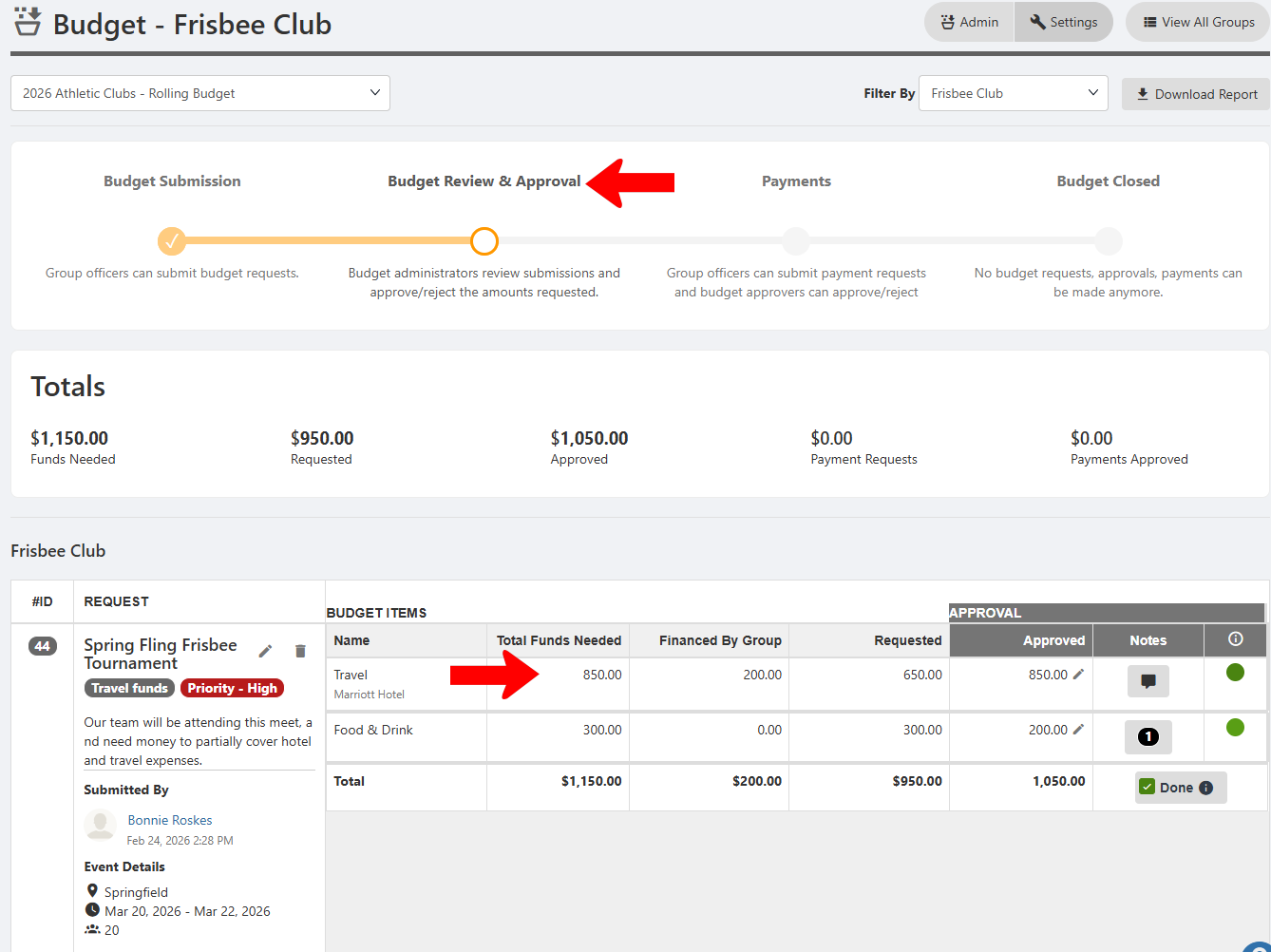
When approvers are ready to review and approve budgets, they advance the process to the next step, which is Budget Review & Approval in this example. A breakdown of line items appears below. You can view funds needed, requested, and approved.
If the full requested amount was approved, you'll see a green circle, and if a smaller amount was approved, the circle is lighter green. A line item with no funds approved will have a red circle, and pending items will be yellow. If a note was added by the approver, you’ll see the number of notes in the Notes field.
Once you have funds approved, the next step is to create a payment request Creating a Payment Request: Advanced Budget.