.png?width=500&height=91&name=CG-Logo-Blue%20(1).png)
Created as part of your Group Page Managing the Group Page, channels are group feeds. Group members and officers use channels to communicate internally on various topics, and share photos and videos.
Note: The More Options tab of the Group Settings has options for feed post notifications and digest emails. There is also an option on the Edit Page Settings popup (used when Managing the Group Page), to allow only officers to create feed posts.
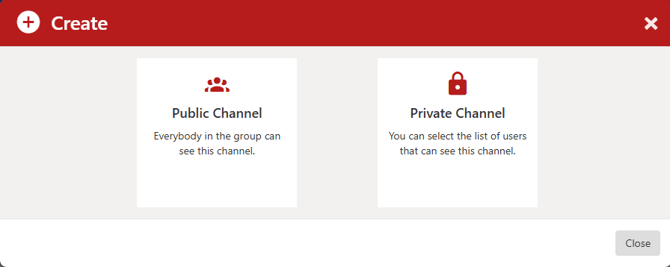
A channel can be public (open to all group members) or private (open to specific group members). Anyone can open a channel, but their view will depend on membership status.
Your account comes with one General Channel, and you can create more as needed.
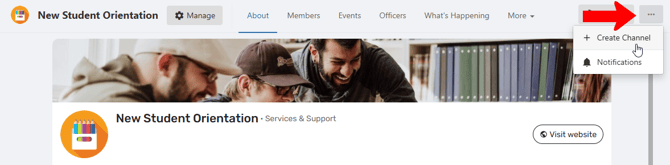
To create a channel, start by managing your group Managing Your Group, Group Dashboard, then manage the Group Page Managing the Group Page. Click the More icon at the top right and choose Create Channel.
Choose whether this channel will be public or private.
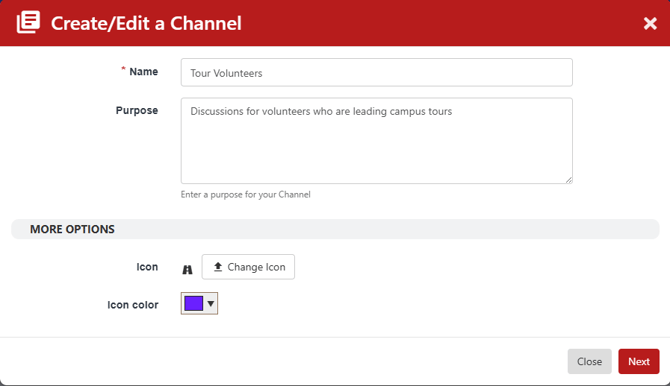
Assign a name and purpose, and choose an icon and color. For a public channel click Save; for a private channel click Next.
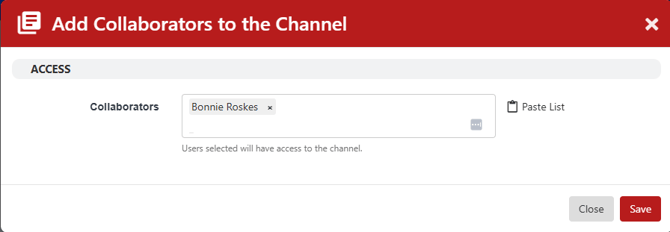
For a private channel, you can add collaborators here, or save the channel and set access criteria later during editing.
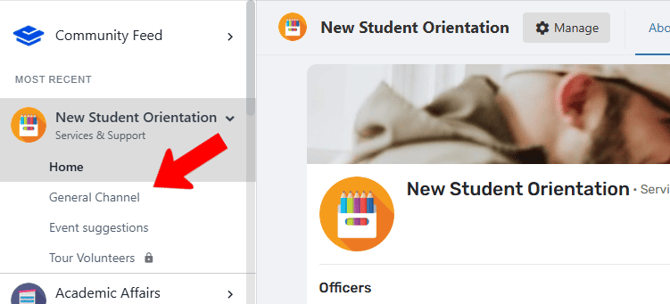
All channels will appear under the group name along the left, when managing the group page. Private channels have a Lock icon.
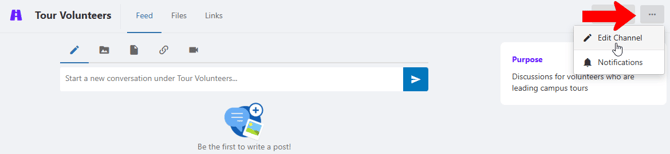
To make changes to a channel, or delete the channel, open the channel, click its More icon, and choose Edit Channel.
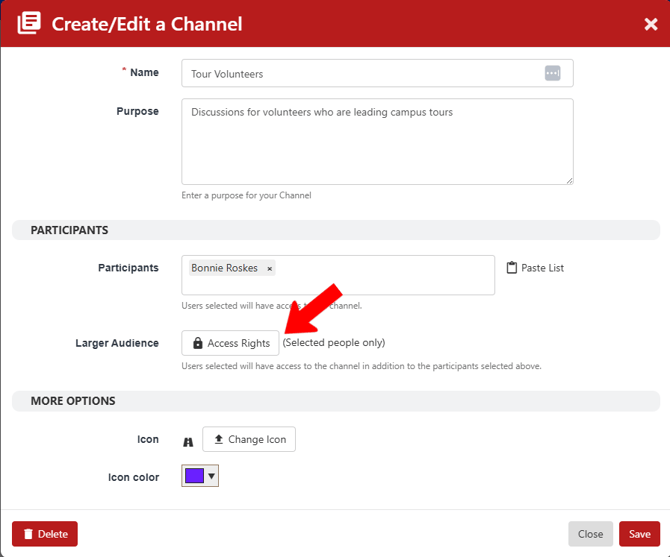
Click Access Rights Access Rights: Privacy Settings to define who can access this channel. For example, you can limit access to officers only, or to group members with specific Account Types or Sub-Group Tags, etc. This window also has a Delete option.
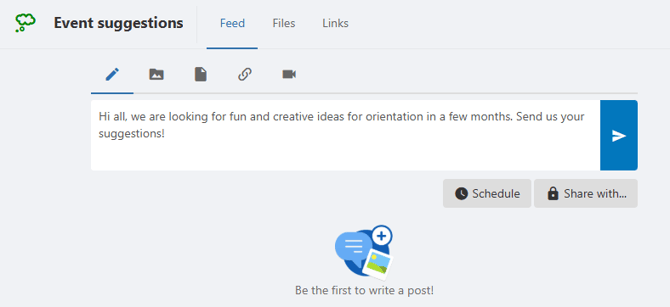
A post can contain text, images, files, links, or video. You can post right away or schedule it for later, and share your post with other groups.
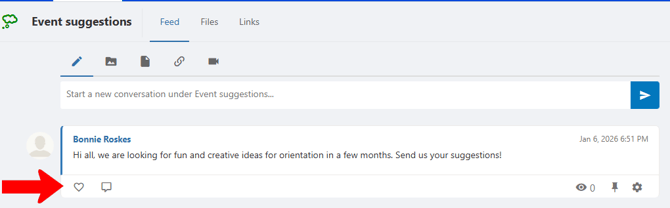
Each post has icons for like and reply, and pinned posts will appear at the top of the list. Clicking the Gear icon expands options to include Edit and Delete.