.png?width=500&height=91&name=CG-Logo-Blue%20(1).png)
A simple budget is used to allocate a fixed amount to one or more groups. Group officers can view their available funds, and submit Payment Requests against these funds.
If Group Funds Recording Group Funds are enabled, groups can also request payment against those funds, or from a combination of group funds and budget. But even when requesting only group funds, groups still need to choose a budget even if the requested amount is zero. Therefore, we recommend that admins create a placeholder Simple Budget for this purpose.
Notes: Before payment requests can be submitted, you will need to have Payment Request Approval Processes in place for the groups included in the budget.
To get started, start in your Budgets List Managing Budgets: Budgets List and click Create Budget.

The budget name typically includes year and money source. Choose Simple for Budget Type.
Other required fields include Budget start date and Budget archive date, defining the period during which group officers can see this budget item and make payment requests.
Total school allocation is the total amount to be allocated across all designated groups. This value serves as a counter, drawing down with each individual group allocation. (If this value needs to be updated later, you can edit the simple budget after it is created.)
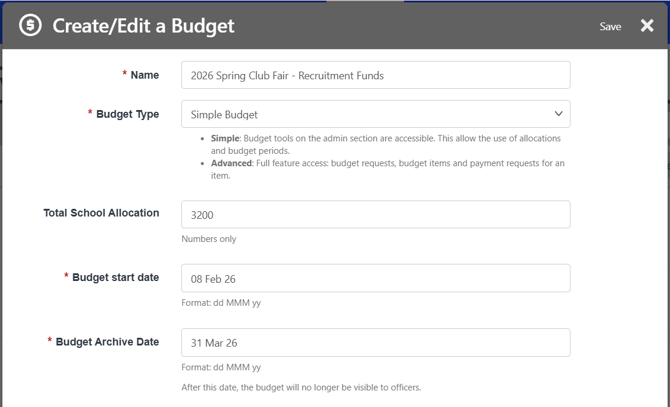
Other fields included:
- Allowed Group Types and Groups Selection: Define the group(s) that can access the budget. If you choose one or more Group Types, all groups of this type will have access. (Group Types are configured in Custom Values, and each group belongs to one Group Type.)
- Budget Administrators: Relevant for Advanced Budgets Custom Values
- Budget Request Fields / Mandatory Fields: Choose the required and optional fields that group officers will complete when making payment requests. (Note that event-related fields are not linked to events created in the platform.)
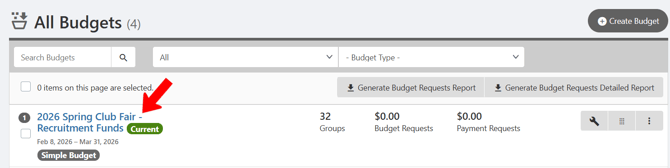
The new budget appears in the list, with available dates, the number of groups included in the budget, budget request amounts, and payment request amounts. To allocate funds to groups, click the budget name.
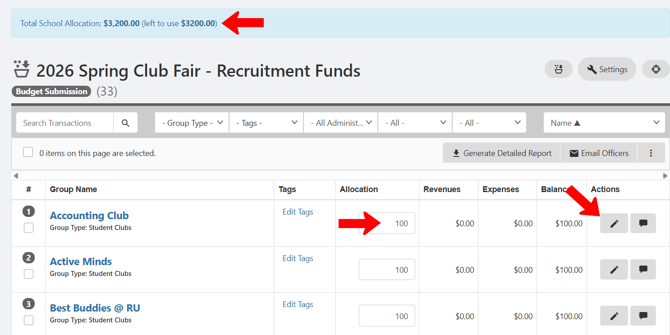
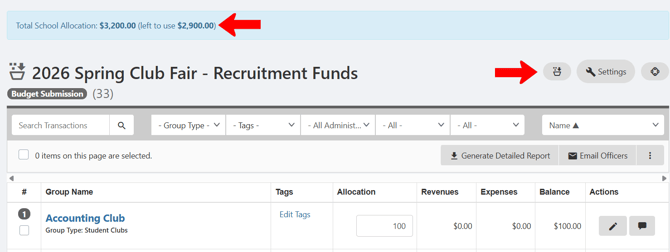
The total remaining allocation appears at the top, and all groups included in this budget are listed below. Enter the amount allocated to each group. Amounts do not have to be equal, do not have to be filled in all at once, and can be adjusted as group needs change.
Each allocation has two Actions icons. The Edit icon is a deprecated feature, and the Note icon can be used to add a private note to the budget admin.
The group list can be searched or filtered Managing Budgets: Budgets List. For example, you can filter to see groups whose budgets are not yet created, or groups assigned to a specific budget admin.
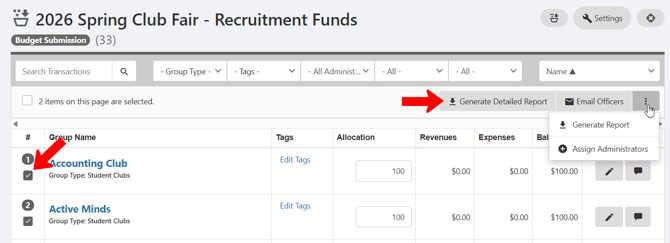
When one or more groups are selected, you can generate a report or email group officers send an email to group officers.
As funds are allocated to groups, the remaining total adjusts accordingly. Along the right are icons to return to the Budgets list Managing Budgets: Budgets List, edit the budget, and view budget steps (relevant for Advanced Budgets Creating an Advanced Budget.
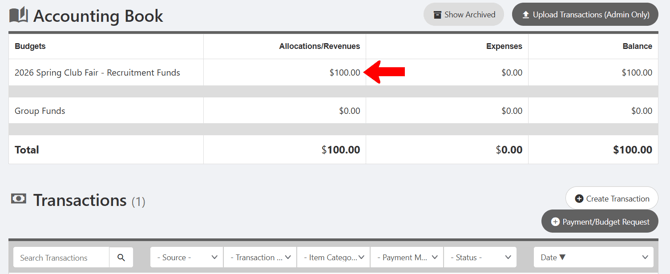
Clicking a group name opens the group’s Accounting Book Managing the Group Budget: Accounting Book, showing the allocated funds. This is the same page that group officers will see, where they will create payment requests.