.png?width=500&height=91&name=CG-Logo-Blue%20(1).png)
For forms that require multiple approval steps Creating an Approval Workflow, you must first create an approval workflow, then link that workflow to your form.
This article will walk through the process of creating a relatively simple, two-step approval workflow.
The scenario:
- The Biking Club wants to use a form to collect suggestions from members for an upcoming bike trip. Submissions will include trip location and cost.
- The approval workflow will have two steps: first treasurer approval, then president approval.
Setting up the workflow requires three steps:
Once a workflow is linked to a form, the approval process will be triggered for each submission, starting from workflow Step 1 (treasurer approval).
Note: If you want to trigger different workflow steps depending on how form questions are answered, you can apply workflow logic Workflow Logic Example.
Step 1: Create Workflow Teams
Each workflow step needs to be assigned to one or more workflow teams, so setting up teams is the first step.
Note: Each user named in a workflow team can access their approval step in My Activity / My Workflows.
In this example, two workflow teams are needed, for:
- Approval from the treasurer
- Approval from the president
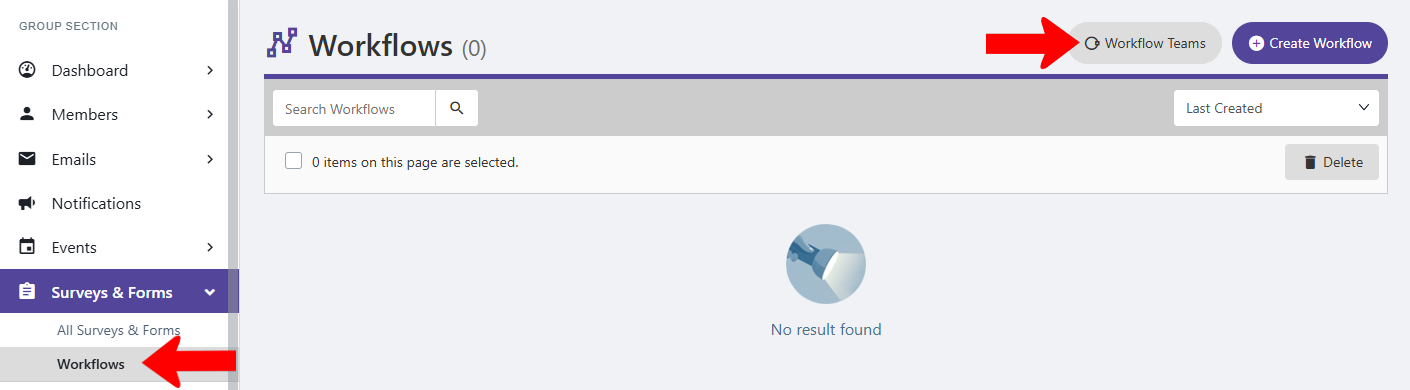
To get started, manage your group, open Surveys & Forms along the left, and open Workflows. Click Workflow Teams.
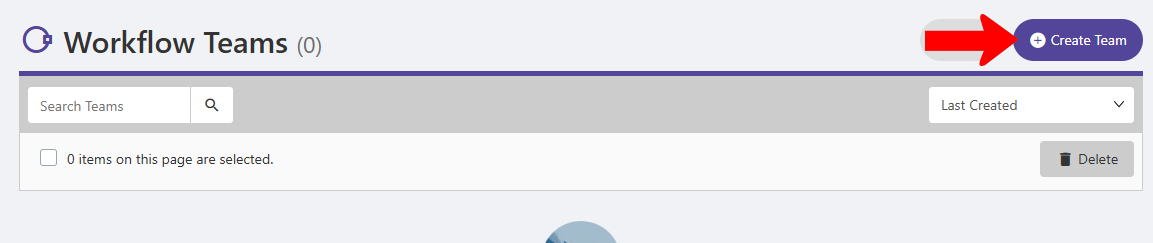
Click Create Team.
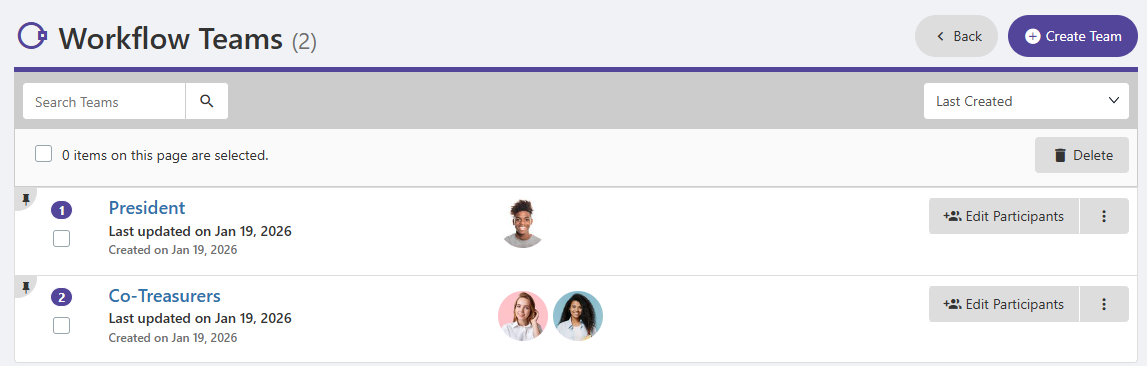
Once the two teams are created (President and Co-Treasurers), click Edit Participants for each.
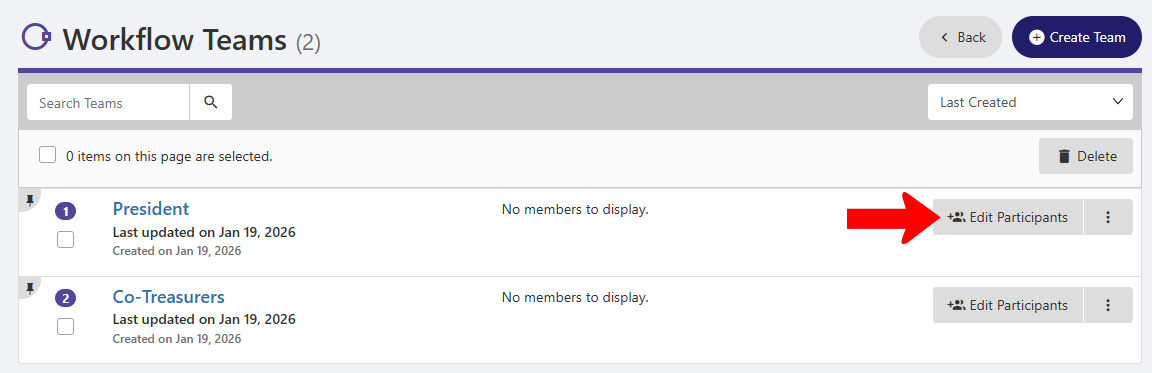
Add the correct people to their teams. In this example, there are two co-treasurers.
Note: Rather than assign specific users to a workflow team, you can also create dynamic workflow teams Dynamic Workflow Teams: Dynamic User. These teams populate with users based on officer role, so they can automatically adjust each semester / year if needed.
Step 2: Create the Workflow
Now that the workflow teams are established, you can create the workflow itself.
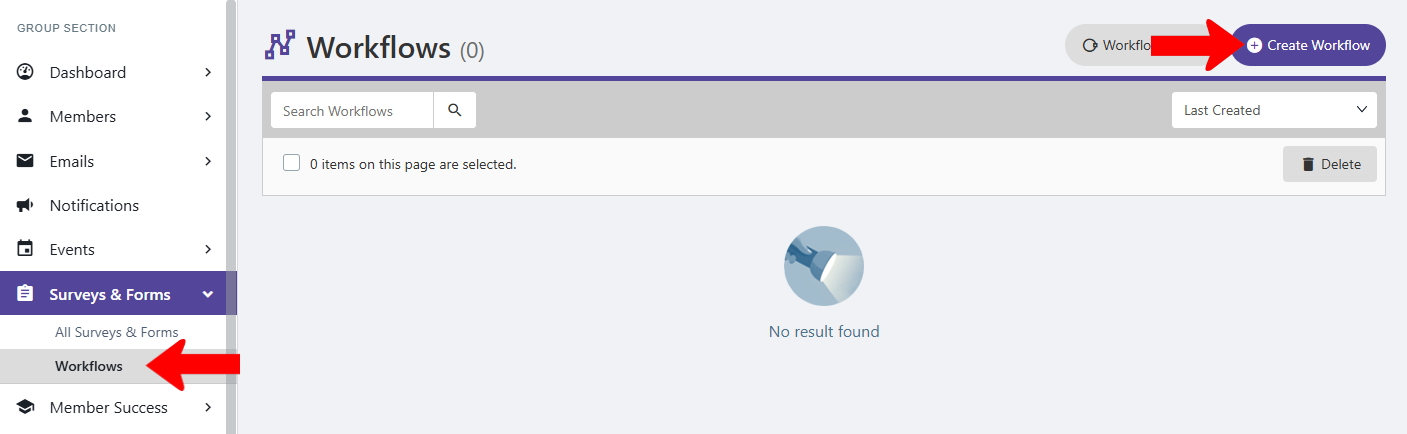
Open Workflows on the left, and click Create Workflow.
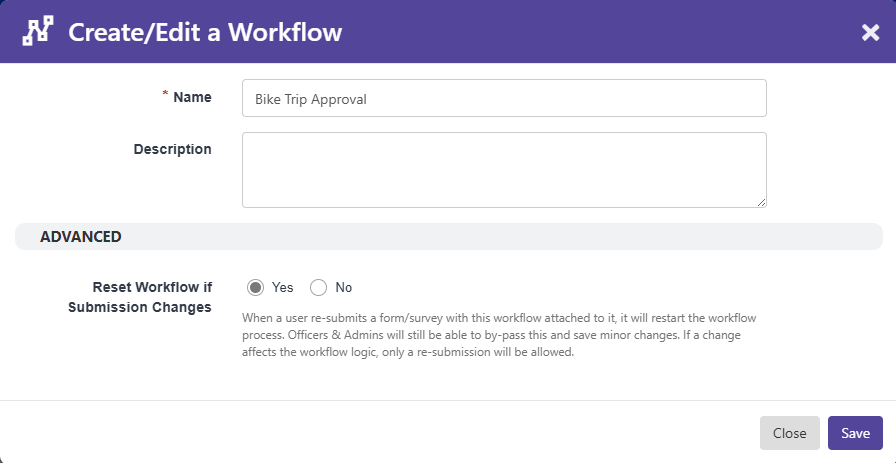
Assign a workflow name, which is “Bike Trip Approval” in this example.
If Reset Workflow if Submission Changes is set to Yes, then when a user changes their form submission, the approval process will start from the beginning. (We recommend enabling this setting for approvals involving money, such as a events and payments requests.)
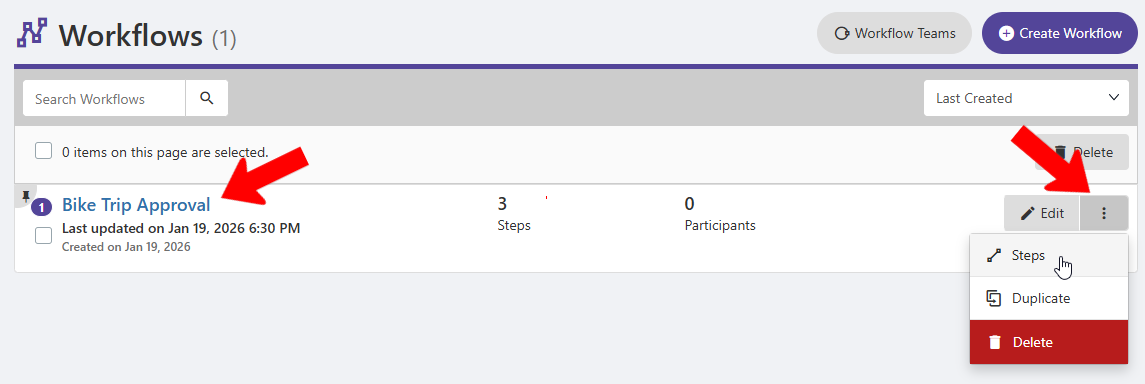
To create workflow steps, click either the workflow name, or click its More icon and choose Steps.
By default, each workflow has three generic steps. In this example, only two steps are needed: one for treasurer approval, one for president approval. Steps should be listed in the correct workflow order.
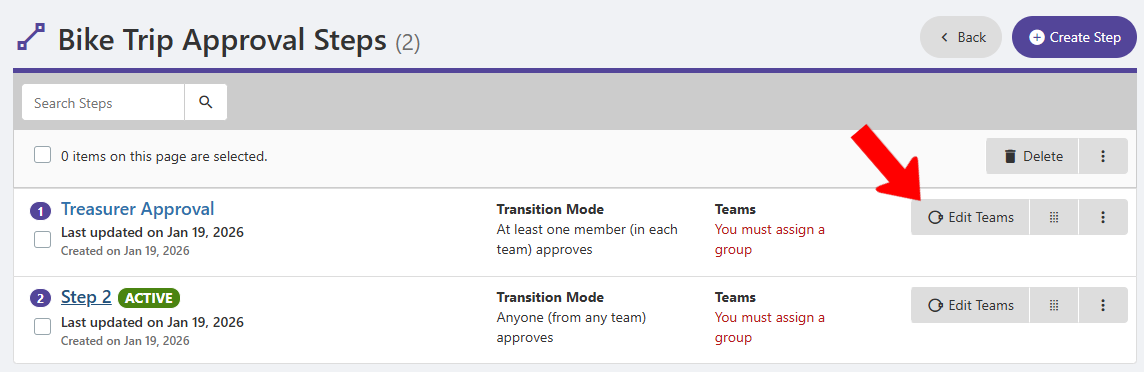
To rename each step, click its name.
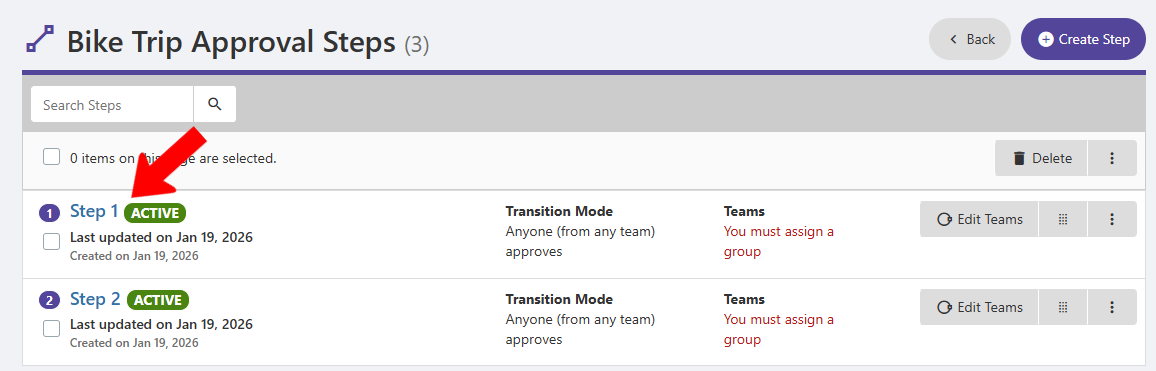
To assign a workflow team to a step, click Edit Teams.
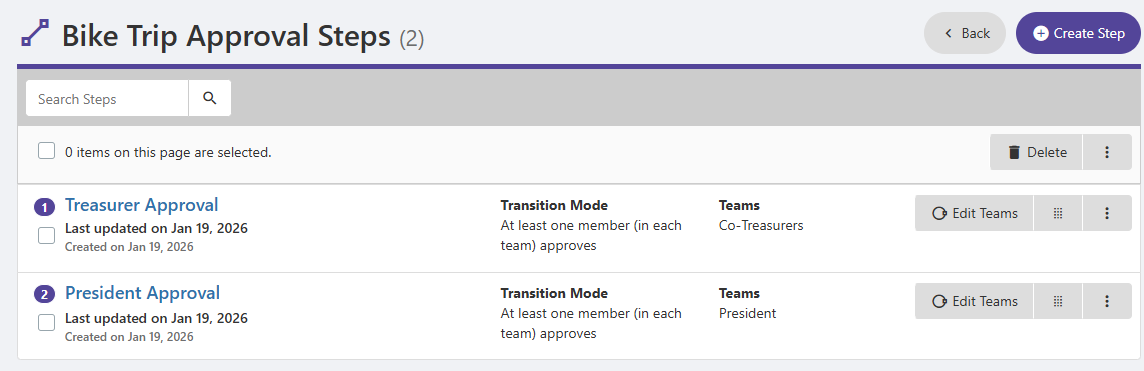
For Step 1, which is treasurer approval, the Co-Treasurers team is added to the step.
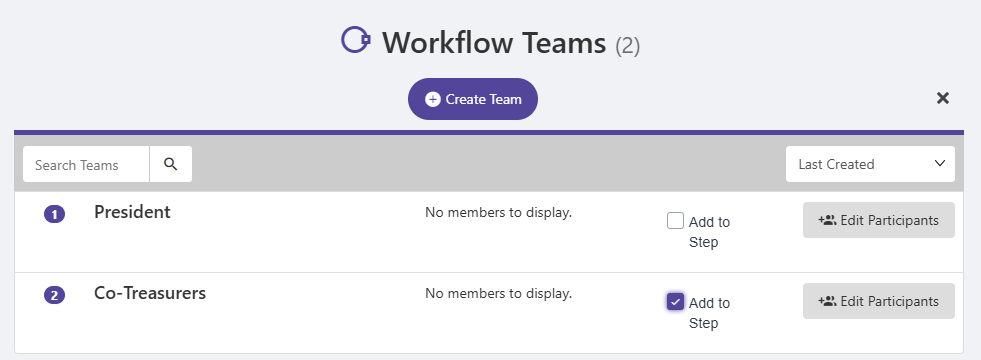
Note: Multiple teams can be added to a workflow step if needed. For example, if either the president or treasurer can approve a step, both teams can be added.
To define what happens during a workflow step, click its name.
The Transition field defines who from the selected workflow team(s) does the approving. There are various configurations for Transitions, in which you can require everyone in all teams to approve, anyone from any team, at least one member from each team, etc.
In this example, the Treasurer Approval step is performed by the Co-Treasurers workflow team, which has two people. The setting “At least one member in each team approves” means that either co-treasurer can approve.
Activate by default should be enabled for every step.
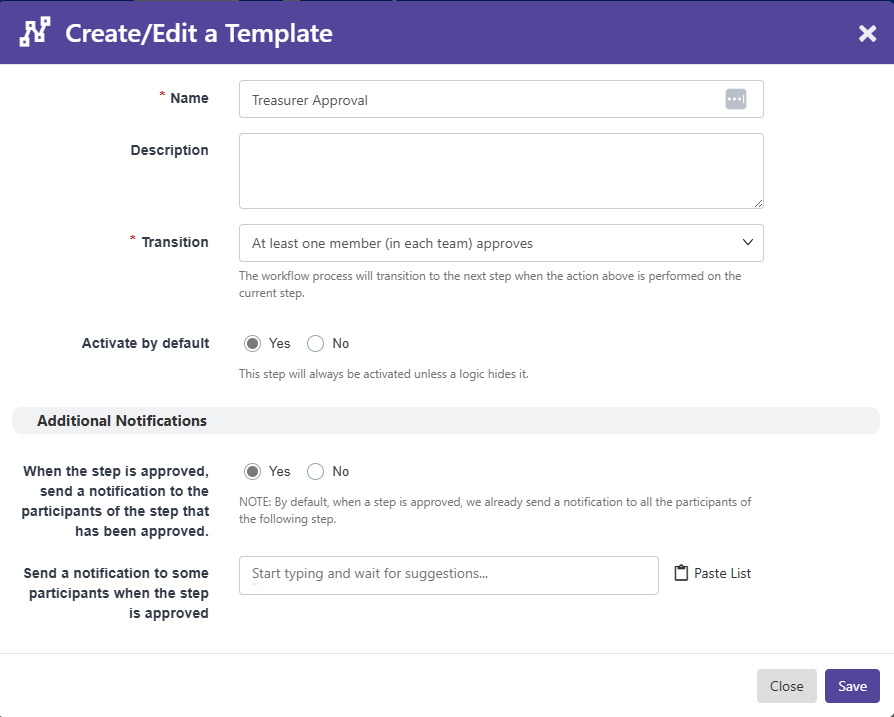
Note: Turning off Activate by default means the step will be skipped, which you might do when applying workflow logic Workflow Logic Example.
After the President Approval step is added, both approval steps are listed, with their chosen transition mode and team.
Step 3: Link the Workflow to a Form
Now that the workflow is ready, you can create the form Surveys and Forms List, or edit the form from the Surveys & Forms list Surveys and Forms List.
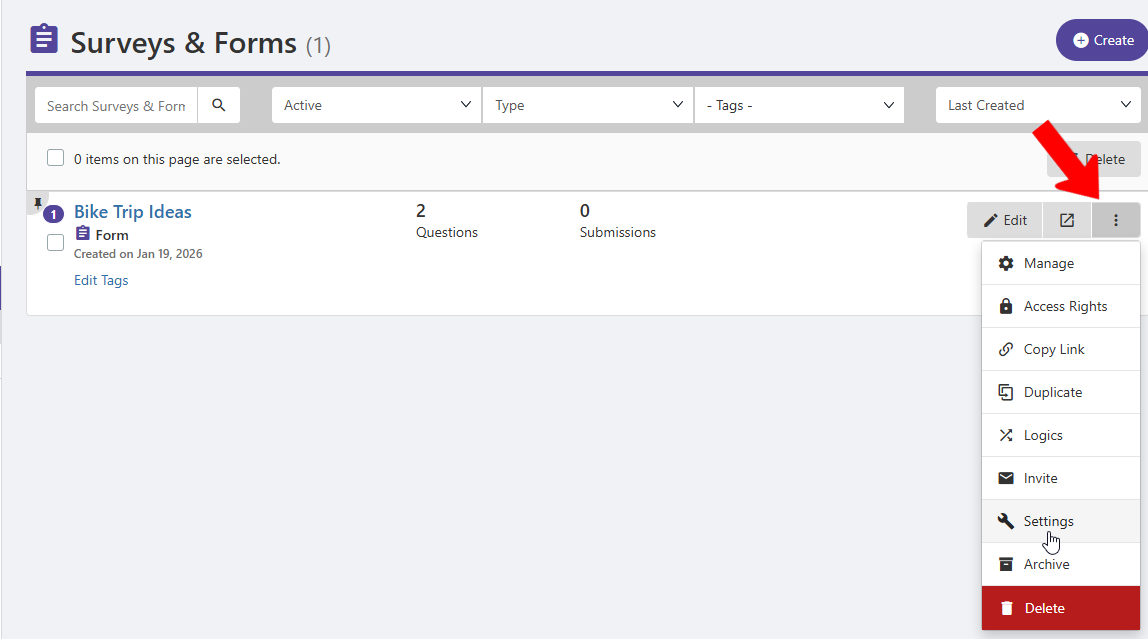
Click the form’s More icon and choose Settings.
On the Basic Information tab of the Settings, choose the workflow created in the previous step.
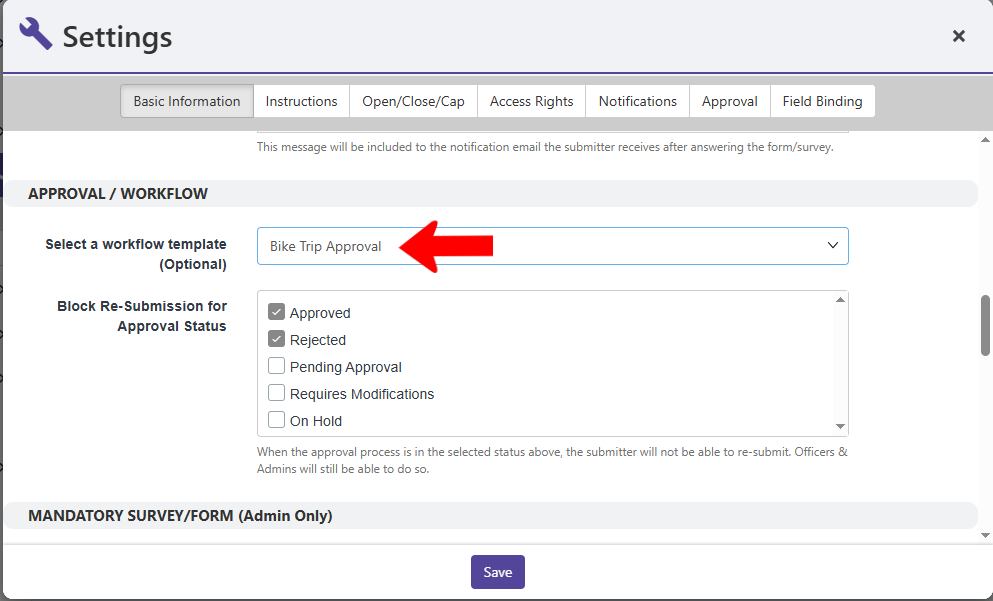
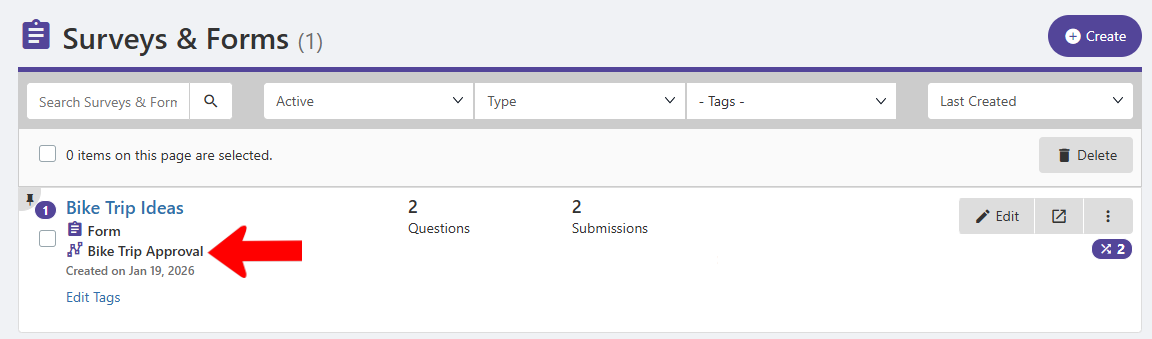
Once a workflow is linked to a form, it will be listed in the Surveys & Forms list.