.png?width=500&height=91&name=CG-Logo-Blue%20(1).png)
The Inventory feature enables officers to create an equipment list of items owned by the group. You can also control check-in and check-out for those items check-in and check-out, either manually or via QR code.
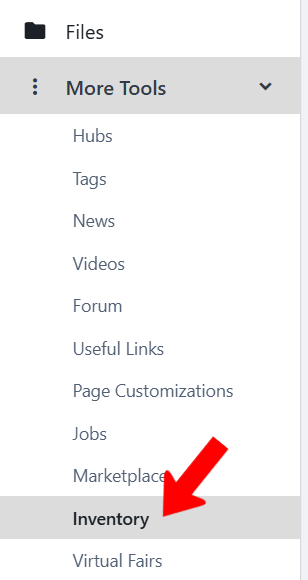
To access the inventory feature, start by managing your group Managing Inventory, open More Tools along the left, and click Inventory.
To add a piece of equipment, click Create.

Note: If you have a list of items, click Upload Equipment. Download the template file, read the instructions, fill in and save the file, then upload.
Assign a name and description and upload a photo (optional). The options for Equipment Type are configured by an admin in Custom Values. Each item must be listed as Functional or Broken.
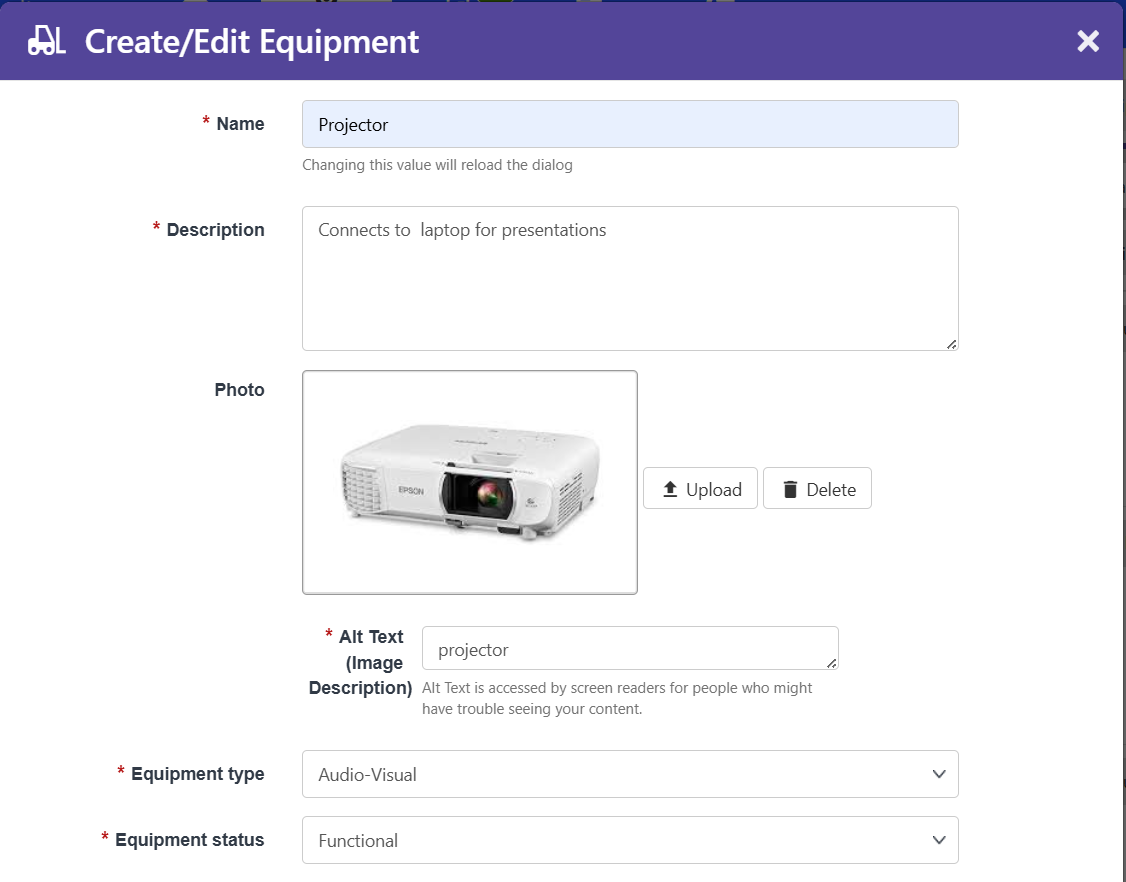
Other options include first and second reminder times for check-in, and Barcode. If no barcode is entered, the platform will generate one.
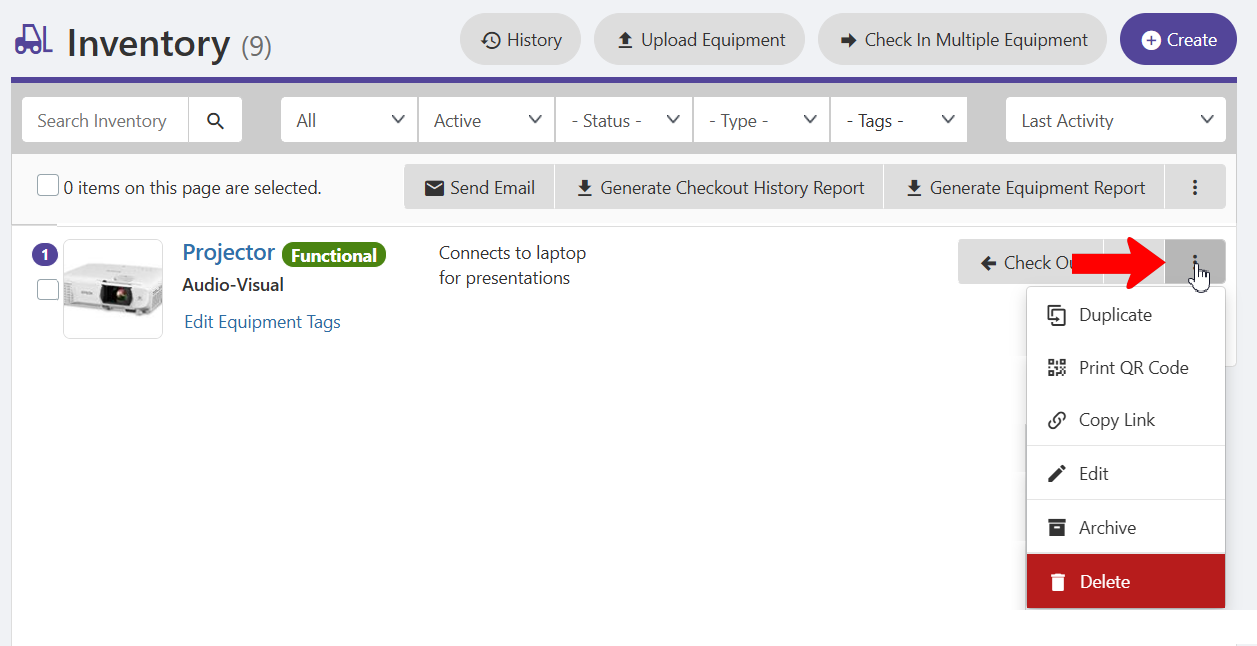
Each piece of equipment can have added Tags, and clicking the More icon opens options to duplicate, print QR code, copy link, edit, archive, or delete the equipment.
Officers can manage inventory check-in and check-out Self Check-in via QR Code.