.png?width=500&height=91&name=CG-Logo-Blue%20(1).png)
Custom Values are values that are assigned to various items throughout the platform, such as users and events.
As an example, there are multiple Event Types.
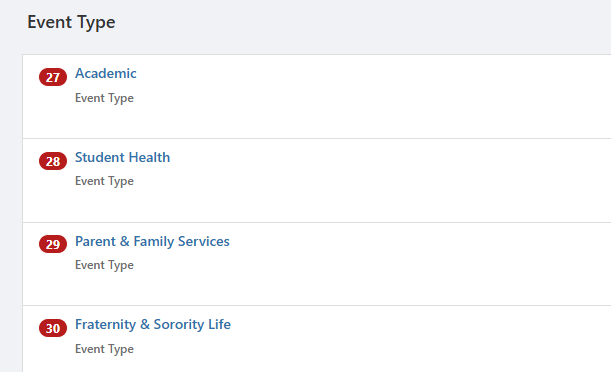
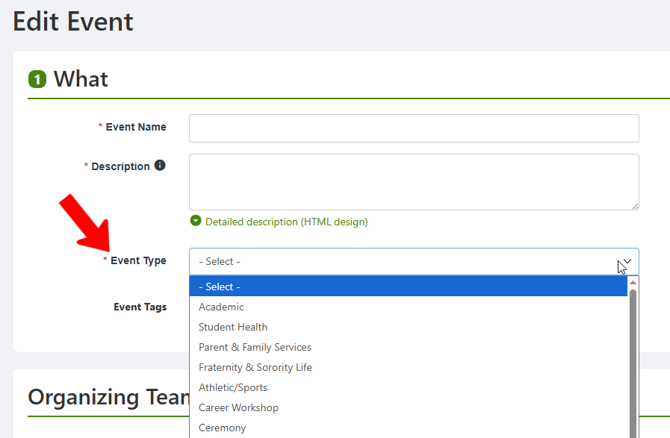
When an officer or admin creates an event Custom Values, they have to choose the type from the Event Type list. (While similar to Tags, only one Custom Value can be assigned to an item, whereas multiple tags can be applied.)
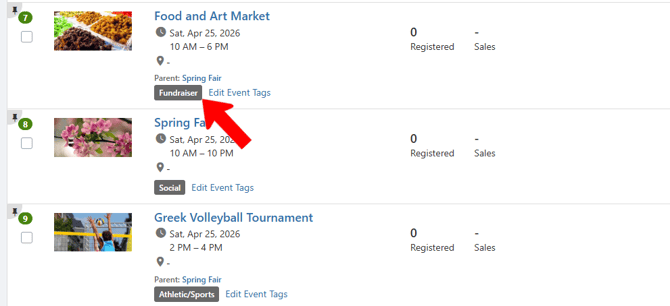
The selected Custom Value appears in the Events lists, and elsewhere throughout the platform.
Only admins can create Custom Values, configuring them to reflect their campus nomenclature and needs. Admins can also assign Custom Values, and some Custom Values can also be assigned by group officers with the right permissions. Many Custom Values are accessible only to admins, while others can be viewed by users and officers.
Note: Most popular Custom Values are pre-populated with a set of default values. But admins can change all values as needed.
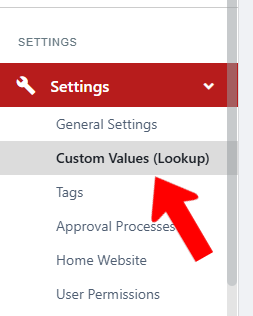
To access custom values, switch to Admin mode Accessing Admin Features if needed. Open Settings on the left, and choose Custom Values.
The most commonly used custom values include:
- Account Type: Used to determine the user experience, and how that user will behave within the platform. Examples: Undergraduates, Part-Time Students, Alumni. (Each Account Type is linked to a User Type User Types.)
- Group Type: Used to assign processes and permissions, such as group registration process or event approval. Examples: Professional Development, Greek Life, Club Sports, Parents & Families. (Each group type must be defined as a group or department Groups and Departments.)
- Event Type: Used to classify events. Examples: Ceremony, Workshop, Cultural, Community Service, Fundraiser, Dinner.
- Officer Positions: When a user is assigned to be an officer of a group Member and Officer Positions, they are assigned a position. Examples: President, Vice-President, Treasurer, Advisor.
Note: To enable additional officer administrative roles, please reach out to your CampusGroups Client Success Manager.
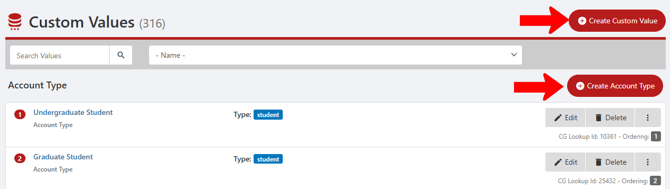
To create a custom value, click Create Custom Value at the top, or find the custom value type and click its Create button.
The Custom Values popup fields depend on the type of custom value. For Account type, for example, Value is the name of the custom value, and Type is the User Type User Types, Account Types, User Tags, and Hubs.
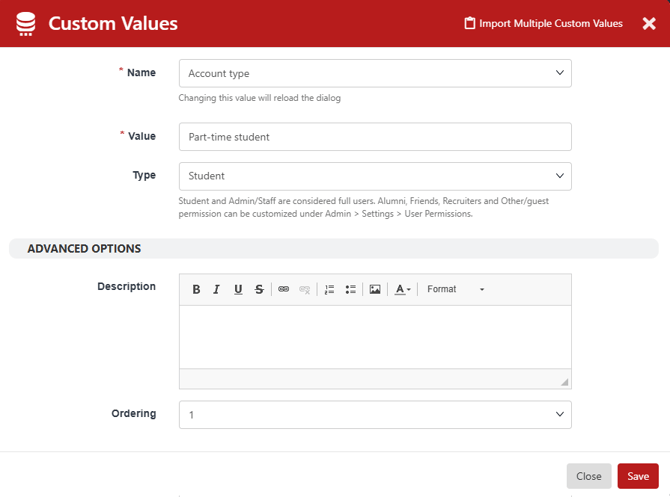
Note: To add multiple values, click Import Multiple Custom Values, and paste in a list separated by spaces or commas.
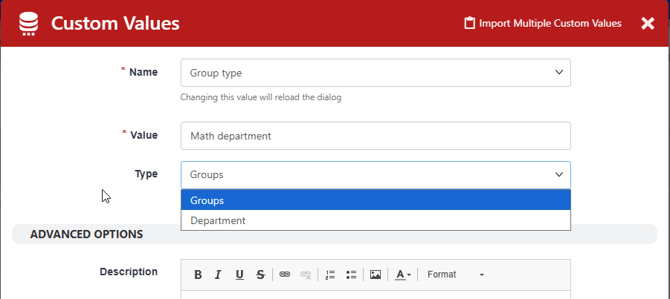
For another example, a group type can be defined as a group or department Groups and Departments. (For a department, the entire group page Managing the Group Page and feed will be publicly visible to anyone with access to the platform. A group provides more limited access to its group page.)
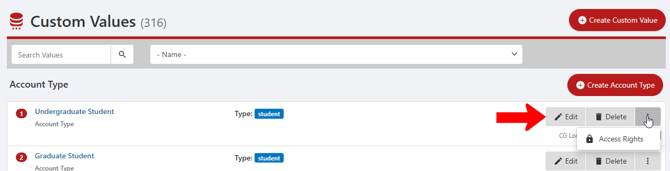
Once created, any custom value can be edited or deleted. For Account type and Event type, you can also click the More icon to set Access Rights Field Permissions. (For example, you may want only certain Account Types to be visible by students or staff.)
Other values and their examples include:
- Budget Item Type: Food & Drink, Decorations, Supplies (used in Budget Requests)
- Budget Request Type: Event, Travel, Marketing (used in Budget Requests CG Rooms Module)
- Building: Student Union, Library, Gym (used in the Rooms module CG Rooms Module)
- Dress Code: Casual, Black Tie, Business Formal (used in creating events)
- Equipment Type: Clothing, A/V Machines, Printers (used in creating inventory Creating an Inventory List)
- Event Waiver: One or more types of waiver types officers can choose from when Creating an Event
- Experience Type: Community service, Mentorship, Entertainment (used for Co-Curricular Transcripts)
- Floor: Building levels (used in the Rooms module Co-Curricular Transcript)
- Fund Request Type: Purchasing, Reimbursement (used in Payment Requests)
- Gender Pronoun: He/Him, She/Her, They/Them
- Group Status: Approved, Rejected, Pending Approval (used in the Group Approval process)
- Industry: Accounting, Advertising, Agricultural, etc.(used in Virtual Fairs Stores)
- Item Category: Cleaning Supplies, Fruits & Vegetables, Snacks (used in Stores)
- Job Type: Full-Time, Part-Time, Summer, Internship (used in the Job Board)
- Priority: High, Medium, Low (used in Advanced Budget Requests Content Moderation)
- Report Reason: Spam, Harassment, Violence (used in Feed Content Moderation)
- Room Feature: A/V Equipment, Printer, Kitchen, Podium (used in the Rooms Module CG Rooms Module)
- Room Type: Conference Room, Classroom, Auditorium (used in the Rooms Module CG Rooms Module)
- Transaction Category: Food & Drink, Travel, Gifts, Equipment (used in Payment Requests)