.png?width=500&height=91&name=CG-Logo-Blue%20(1).png)
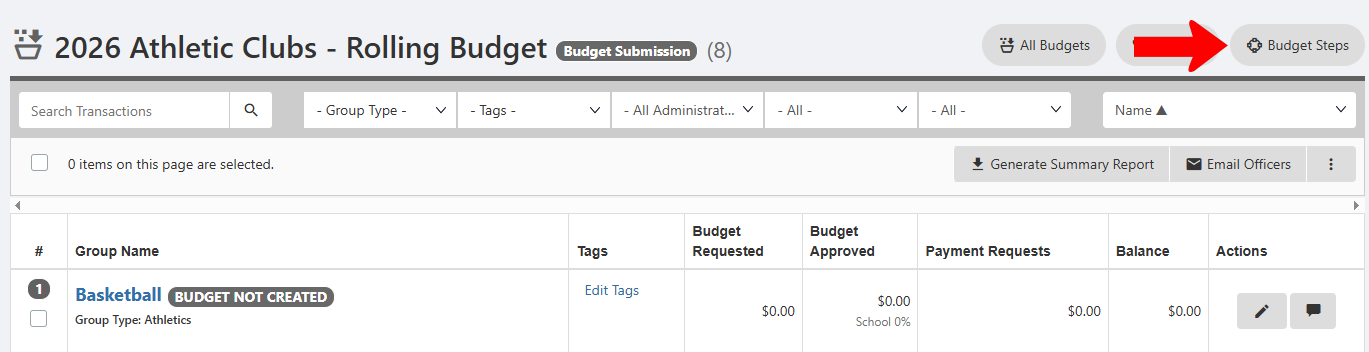
Each advanced budget Creating an Advanced Budget comes with four default steps. To view steps, open the Budget list Managing Budgets: Budgets List and click the budget name. Then click Budget Steps.
These four steps reflect the basic process:
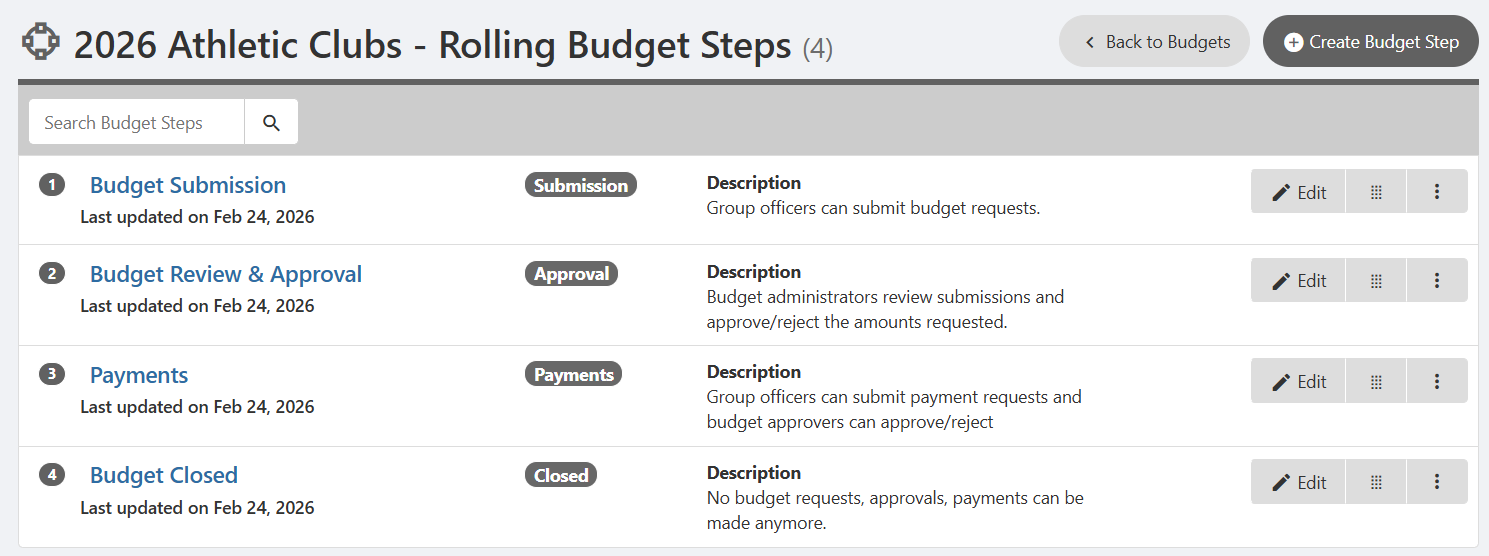
- Budget Submission: Groups submit budget requests
- Budget Review & Approval: Approvers review requests, and approve / reject.
- Payments: Payment requests are created, admins approve / reject.
- Budget is closed: The budget is no longer active.
The current budget step is determined by the Budget status field in the budget Settings. When this status changes, all groups included in the budget are affected.
As an example, a budget submission step may have a one-month timeframe, during which all groups must submit their budgets. After this period, budget submissions are no longer accepted, and all groups move to the approval step. After approvals are granted, groups have another month to request payments.
But you can customize each budget as needed, which can include combining steps to form a rolling budget. To learn about available steps, edit any step or click Create Budget Step.
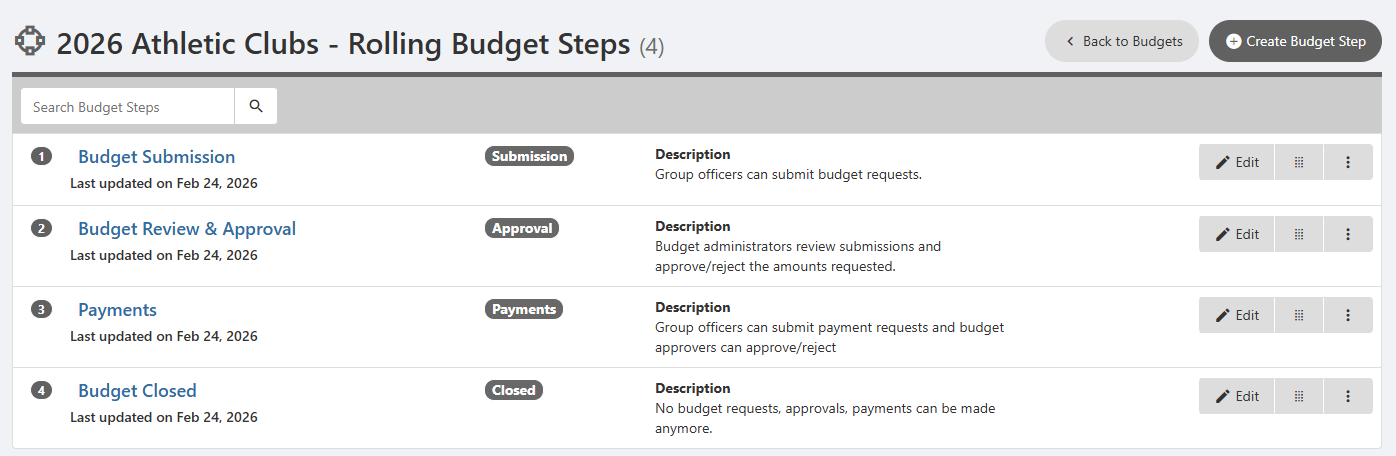
Customizing budget steps can include renaming steps or assigning deadlines. Changing a step’s Type enables you to switch to a rolling process.
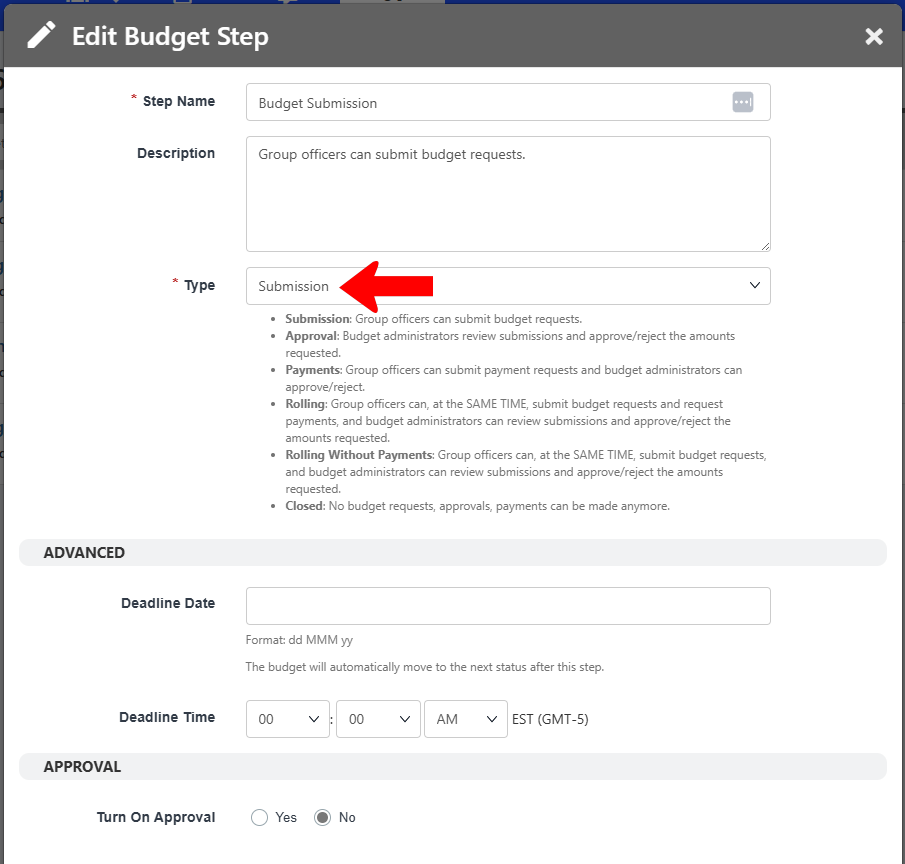
- The Rolling type combines three steps into one: Submission, Approval, and Payments. This means that the entire process can be completed for one group at a time, without changing the budget status that would affect all groups at once..
- Rolling without payments is similar to Rolling. This step combines Submission and Approval, keeping Payments as its own step.
- Deadline Date and Time: If specified, budget steps will advance automatically when deadlines are reached. Without deadlines, budget status is advanced manually.
- Turn on Approval is relevant for the Budget Submission step. If enabled, admins can require that a group officer with a specific role Managing Officer Permissions approve of any requests sent by their group.
A budget with a Rolling step may look like this, with only two budget steps.
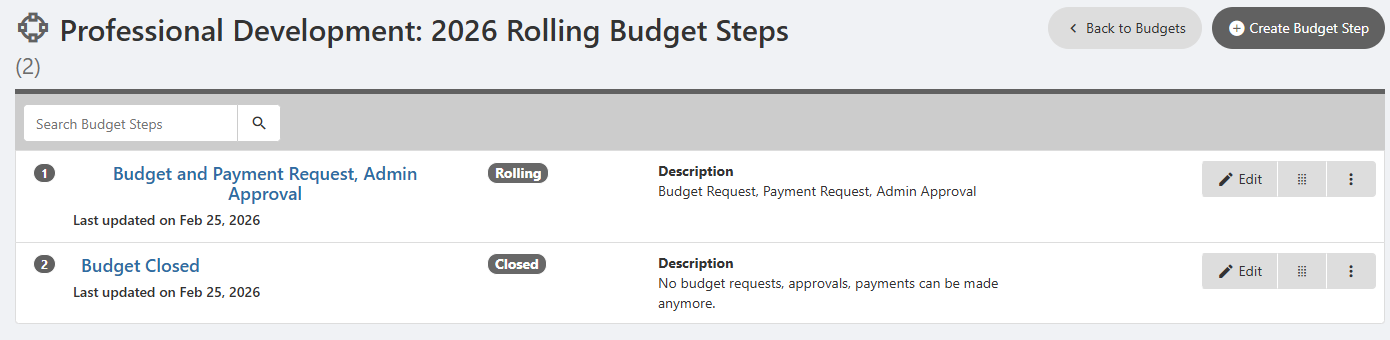
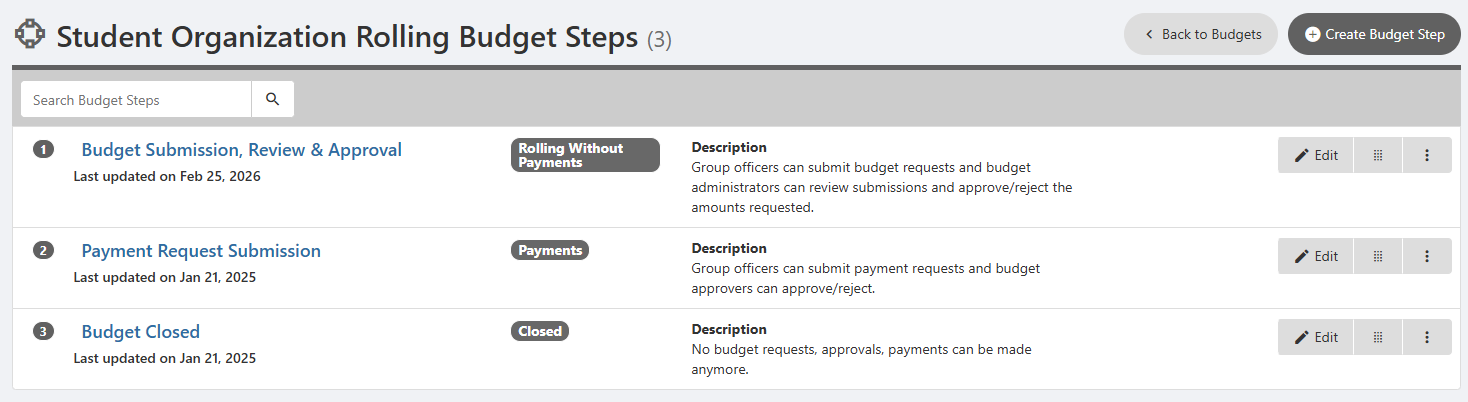
Similarly, a budget with a Rolling without Payments steps could have three steps, where payment requests are separate.