.png?width=500&height=91&name=CG-Logo-Blue%20(1).png)
Admins often need to create multiple groups with similar settings. For example, you may need to create multiple varsity and JV sports clubs, multiple academic or service departments, or multiple fraternities / sororities.
Rather than create each group from scratch, and configure settings and apply tags, you may prefer to set up a group to use as a template. Then you can create new groups by duplicating that template and editing as needed.
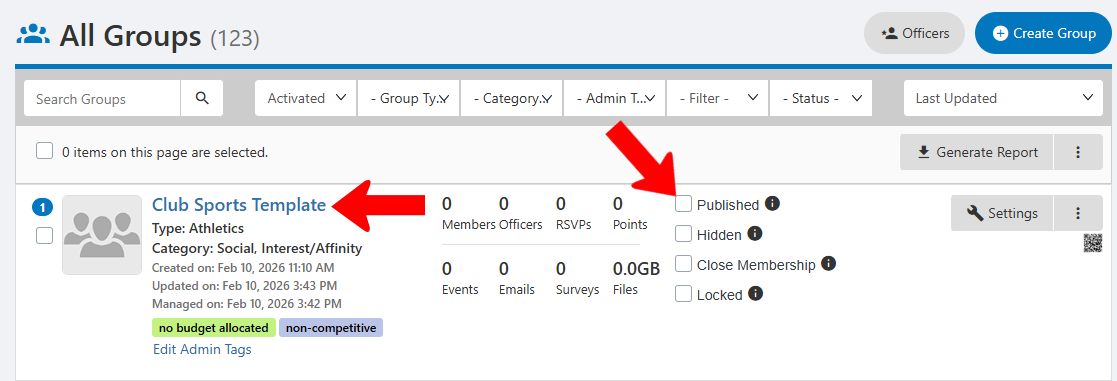
Follow the steps to create a new group Group Settings, and configure Group Settings for the type of group you are creating. You may want to include “template” in the group name for easy searching. Be sure that the group is not published.
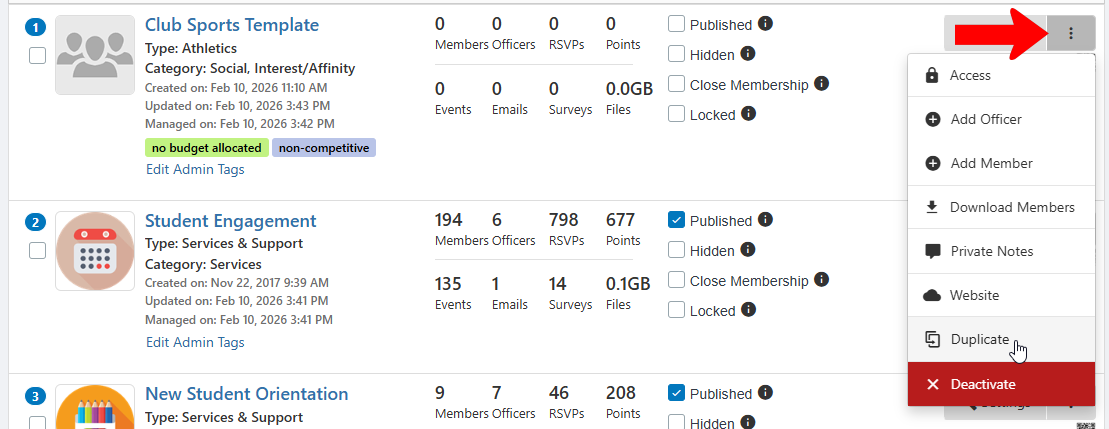
To create a new group based on the template, click the template’s More icon and choose Duplicate.
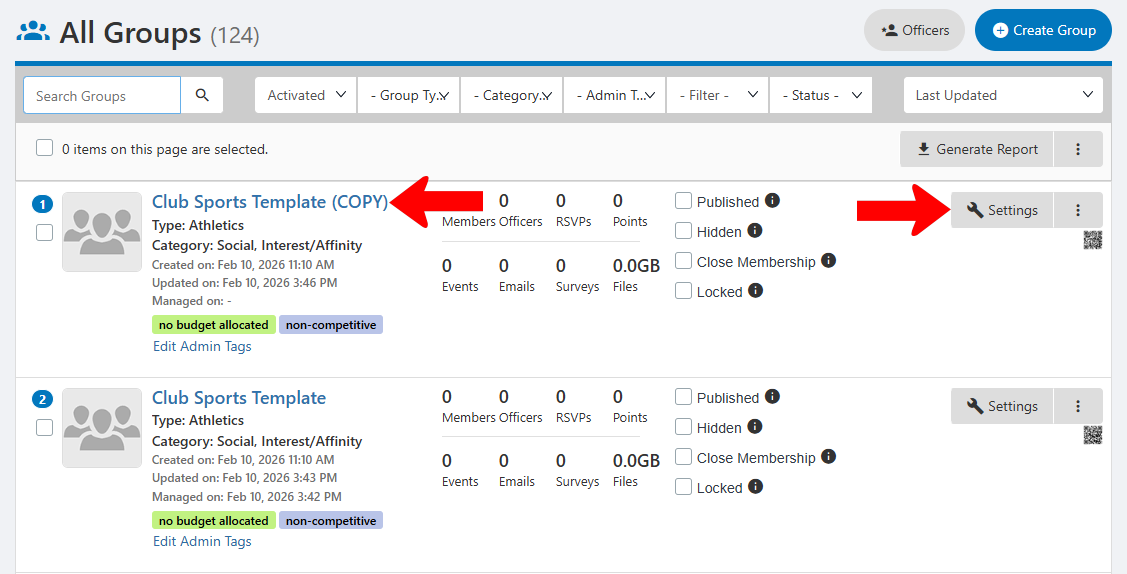
The new group has the template name plus (COPY). To edit this group, open its Settings.
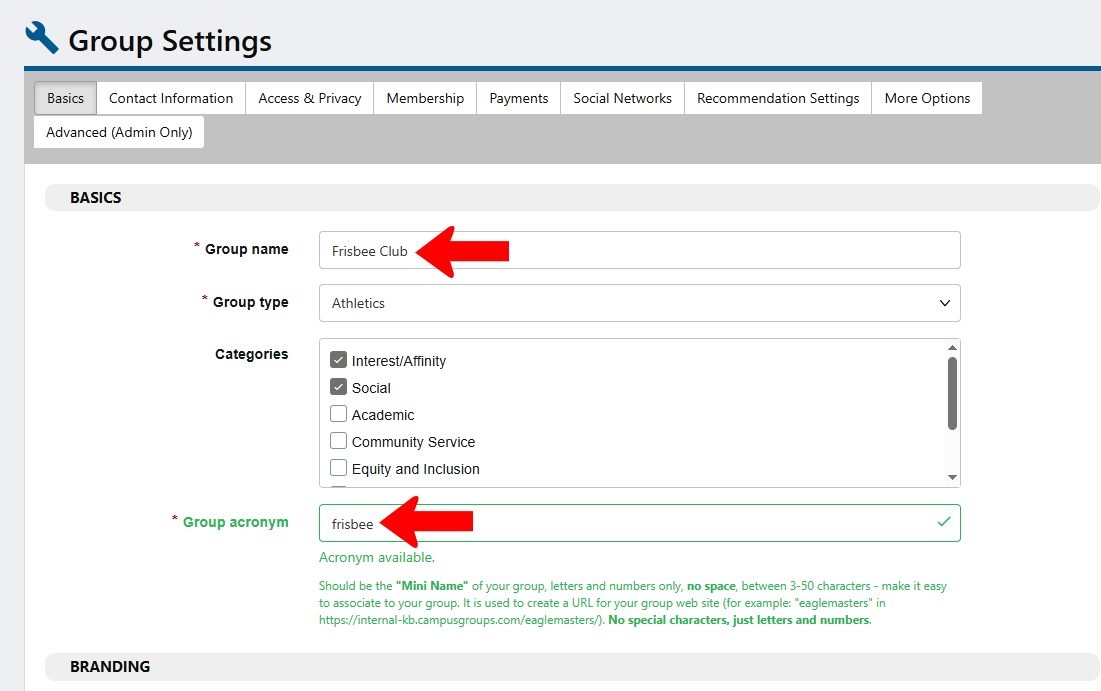
The only required changes are Group name and Group acronym (used to create the URL for The Group Website). Each group may need other changes in other tabs.
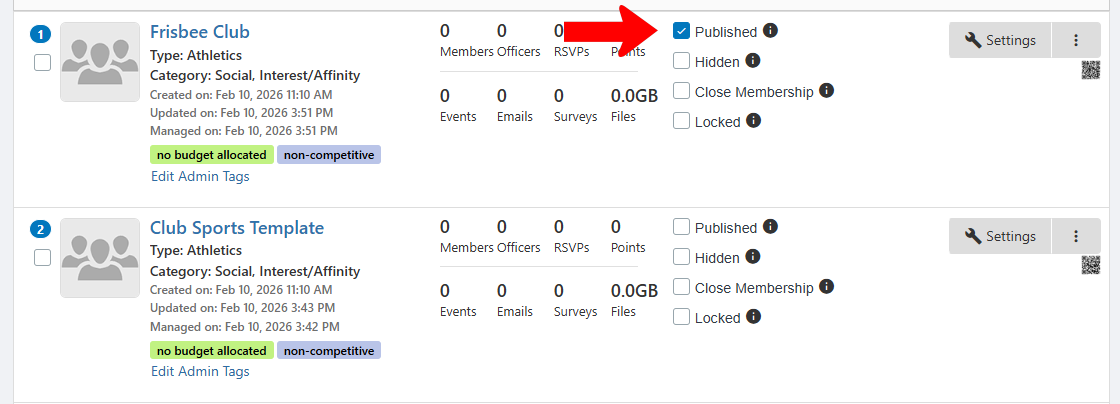
Publish the new group when ready.
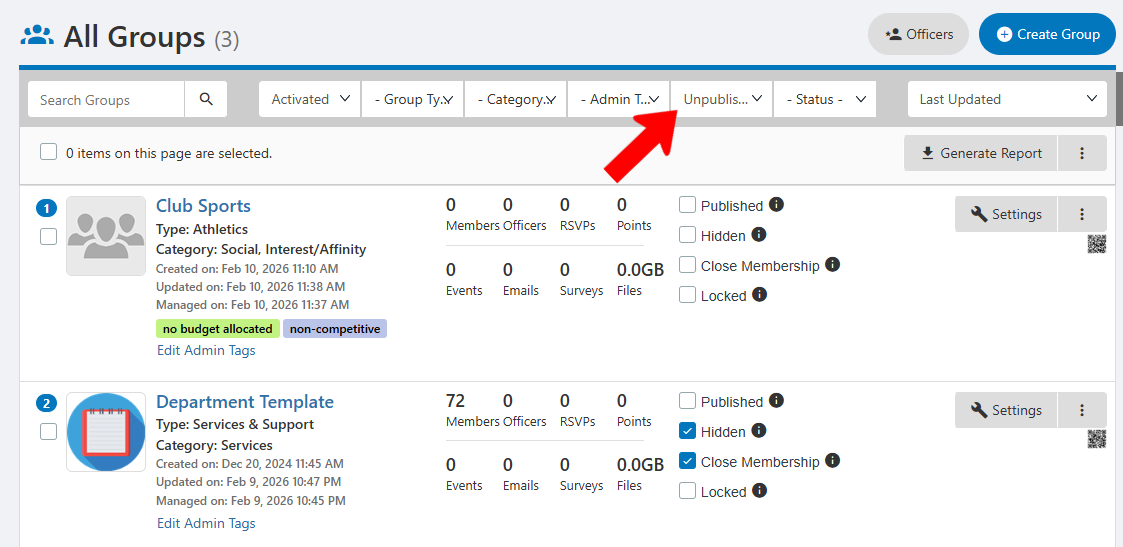
To make it easy to find templates, you can search the Groups list for “template”, or filter the list for unpublished groups.
Note: If you’re adding groups by uploading Uploading New Groups, you can include the group acronym in one of the group cells. This will give the uploaded group the same Settings as the template.