.png?width=500&height=91&name=CG-Logo-Blue%20(1).png)
Badges are digital accolades that encourage members and foster participation. Badges can be awarded to individuals and to groups.
To create a badge, starting by managing your group Managing Your Group, Group Dashboard. Open Member Success along the left and choose Badges.
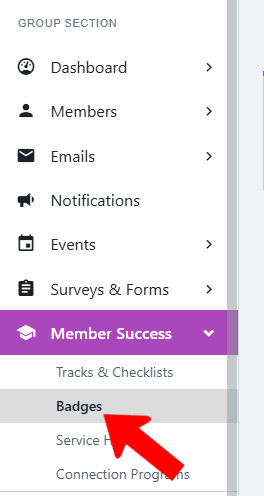
Click Create Badge.

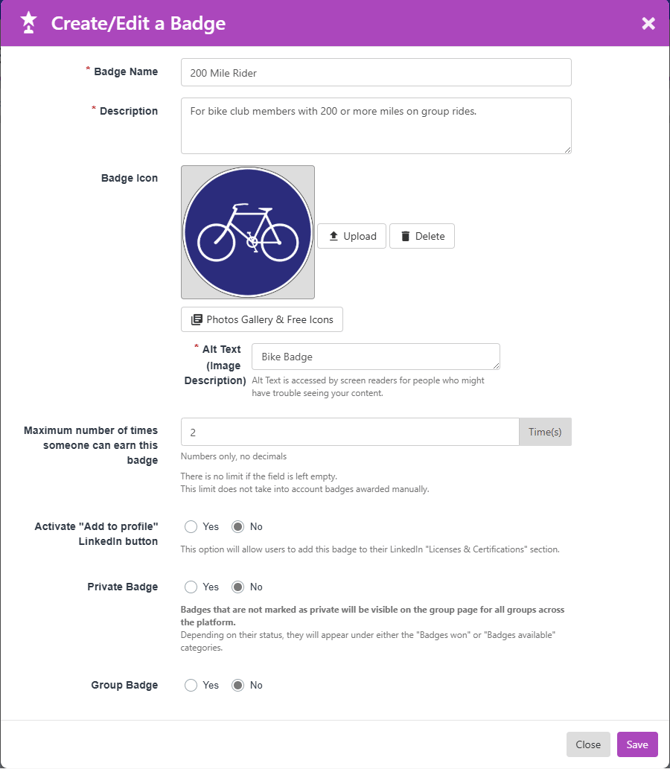
Assign a badge name and description, and use of our free icons or photos, or upload your own image. (See our Image Sizing Guide.)
There are also options to set the maximum number of times a user can earn the badge, display an activate button to add the badge as a LinkedIn certification, make the badge private (not displayed in a user profile), or make the badge a group badge.
A user can be awarded a badge manually by an officer, or earn a badge automatically via a completion rule.
To award a badge manually, click the badge’s More icon and choose Manually Award to Users.
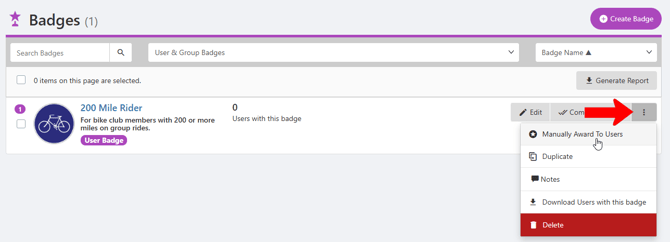
This opens a popup where you can paste in one or more user emails.
To have the platform award badges automatically, click the badge’s Completion Rule button.

The creation rule awards a badge when the user or group completes one or more platform-enabled actions. For example, users can earn a badge by responding on the feed a set number of times, attending a minimum number of events, earning service hours, etc. User badges and group badges have different completion rules.
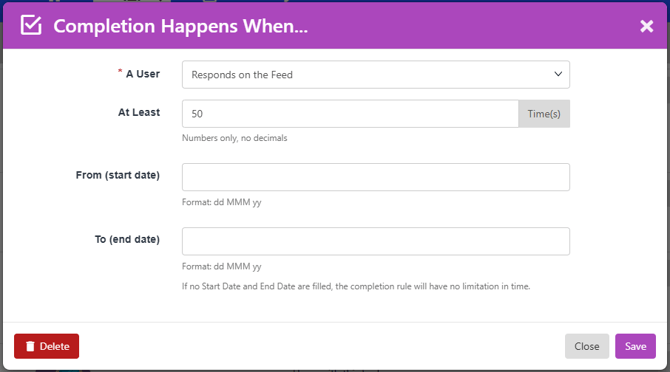
Note: If a badge has already been awarded manually, you cannot create a completion rule. However, a badge with a completion rule can also be awarded manually.
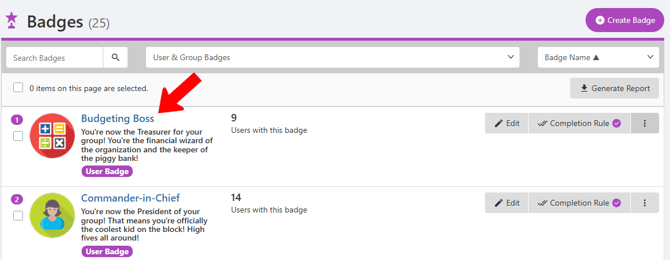
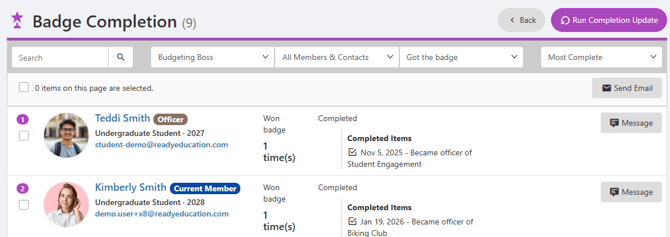
For details on who has earned a badge, click the badge name.
This opens the Badge Completion list, listing every user or group who earned the badge, how many times, and when. To update the list, click Run Completion Update at the top. Each user has a Message button, and when one or more users are selected, you can send an email.
Awarded badges appear on a user’s Co-Curricular Transcript.
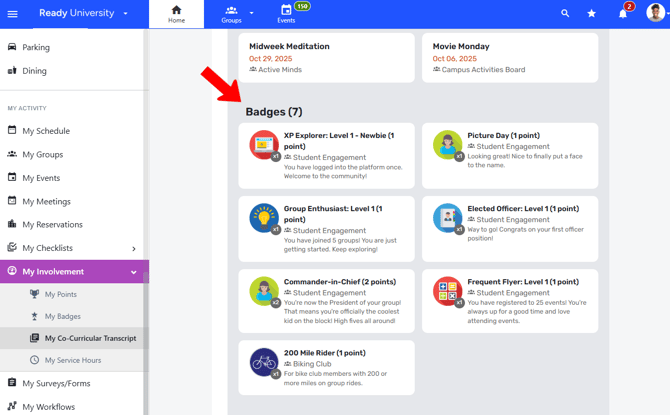
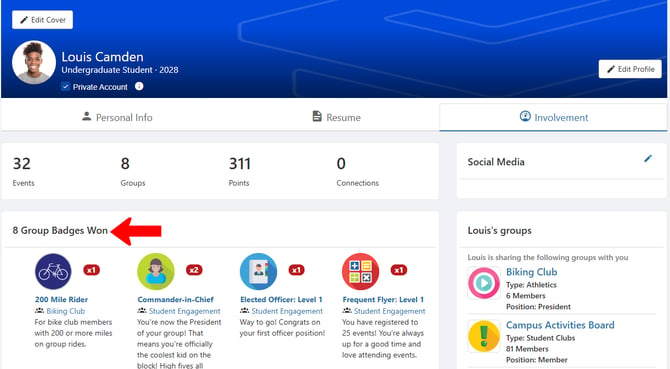
Badges also appear in the Involvement tab of the User Profile.
Badges also appear in My Activity / My Badges. A badge that is activated for LinkedIn will have a LinkedIn Add to Profile button.
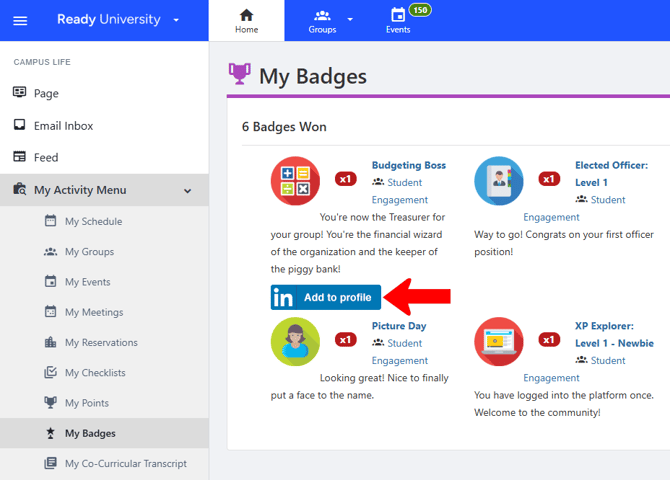
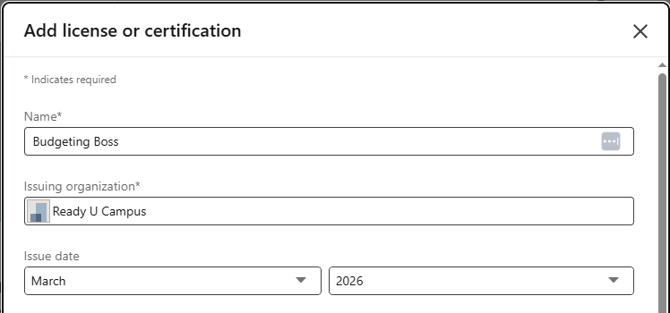
To add the badge to LinkedIn, the user will have to sign into their LinkedIn account, then complete the Add license or certification popup.