.png?width=500&height=91&name=CG-Logo-Blue%20(1).png)
To record group-related service hours for users (which can include both group members and non-members), starting by managing your group Managing Group Members. Open Member Success along the left and choose Service Hours.
Note: You will need the Manage Service Hours officer permission Managing Officer Permissions.
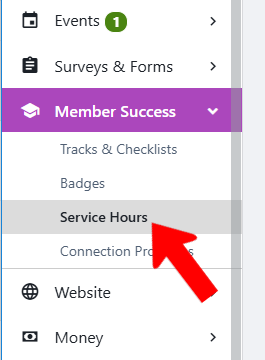
Click Add Service Hours.

Note: If you have a spreadsheet of hours, click Upload Service Hours. Read the instructions, download the template, and complete and upload the file
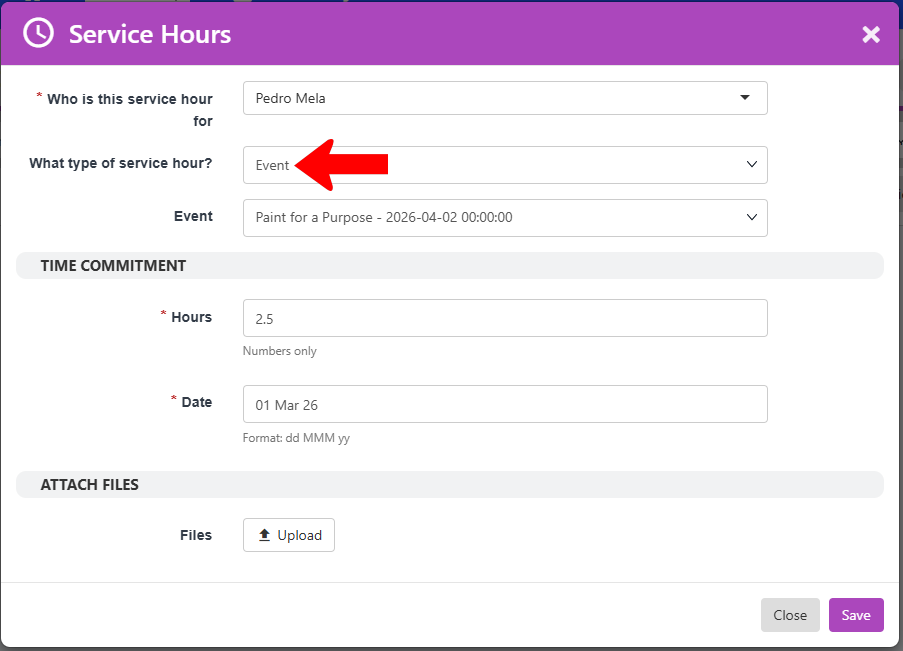
There are two types of hours: Event and Experience. For event-related hours, choose the relevant group event, record hours and date, and upload any relevant files.
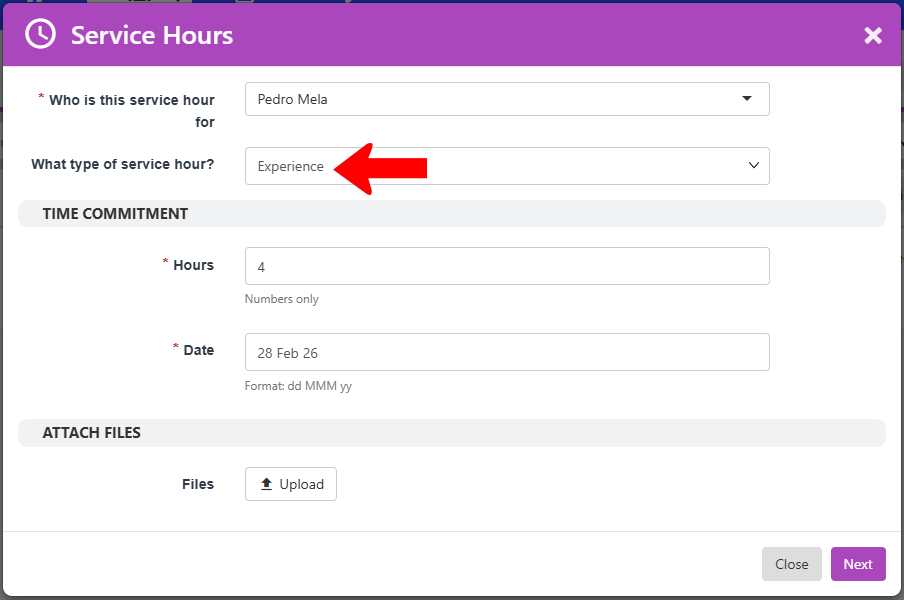
For Experience hours, there are two popups. In the first, enter hours and date.
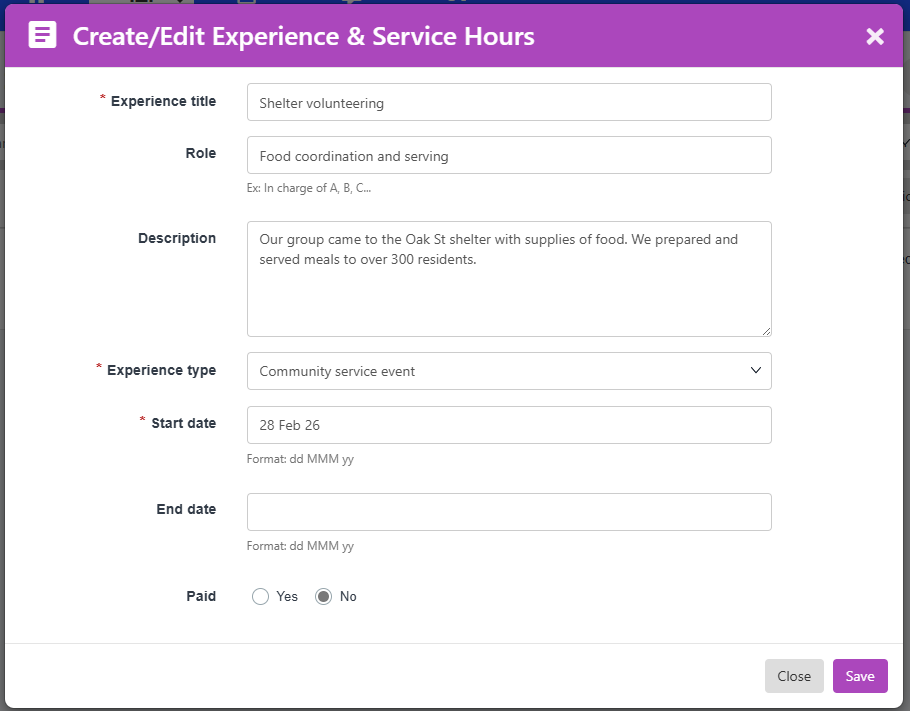
In the second popup, describe the experience and role, choose the Experience Type, and complete remaining fields.
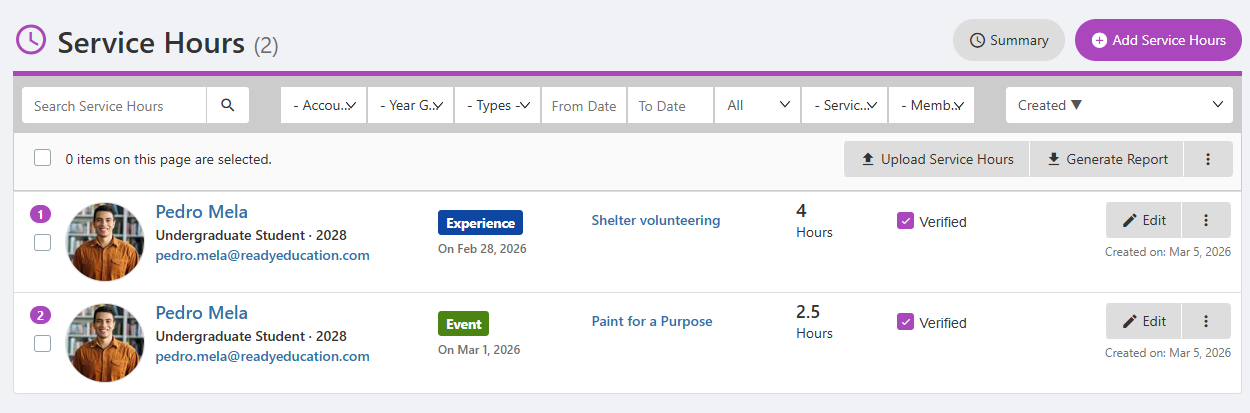
All entered hours are added to the Service Hours list, which can be searched and filtered Searching, Filtering, and Sorting Lists. Verified is checked automatically for hours entered by an officer or admin. (Users who enter their own hours will need an officer or admin to verify their entry.) Clicking Summary at the top displays total hours for each user.
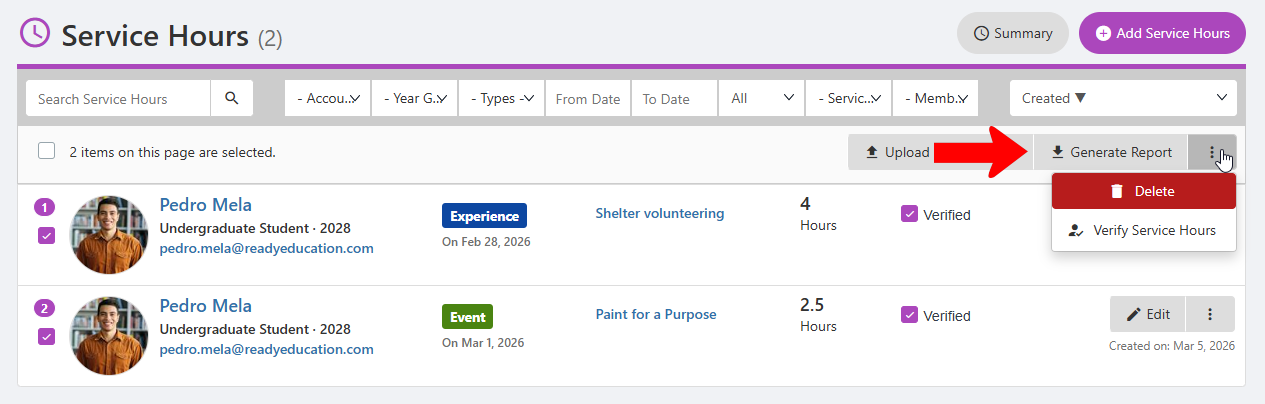
When one or more users are selected, there are options to generate a service hour report, delete hours, or verify in bulk.
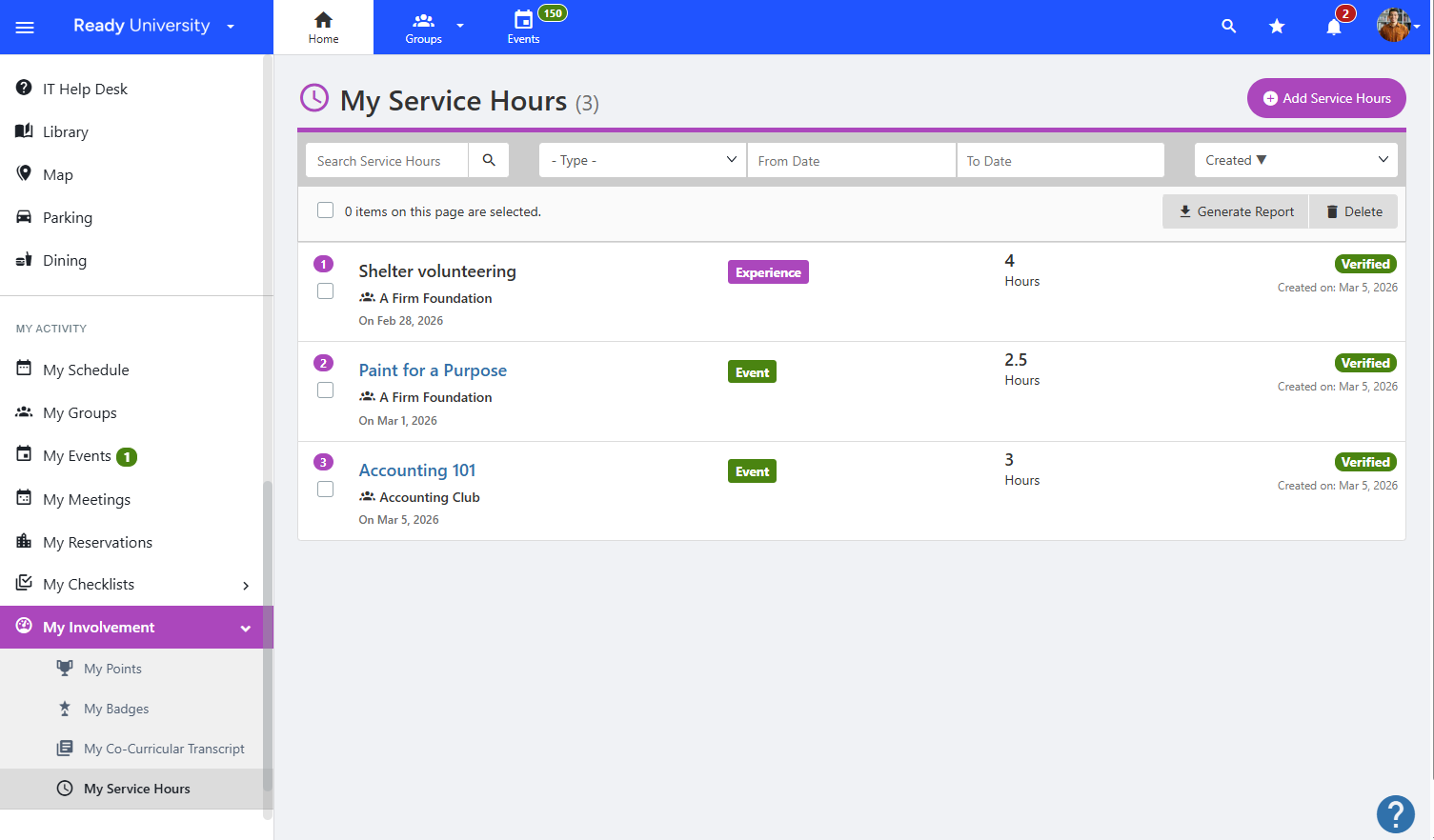
Users can view their hours in My Involvement / My Service Hours. This is also where users can add their own service hours (which will require verification).