.png?width=500&height=91&name=CG-Logo-Blue%20(1).png)
Group officers have access to several categories of settings that define the group and its membership. Many of these settings will be reflected on the Group Page Managing the Group Page.
Note: When first setting up your group, we recommend starting with the first two tabs: Basics and Contact Information.
To get started, manage your group Dashboard. Open Dashboard on the left and click Settings.
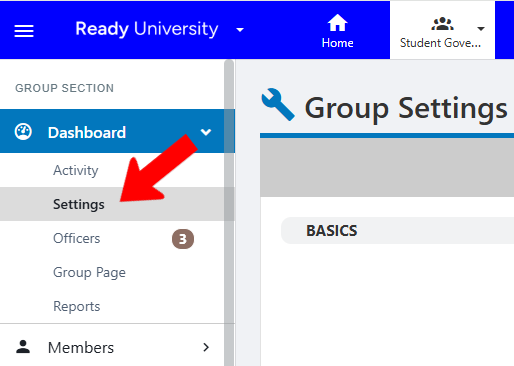
Note: You’ll need to have the Edit Group Settings officer permission to access this page.
Settings categories are listed as tabs across the top.
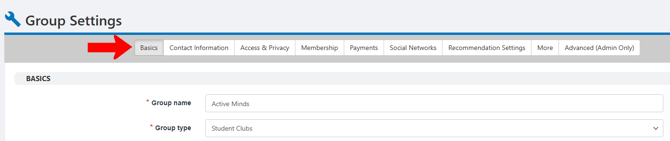
Categories of settings include:
- Basics
- Contact Information
- Access & Privacy
- Membership
- Payments
- Social Networks
- Recommendation Settings
- More
- Advanced (Admin Only) Advanced Group Settings
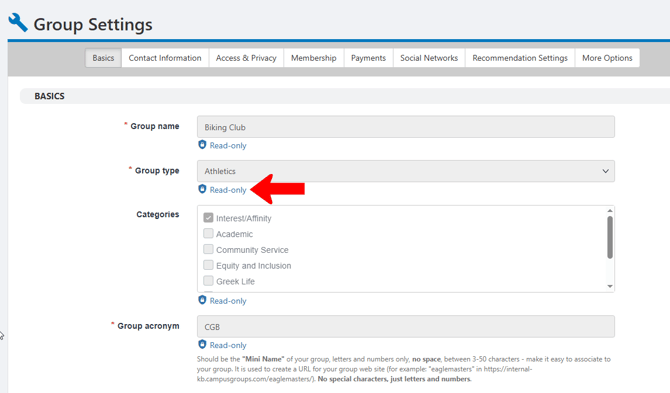
As you go through these categories, some fields may be read-only. To access these fields, you will need to contact a platform admin. (If needed, let them know that permissions for these fields are set by admins in Settings / Field Permissions.)
Basics Tab
- Basics: Define your Group name, Group type, and one or more Categories (types and categories are configured by a platform admin). The Group acronym is a short group nickname used in the URL for The Group Website. (This field is always read-only to non-admins.)
- Branding: Choose images for the group Logo, which appears on the groups list, and the Group cover photo, which appears on the Group Page and Virtual Fairs. Both images can be uploaded or selected from our library. (See the Image Sizing Guide.)
- Group Information: Enter text (optional) for group Mission, Membership benefits,and Goals. If you have a Constitution file, you can upload that here. These general details will be visible to everyone on the group page, including non-members who may want to learn about your group.
- Basic Settings: Options to close membership, unpublish (hide the group, group page, and events from users), hide from groups list (hide the group only from Groups page), deactivate group page (members will be directed to group website The Group Website).
Note: Options for group member privacy are found on the Access & Privacy tab.
Contact Information Tab
Enter your group contact information. The group email is typically the general email for the group; this email is set up by group officers.
Enter a website only if you plan to link an external website The Group Website, rather than The Group Website created within CampusGroups.
Contact details appear in the About section of the Group Page Managing the Group Page. If you create a group website, contact details appear by default at the bottom of the Home page.
Access & Privacy Tab
- Signup instructions: Text you want prospective members to see on the group page before signing up.
- Signup secret word: Used to restrict access to only those who know the secret word
- Auto-validation: The default Nobody is auto-validated option means that an officer will have to manually validate members. You can also choose to auto-validate everyone, only users from the same school, or those with specific Account Types (Account Types are configured by admins). You can also choose to auto-validate either same-school users OR specific Account Types, such as parents of members.
- If your auto-validate based on Account Type, choose those types in the Auto validate users with the following account types box.
- Email restrictions: By default, members can have any email. You can restrict membership to users with .edu emails, or only emails from your school.
- Members cannot leave: Prevents users from leaving the group.
- Parent group / parent group restriction: If this group is part of a parent group (an umbrella group), choose that group, and choose whether only parent group members can join this group.
- Ask for more details: If filled out, users will need to provide an answer before requesting to join.
- Members can see each other: Choose No for a group whose members want to be anonymous
- Membership should be private: Choose Yes to hide the group from member user profiles.
Note: The Basics tab also has an option to hide the group from the groups list.
Membership Tab
- Membership expiration: If membership is set to expire, set an expiration message and choose the number of days before expiration that the email will be sent out.
- Membership privacy: Uses Access Rights Access Rights: Privacy Settings to restrict access to specific types of users.
- Membership default duration: If used, membership will automatically expire after this period.
- Membership options: Your group can have one or more membership options (tiers). For example, your group can be free for freshmen but have a yearly fee for upperclassmen. For each option, see the fee, caption (option name), duration, and access rights (who can join).
Payments Tab
Available for campuses with Payment Gateway integration, with Stripe or PayPal configured at the admin level.
If your group can manage Refund Requests, enter a custom refund request message.
Social Networks Tab
Add any links to showcase your group’s presence on Facebook, X, LinkedIn, YouTube, or Instagram.
Recommendation Settings Tab
Choose the options that will drive users to your group.
Select one or more Interests, Sports, and / or Industries that are relevant to group members. Users who added these items to their user profiles will see your group as a recommendation.
Note: Platform admins configure the list of interests, sports etc.
More Options Tab
- Automatic welcome message: If you want to send a message to new group members, choose the relevant email template. (This template must be built using the Email Composer Using Email Composer.) Users will receive this email after they join, or after they are validated, if validation is required.
- Email: If you want to include a CC or BCC with group emails sent by you, list those emails here. You can also mark these emails with an Email subject prefix.
- Feed: If your group makes use of one or more channels (group feed), you can choose to notify members after each post, or to email a feed digest every 24 or 28 hours. If digests are sent out, you can enter an email subject and intro.
- More: This section has options to allow non-members to submit events, set access rights for default event and job privacy, and automatically add members as attendees. If Member Custom Fields are used, enter instructions here. You can also add a custom unsubscribe message Member Custom Fields.
Advanced (Admin Only) Tab
This tab Advanced (Admin Only) Tab is for platform admins.