.png?width=500&height=91&name=CG-Logo-Blue%20(1).png)
While group officers have access and permissions for most aspects of the groups they manage User Permissions, platform admins have much more access, and can control groups platform-wide.
Note: Group management requires the Groups admin permission User Permissions.
If you are new to admin management of groups, we recommend becoming familiar with the following topics:
- Understanding groups vs departments Groups and Departments
- Configuring Group Types, Group Category Tags, and Group Admin Tags.
- Setting up Group Templates Group Settings
- Advanced (admin-only) Group Settings
- For user-created groups, determining whether Approval Processes are required, and configuring those processes.
- For group re-registration, determining whether Approval Processes are required, and configuring those processes.
- Adding a group Managing Group Members or uploading multiple groups Group Reports
- Managing Group Members and managing officers Managing Group Members
- Generate Group Reports
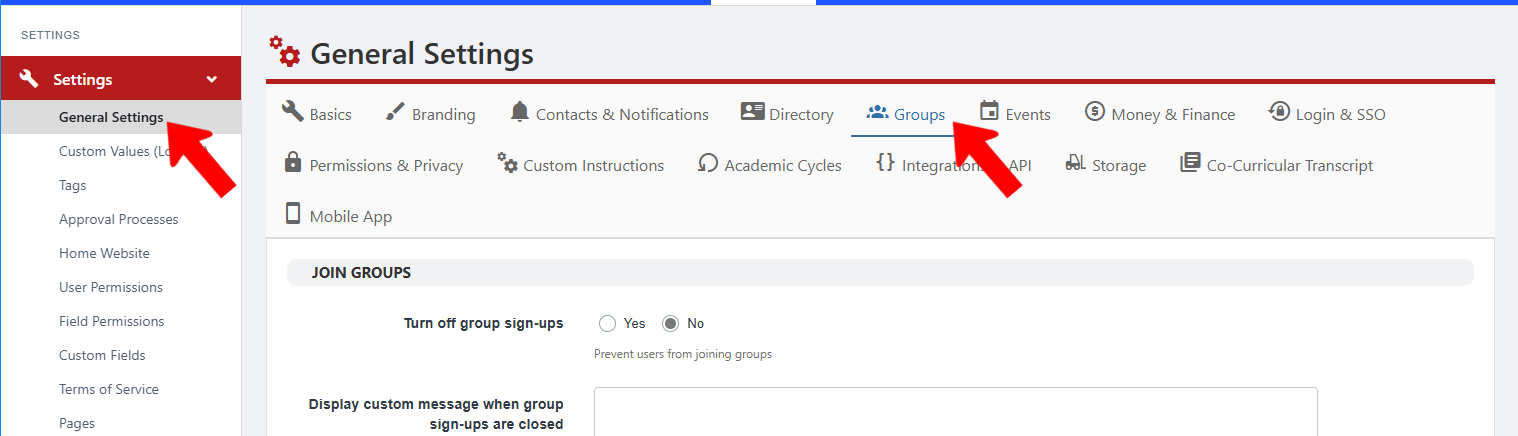
In addition, be sure that the settings on the Groups tab of the General Settings are complete and accurate.
All campus groups are listed in the All Groups list All Groups List: Managing Groups. One default group is included in your account: Office of Student Engagement. This default group, which can be renamed, also includes the default Community Hub Managing a Community Hub.