.png?width=500&height=91&name=CG-Logo-Blue%20(1).png)
Documents and photos can be uploaded directly in the page sections where you want them to appear, but the Files page is where you manage everything in one place - including folders, uploads, and who can see what.
Who can do this: Group officers.
ℹ️ Note: Videos work differently. Video links must be added on the Videos page rather than uploaded here.
Opening the Files page
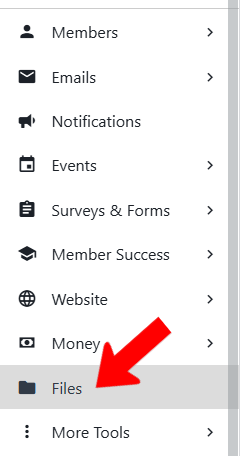
Start by managing your group, then click Files along the left navigation.
💡 Tip: If you'll be using images for your group, read the Image Sizing Guide first so your images display the way you expect.
Creating folders and uploading files
Several folders are provided by default. Click New Folder to create more as needed.
Click Upload to add files, and move files into the folder where they belong.
Images you add elsewhere in the platform, such as group logos or event images, are added automatically to the top level of this page.
Supported file types: doc, docx, ppt, pptx, xls, xlsx, csv, pdf, txt, png, gif, jpg, jpeg, bmp, mp3, mp4, zip, and pub.
Setting folder visibility
Visibility is set at the folder level, not on individual files - so anything you put in a folder inherits that folder's settings.
Each folder has a Share Link button and an icon for reordering. Click the Move icon to open more options, including Privacy.
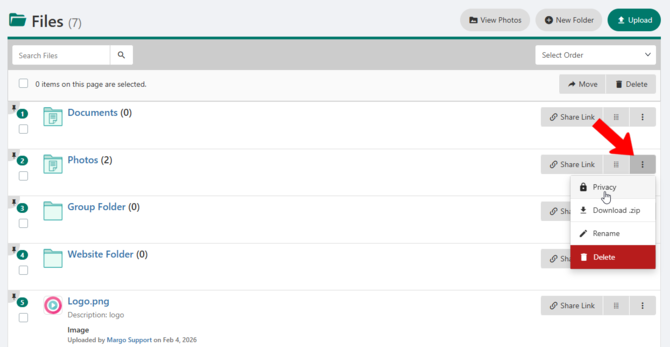
Click Privacy to open the Access Rights popup. Along with setting visibility, this is where you choose whether the folder's contents appear on your Group Page, your group website, or both.
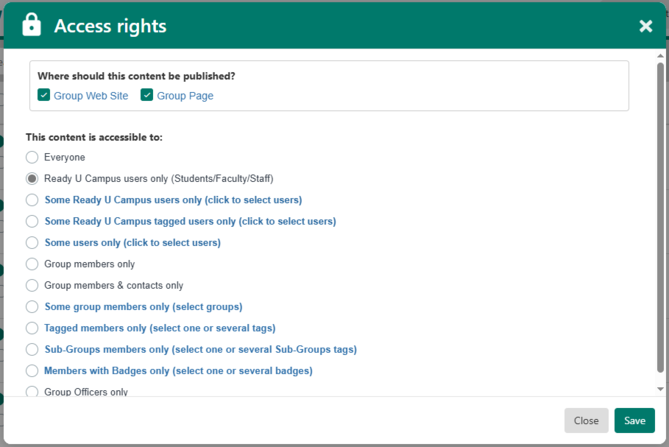
ℹ️ Note: By default, only group members can see the Photos and Documents sections of the Group Page. If your group is defined as a department, those sections are visible to all users instead.