.png?width=500&height=91&name=CG-Logo-Blue%20(1).png)
Your group page is the internal hub (within CampusGroups) of information about your group.
Potential new members land on your group page when exploring groups to join Exploring and Joining Groups.
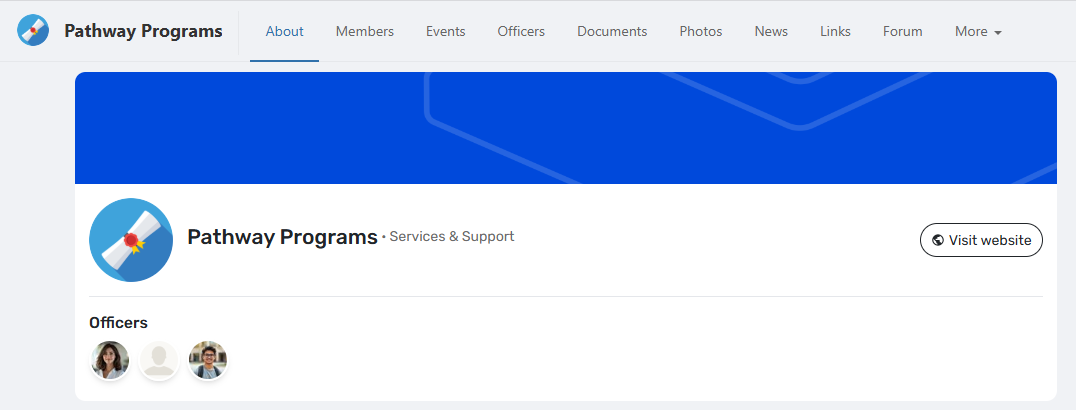
On the web, the Group Page has sections listed across the top.
On mobile, sections are presented vertically, with website, officers and posts at the top, and additional sections farther down.
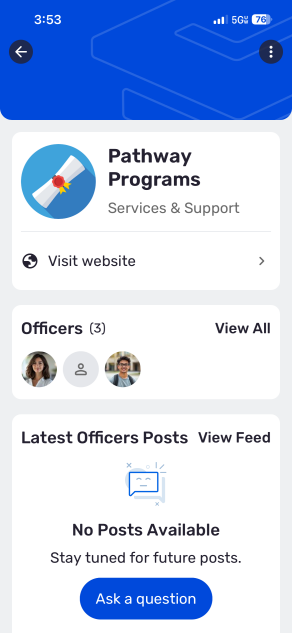
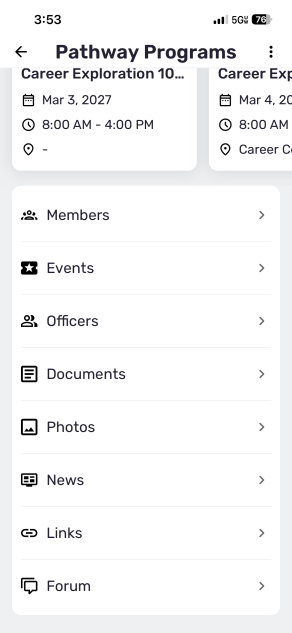
For group members Access Rights: Privacy Settings, all page sections are available (depending on each page’s Access Rights The Group Website). This makes it easy for members to stay updated on group news, events, surveys, channels, and more.
Page sections available to non-members and contacts The Group Website include About, Events, Officers, and Surveys & Forms. If your group is designated as a department Group Types and Tags, however, the entire group page and feeds will be publicly visible to anyone with access to the platform. (Group type is an option on the Basics tab of the Group Settings.)
Note: The group page is accessible only by platform users. If your campus has the Website module, groups can also create their own website, which is available to both internal and external users.
Officers can choose which page sections are displayed. Content for these sections comes from a variety of sources. These include Group Settings, lists of members and officers, events, newsletters, etc. Other types of content, such as photos and files, can be also managed directly in the group page settings.
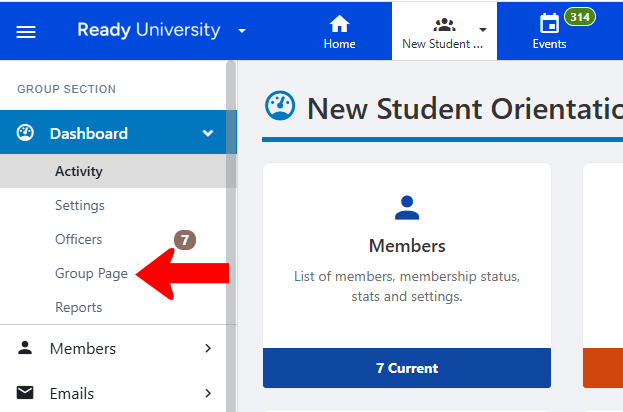
To get started, manage your group Group Settings. Under Dashboard, click Group Page.
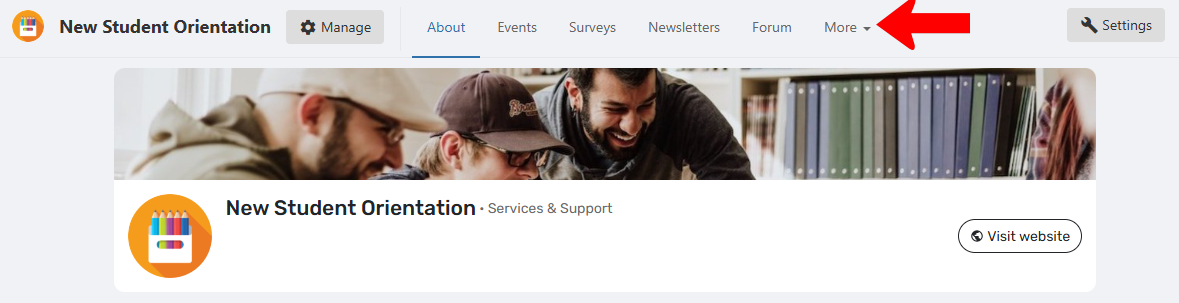
The visible sections of the group page are listed across the top: About, Members, Events, etc.
By default the Visit Website button is configured to open the website The Group Website set up in the platform.
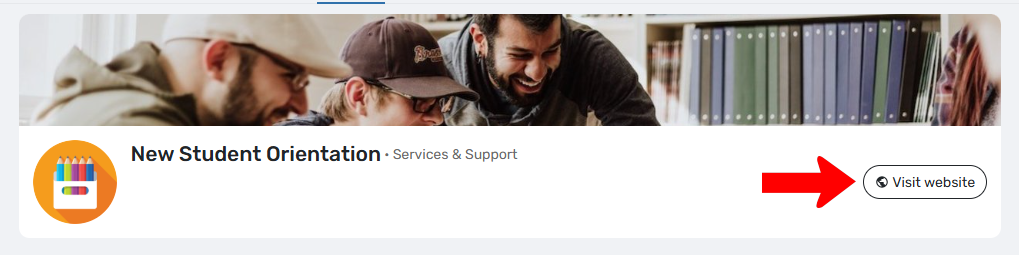
Note: To configure this button to lead to an external website, open the Group Settings to the Contact Information tab, and enter the site in the Website field. You will also have to open the Website Settings The Group Website and set Primary Website to No.
Opening a section, such as Members, shows how that page looks to visitors.
As an officer, you can edit page content. For example, the Members page has a Manage button that will take you to the Members list. Other pages have different content options, such as Upload on the Photos page, etc.
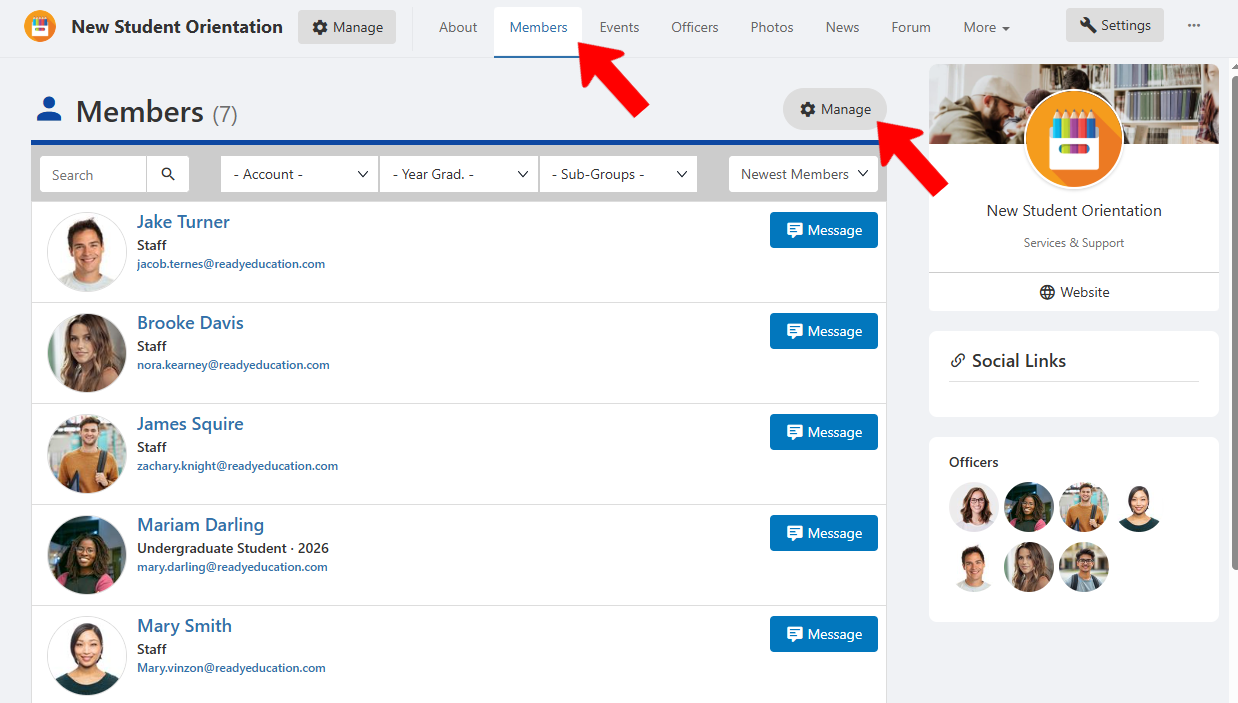
To choose the sections to display, and manage other page options, click Settings.

Note: Clicking the More (three-dot) icon next to Settings opens a menu with options to create a group channel Group Settings.
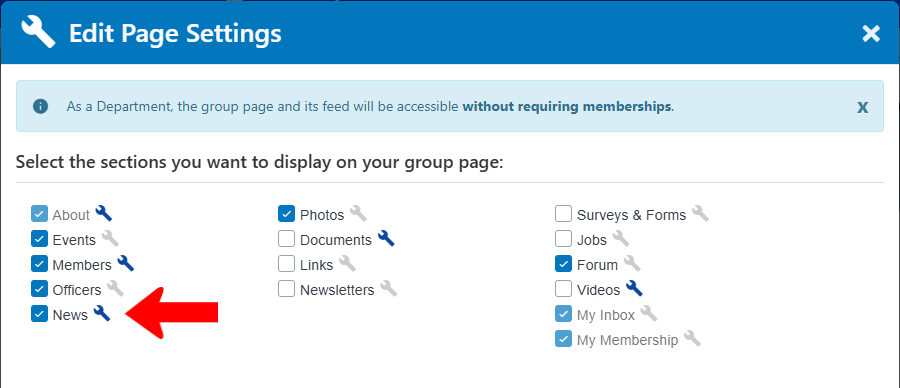
In the Edit Page Settings window, check the boxes for the page sections you want to display.
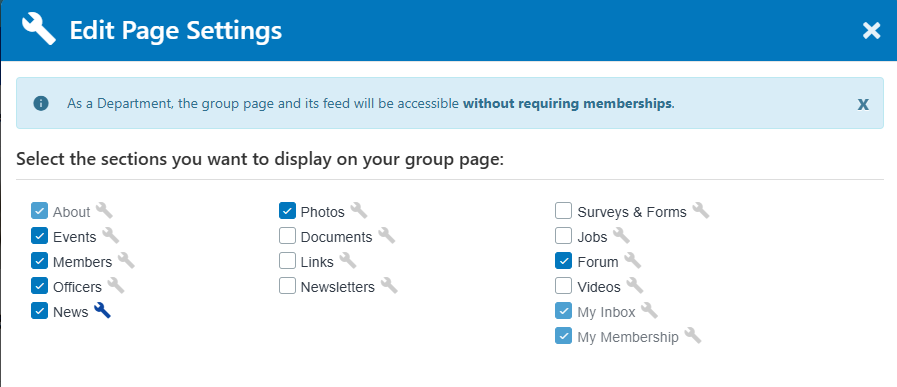
These are the available pages, their content, and where their data comes from:
- About: Group name, logo, categories, mission, membership benefits, and goals come from the Basics tag of the Group Settings. There are also officer Managing Officer Positions, Custom Positions, and Roles avatars, and widgets for officer posts from the group channel Creating a Group Channel, and for upcoming events Exploring and Attending Events.
- Events: Upcoming events from the Events List Events Lists.
- Members: Current members from the Members List Group Settings. (Members can be hidden on the Access and Privacy tab of the Group Settings.)
- Officers: Current officers from the Officers List Group Settings.
- News: Displays posts from the News List News, or sent emails published as News.
- Photos and Documents: Create albums and upload photos, and create folders and upload documents. File visibility is set in the Files page Useful Links page.
- Links: URLs added in the Useful LInks page Useful Links.
- Newsletters: Lists each sent email that was published as a newsletter News.
- Surveys & Forms: Active forms from the Surveys & Forms List Surveys and Forms List.
- Jobs: Displays jobs from the Jobs List Videos (requires the Job Board feature)
- Videos: Files uploaded to the Videos page Videos.
- My Inbox: Emails sent My Inbox to the user
- My Membership: Where members can see their membership information, update their privacy settings, unsubscribe (or resubscribe) to group emails, view their badges, join Sub-Groups Group Badges, and leave a group.
To customize a section, click its Wrench icon.
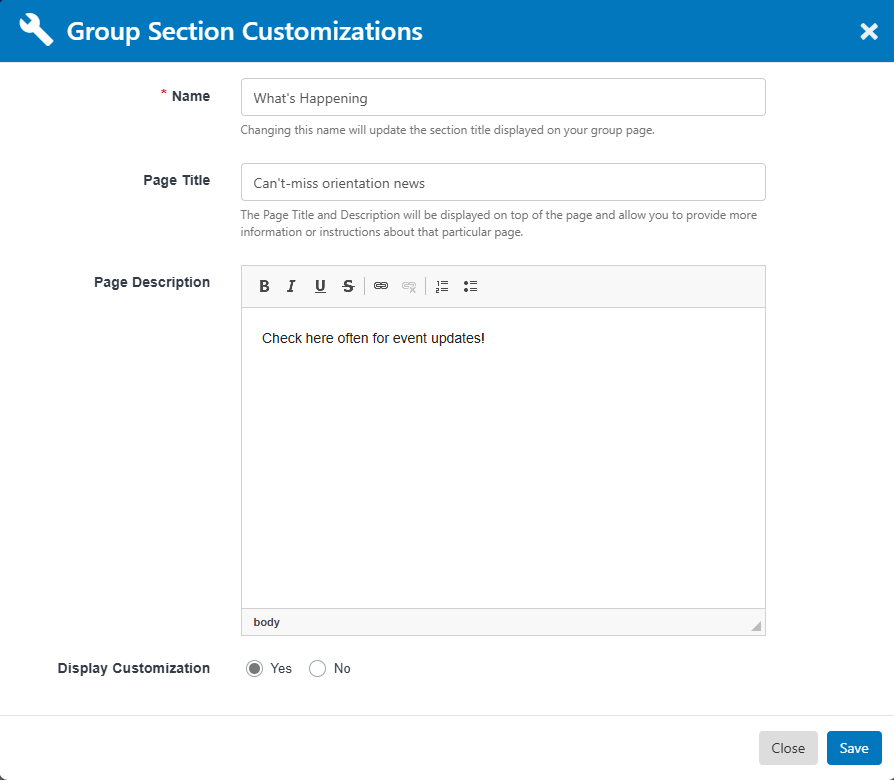
This opens the Group Section Customizations window. In this example, the News section is renamed to What’s Happening, with a new Page Title and Page Description. Note that Display customization must be enabled for these changes to appear.
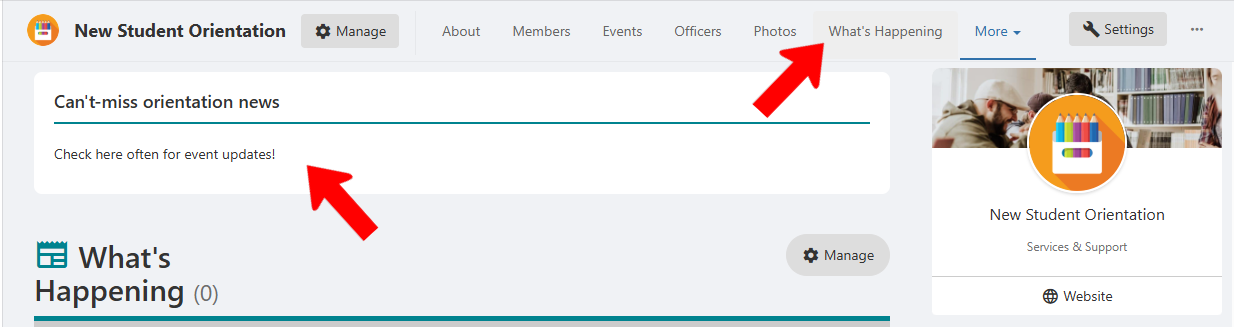
The custom name appears along the top, and the title and description appear in the section itself.
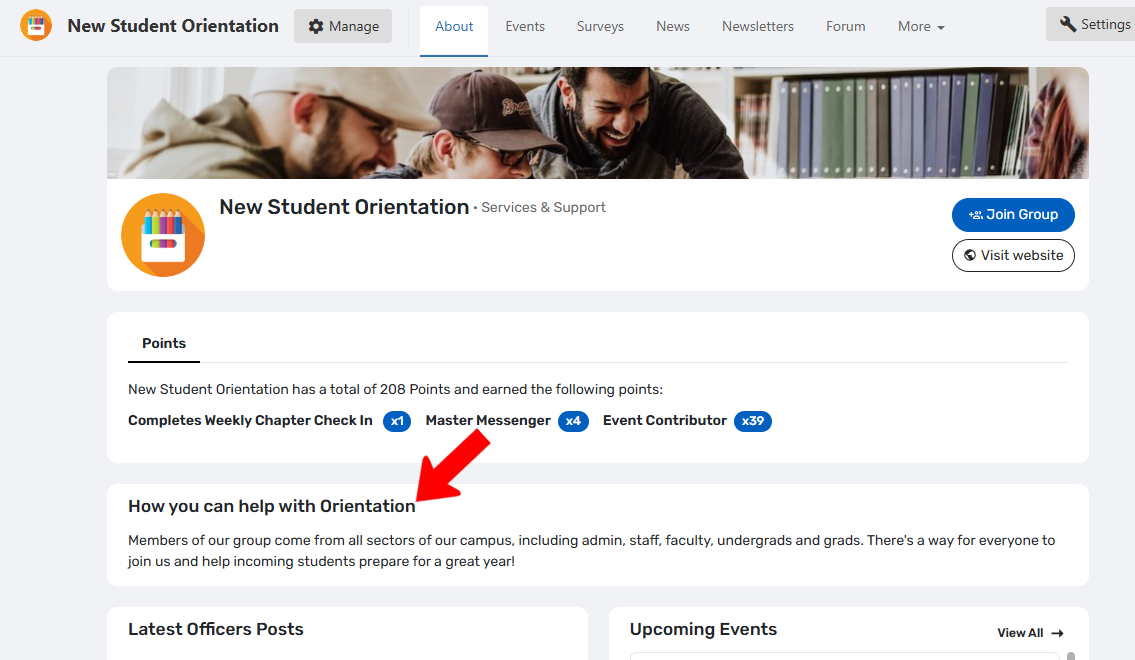
A typical use for a page customization is to add to the About page extra information describing the group.
The Edit Page Settings window also has several other options:
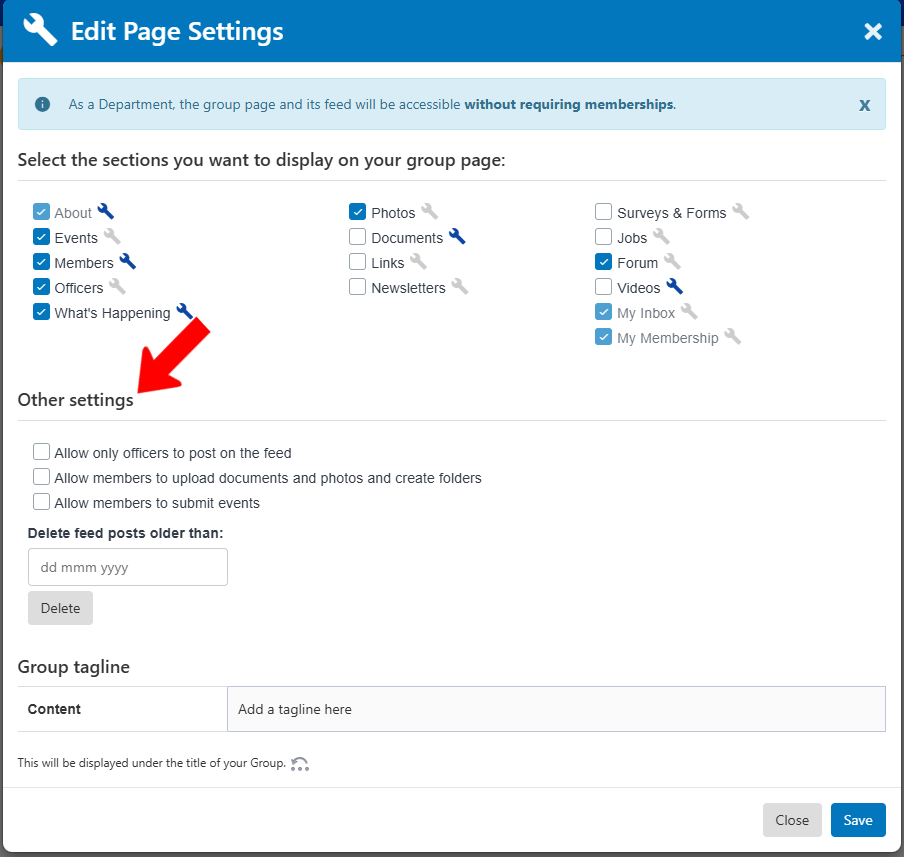
This is where you can:
- Allow only officers to post on the feed (group channel) group channel
- Allow members to upload documents and photos and create folders
- Allow members to submit events
- Delete feed posts older than a specified date
- Add a group tagline, which appears on the About section