.png?width=500&height=91&name=CG-Logo-Blue%20(1).png)
Group officers can manage their groups on the web version of the platform, and from the mobile app, which is shown toward the end of this article.
To manage a group on the web version, click Groups at the top, and open the group you want to manage. All groups for which you are an officer will have a Gear icon.
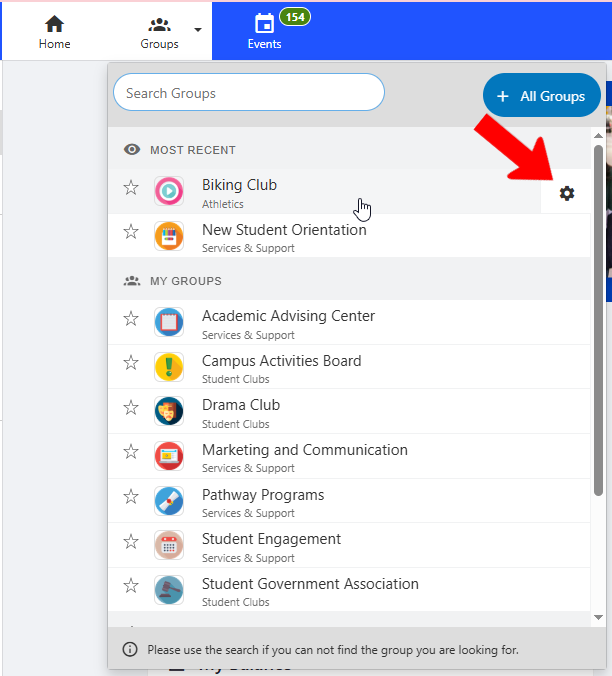
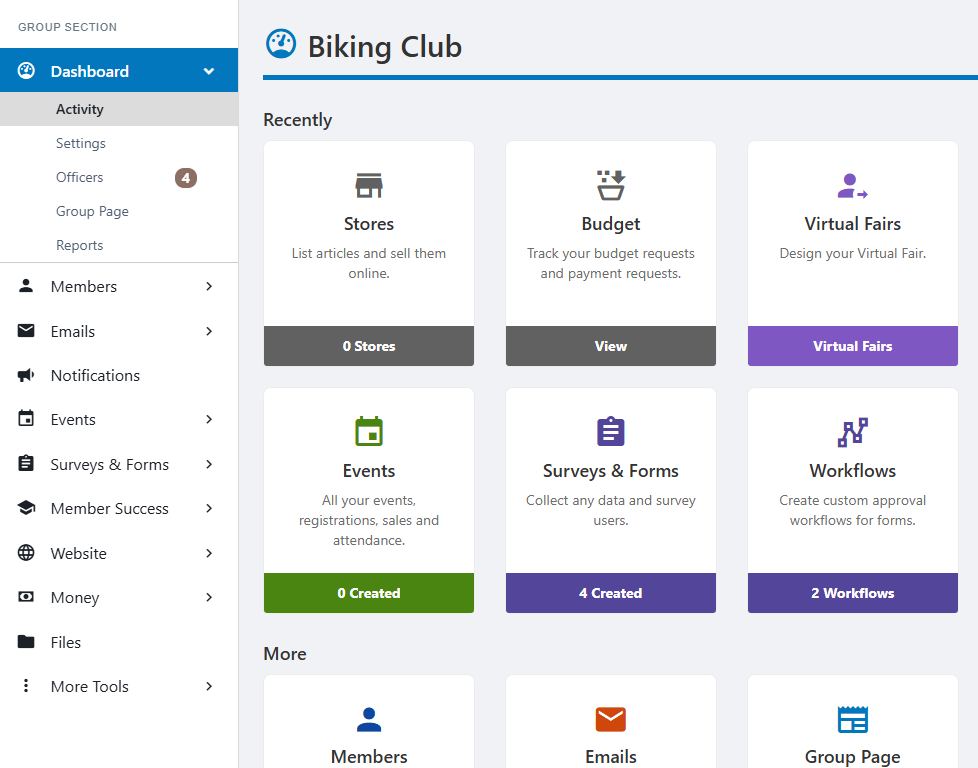
This takes you to your group Dashboard. Along the left is the main menu where you can adjust Group Settings, assign officers Group Settings, manage the Group Page Group Settings, etc. (See our group officer best practices Group Officers: Best Practices if you need help getting started.)
Recently-used features appear in the center.
At the top right, clicking Join Link & QR Code produces the link / QR code you can distribute to users who want to become group members. (Users can also join from your Group Page website or website The Group Website.) Clicking Join Flyer downloads a printable PDF with the same details. There is also a Create button for creating a group officer, member, event, email, form, or survey.

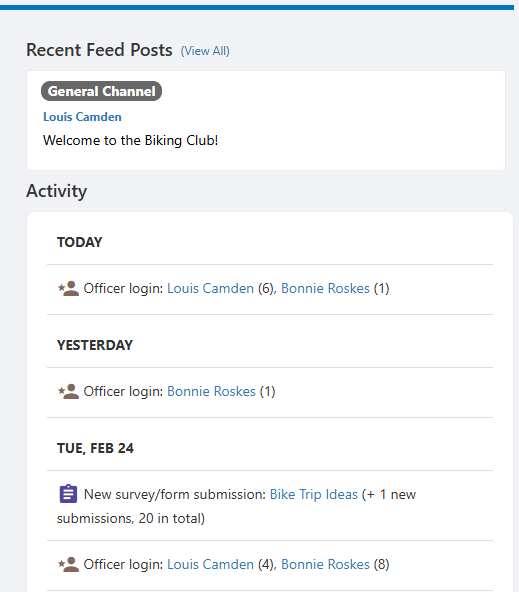
Along the right are recent feed posts, and a chronological list of all group-related activities.
Scrolling all the way down brings you to the Group Stats section. These charts show a breakdown of member types (members, contacts, past members) and Account Types, which are configured by platform admins. You can also display these numbers in Text View.
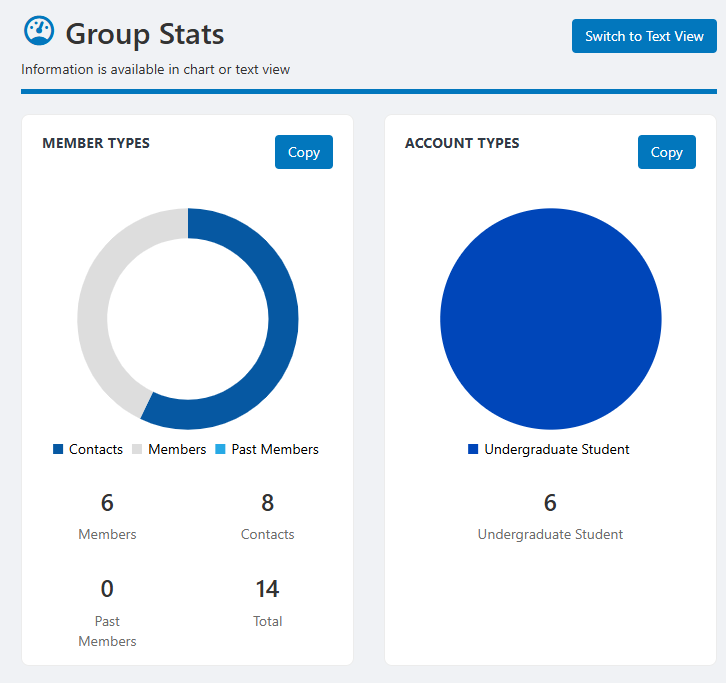
A more detailed member breakdown can be obtained from the Members list Members List: Managing Group Members.
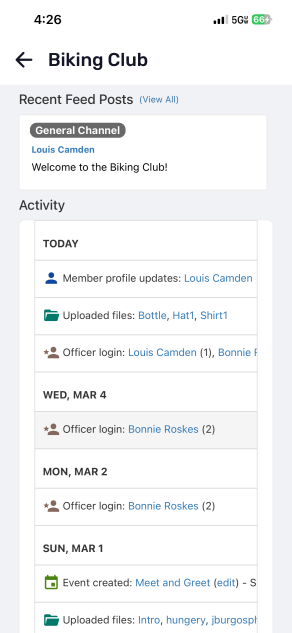
On the mobile app, group officers can open the More screen and expand the Manage Groups menu to find their groups.
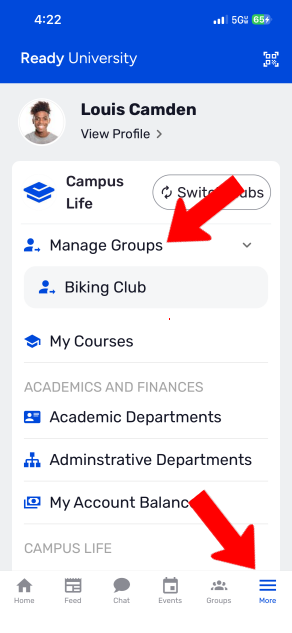
Note: If this menu does not appear in your hub, you may want to request that a platform admin add the Manage Groups hub menu item.
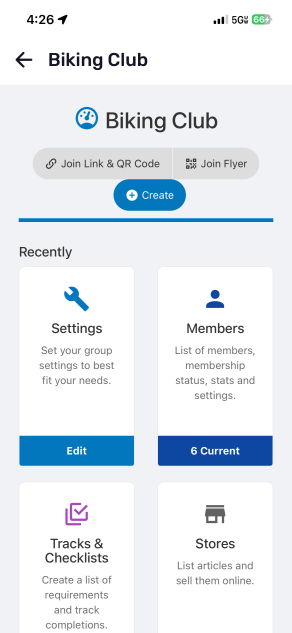
After tapping your group, you'll find buttons for Join Link and QR Code, Join Flyer, and Create. Below these are the recently accessed features.
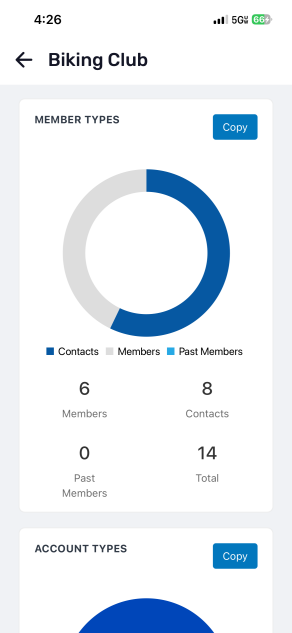
Scroll down further to see membership stats.
Recent feed and activity is at the bottom.