.png?width=500&height=91&name=CG-Logo-Blue%20(1).png)
If you want users to answer questions when they join your group Custom Fields, you can create member custom fields. Typical custom questions include preferred contact method, dietary restrictions, favorite activities, etc.
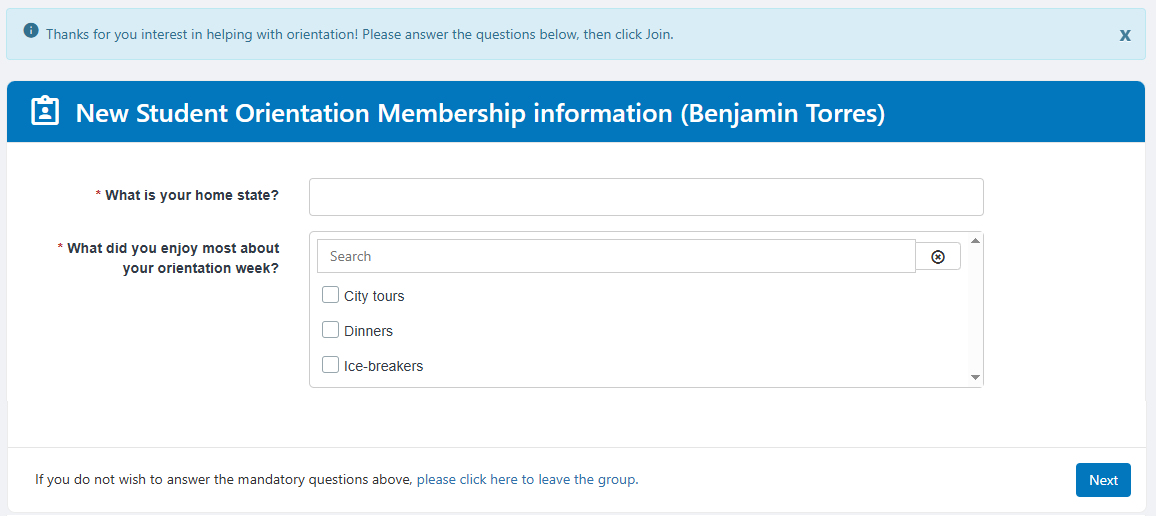
These fields will appear to members after they join the group, or after they are validated for membership Validating New Members, the next time they log into the platform.
Note: Whereas member custom fields are completed after a user becomes a member, you can also require that users submit a response before they join. Open the Settings Group Settings to the Access & Privacy tag, and enter the response request text in the Ask for more details field.
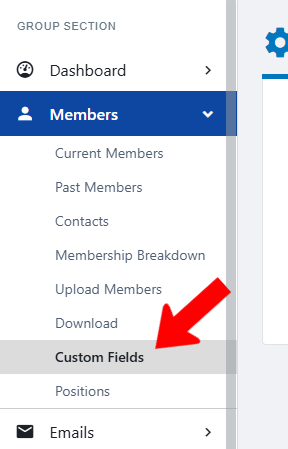
Start by managing your group Custom Fields, and under Members on the left, click Custom Fields.
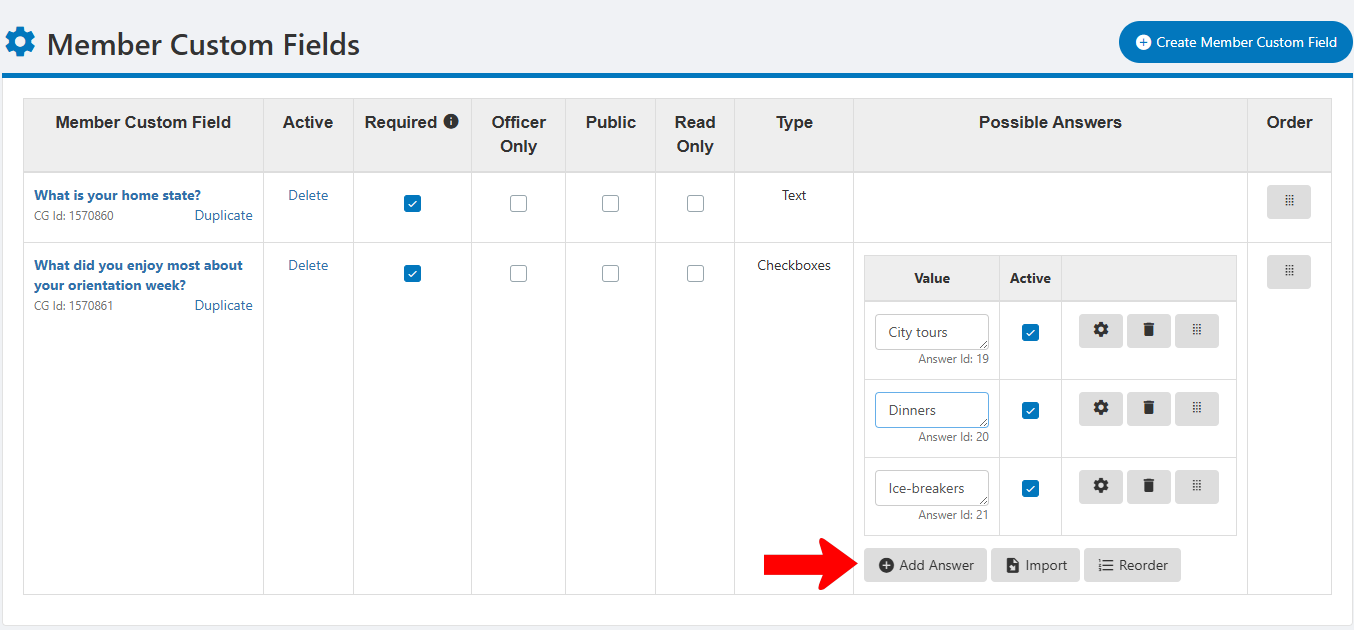
Click Create Member Custom Field.

Enter the question or instructions in the Custom field title field, and choose the field type.
Types include:
- Text: Short-form responses (a few words or less)
- Text area: Long-form responses
- Checkboxes: For choosing one or more multiple choice options
- Dropdown: For choosing a single option
- Date
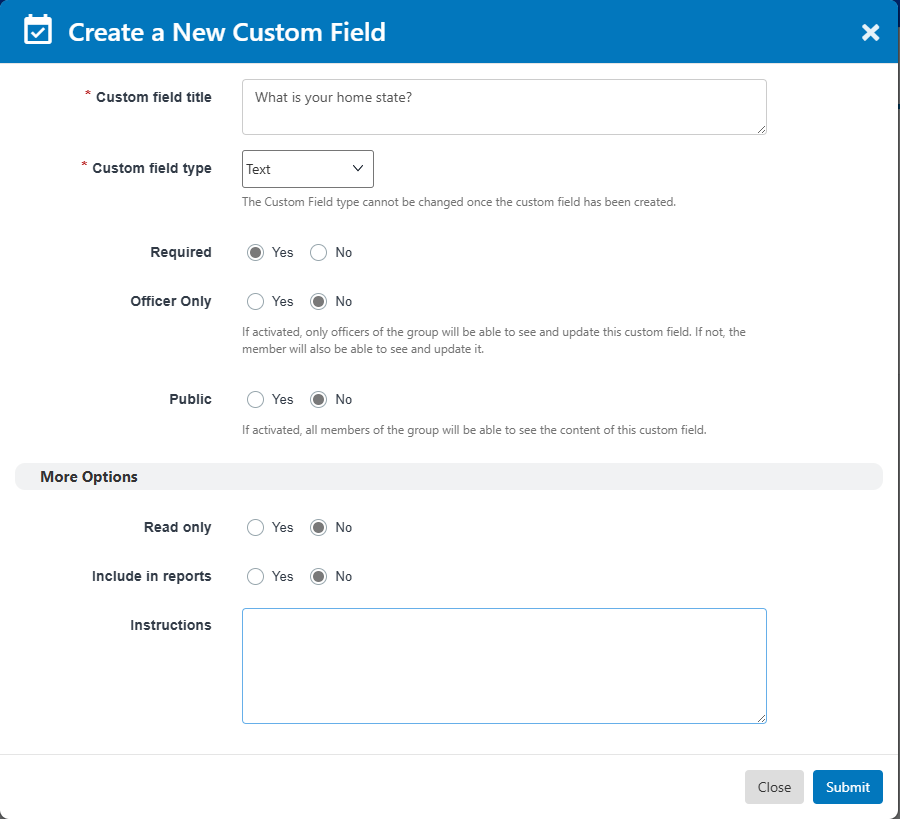
Be sure that other options are correct, such as whether this field requires a response, whether only officers can access this field, etc. Then click Submit.
Note: If Officer Only is disabled, members will be able to view and update their responses. To do this, they can open the group page, click My Membership, and click Edit my answers.
For fields that require multiple choices (checkbox and dropdown), click Add Answer and create each answer. Set the fields in the order you want users to see.
If you want users to see instructions above the custom fields, this can be done in the Settings Custom Fields, in the More tab.
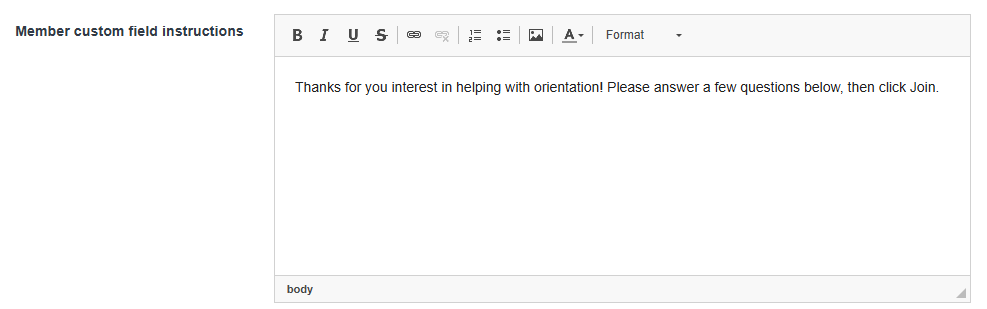
Once the user has joined the group, the custom fields will appear when they next log in. If there are required fields that users don’t want to answer, they will need to leave the group.
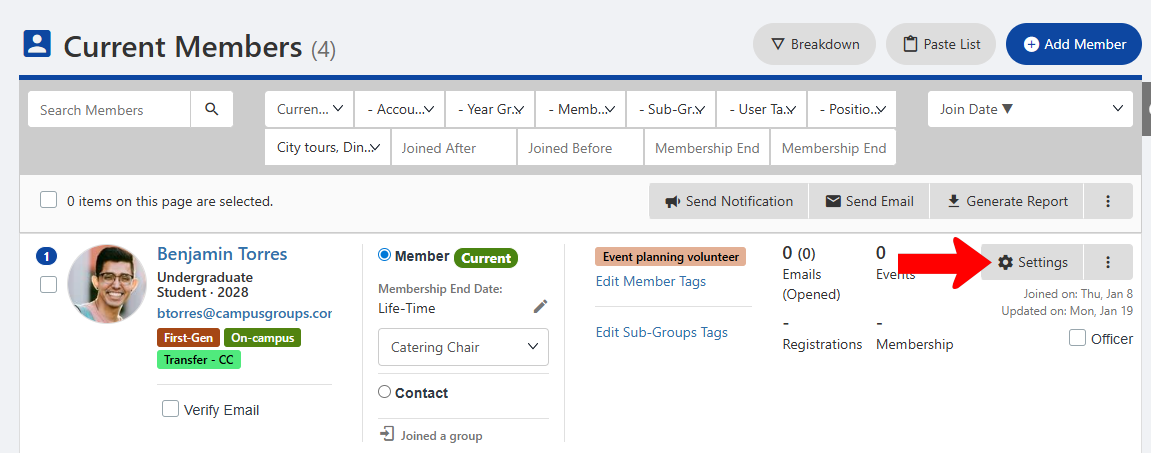
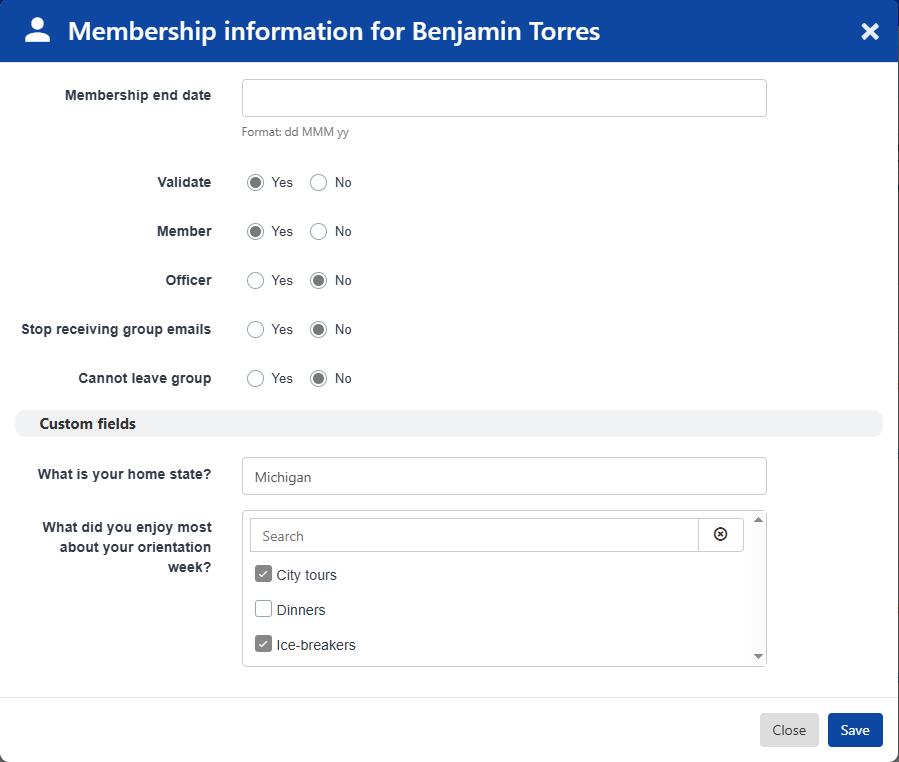
To view custom field responses, open the Members list Members List: Managing Group Members and click a member’s Settings button.
Custom fields are listed at the bottom of the Membership Information popup.
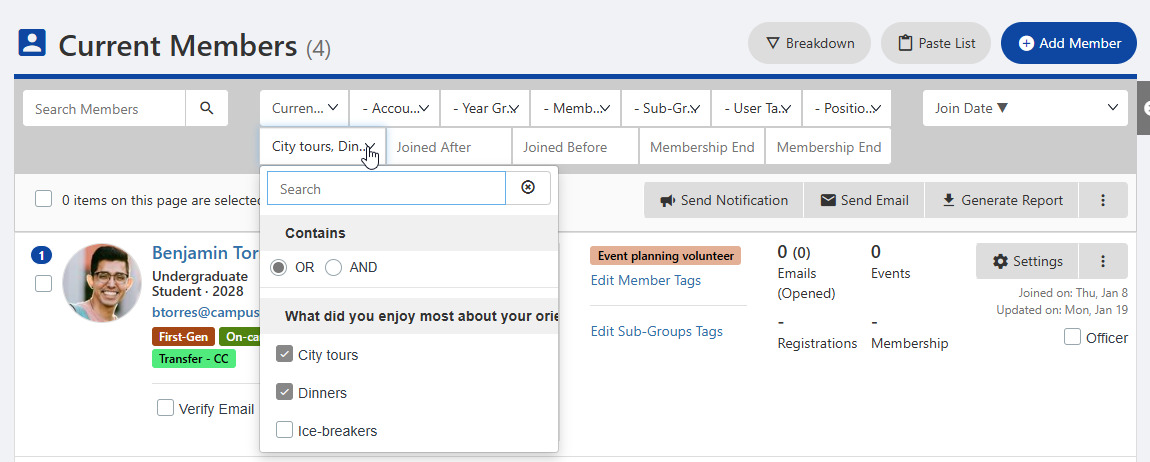
The Members list can also be filtered Searching, Filtering, and Sorting Lists by one or more multi-choice custom field responses.