.png?width=500&height=91&name=CG-Logo-Blue%20(1).png)
CampusGroups provides several ways for users to communicate with other users. This article presents a summary of these methods and when and how they are used.
Chat (1:1)
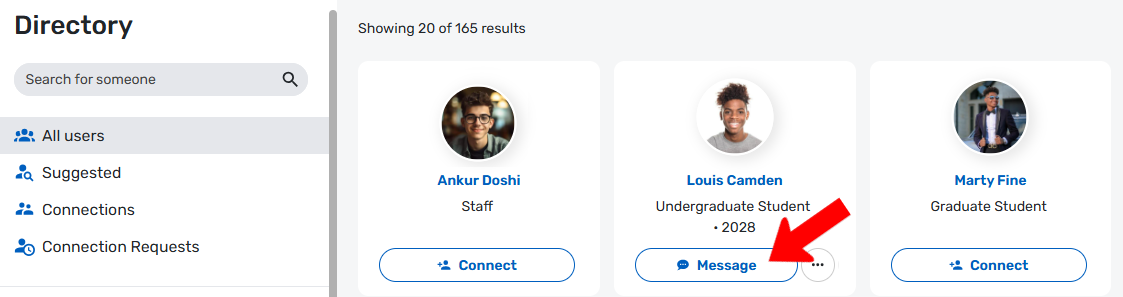
Users can find other users through the directory, then click Message to chat. Note that one user must have already accepted a connection request from the other user. Also, some users may be hidden in the directory from other users, based on Access Rights and user privacy settings Access Rights: Privacy Settings.
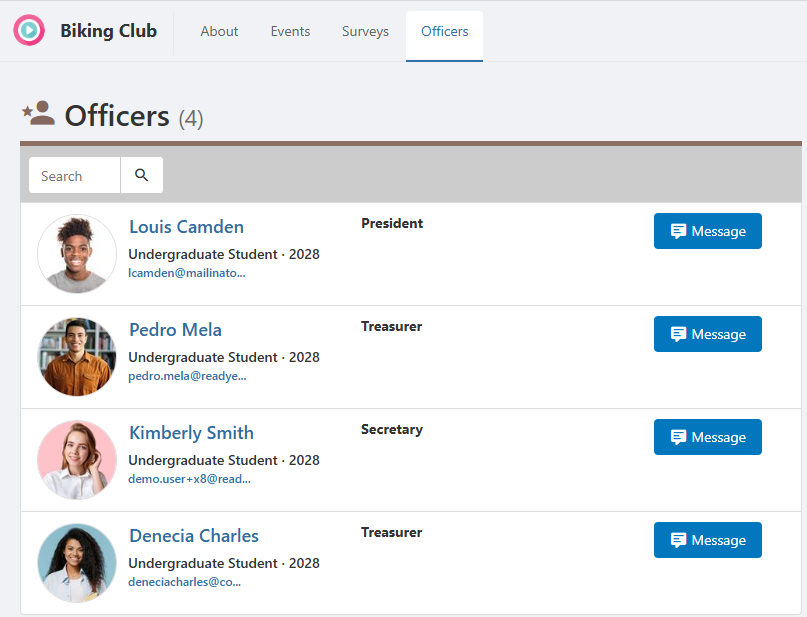
Chat is also available in other areas of the platform, such as in the Officers section of a Group Page.
Community Channel (Feed)
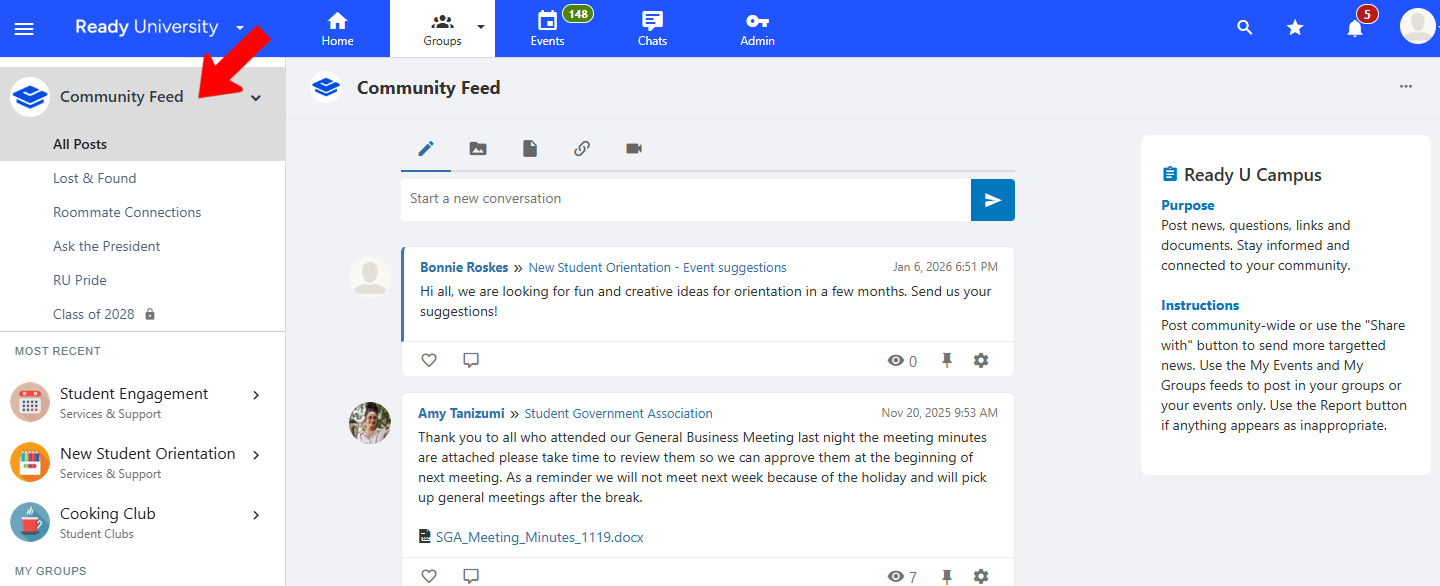
The feed is managed by platform admins. There is one main Community Feed, typically used for university-wide announcements. Other channels can be set up for discussions around a common theme (Lost and Found, Looking for Roommates, etc).
Feed access depends on user type (Student, Faculty/Staff, Guest, etc.). Unless restricted by admins, users can post on the feeds.
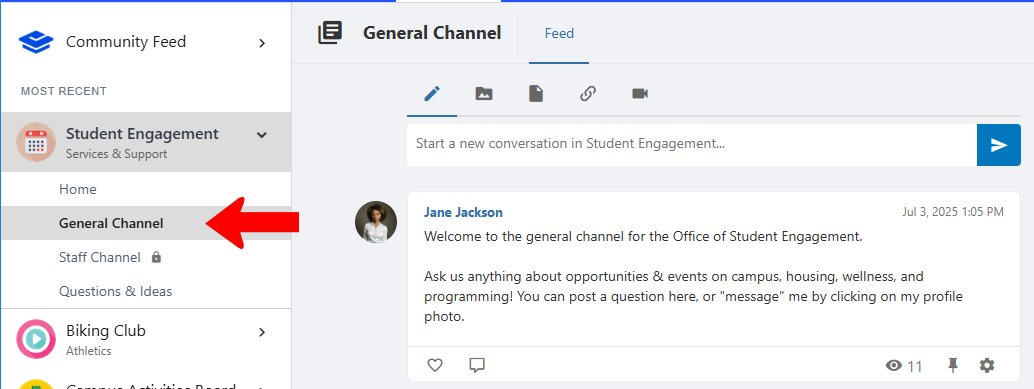
Group Channel (Feed)
Similar to the Community Feed above, the Group Channel Creating a Group Channel is for one or more feeds at the group level. Group feeds can be open to all group members, or restricted to a sub-section of members via Member Tags or Sub-Group Tags.
Unless restricted by officers, members can post on the feeds.
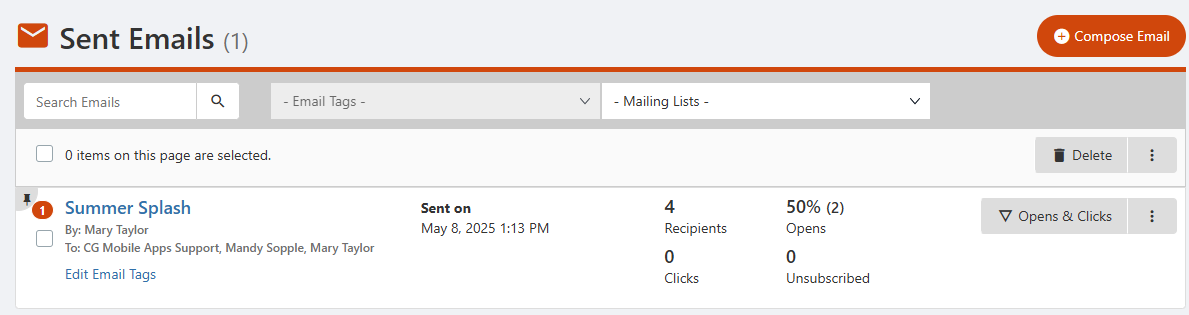
Emails Email can be sent at the group level, or to event attendees, or platform-wide by an admin. Email audiences can be segmented by a variety of factors.
The system tracks recipients, open rates, click rates, and unsubscribe rates.
Notifications
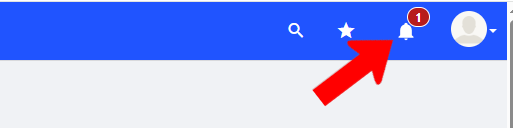
Notifications are sent directly to users, for quick announcements, updates, or reminders. Notifications appear in the web version and mobile app. Push notifications appear on mobile outside of the app itself.
As with emails, notifications can be sent at the group level, or to event attendees, or platform-wide. Notification audiences can be segmented by a variety of factors.
Workflow Messaging
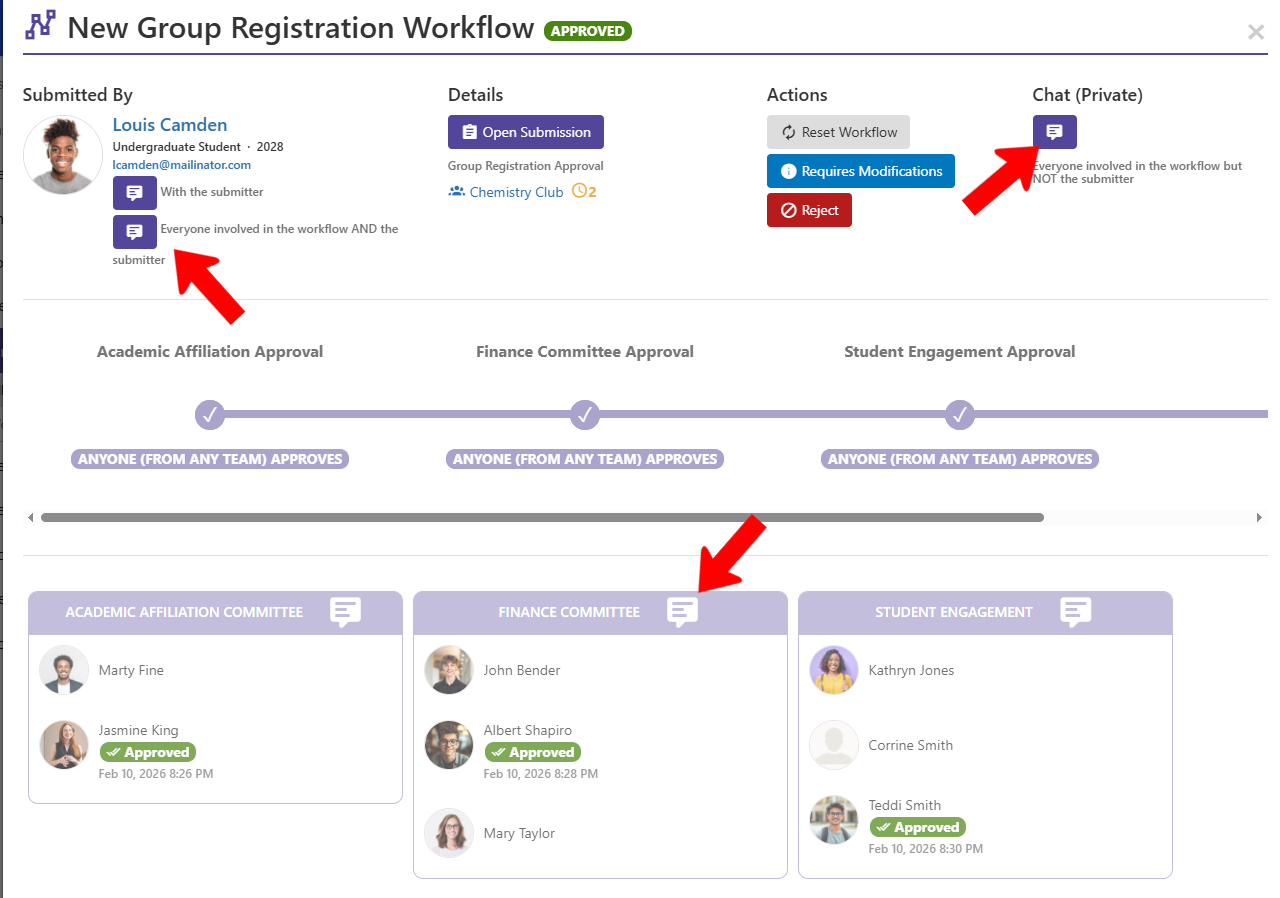
When a workflow Approval Workflow Process is linked to an approval process Approval Workflow Process, each workflow member receives a notification when it is their turn to approve a step. There are also Chat icons throughout the process, for messaging the form submitted, an approver, or the whole workflow team.