.png?width=500&height=91&name=CG-Logo-Blue%20(1).png)
Academic Integration enables students to access their course information right in the platform.
Users can:
- View a list of current and past courses
- Quickly scan assignments and upcoming exams, to see what work needs to be completed
- See real-time news and announcements synced from their online course space
- Easily connect with classmates outside of class, through the course roster listing and view of classmate profiles
- View assignment and quiz grades, integrated from the LMS
Course information is synced to Ready Campus from your Student Information System (SIS) and Learning Management System (LMS). Configuring the integrations is managed by our Implementation Team in partnership with your Academic Tech / IT department.
Supported Student Information Systems:
- Banner*
- Colleague*
- Anthology Student
- Flat file (.csv)
*Banner integration may require us to work with your school to set up a VPN connection, which requires additional engineering effort/support.
Supported Learning Management Systems:
- Canvas
- Blackboard Learn
- Moodle
- Desire2Learn
Note: Academic integrations are one-directional feeds into the platform. Integrated content is designed to help students manage their time by viewing their coursework and co-curricular activities in one place, but is not intended to replace your existing platforms. We provide links to targeted content, such as specific assignments and quizzes, that open within the LMS.
There are two ways to make integrated courses accessible to users:
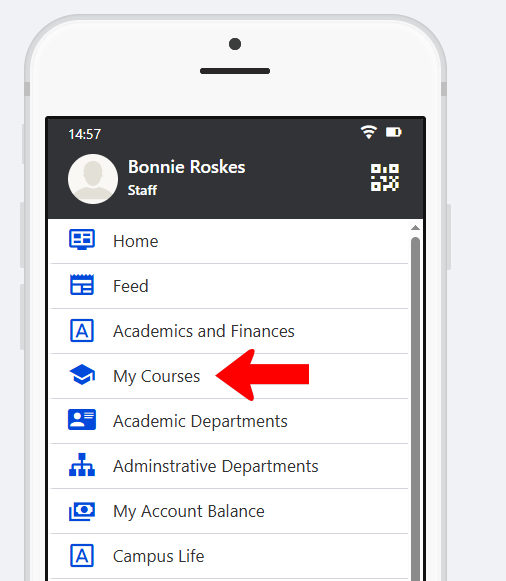
In a Community Hub, include the My Courses hub menu item. You can set this hub menu to appear on web only, mobile only, or both.
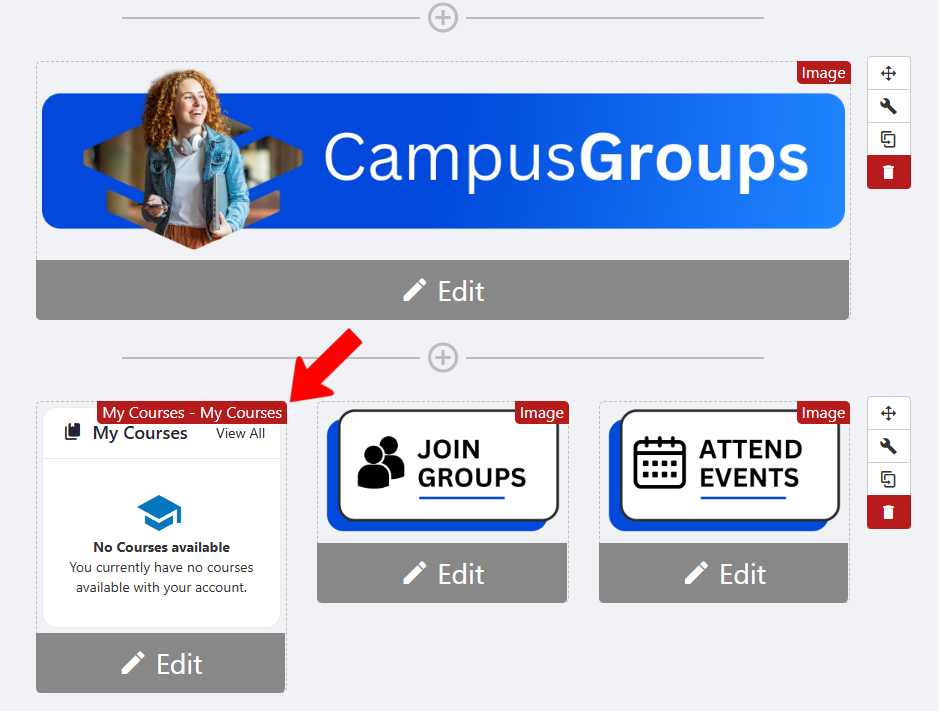
On the hub’s Home Page hub's Home Page, include the My Courses widget.
For each course that has an online course space, students will be able to see the following content displayed for each course they are enrolled in:
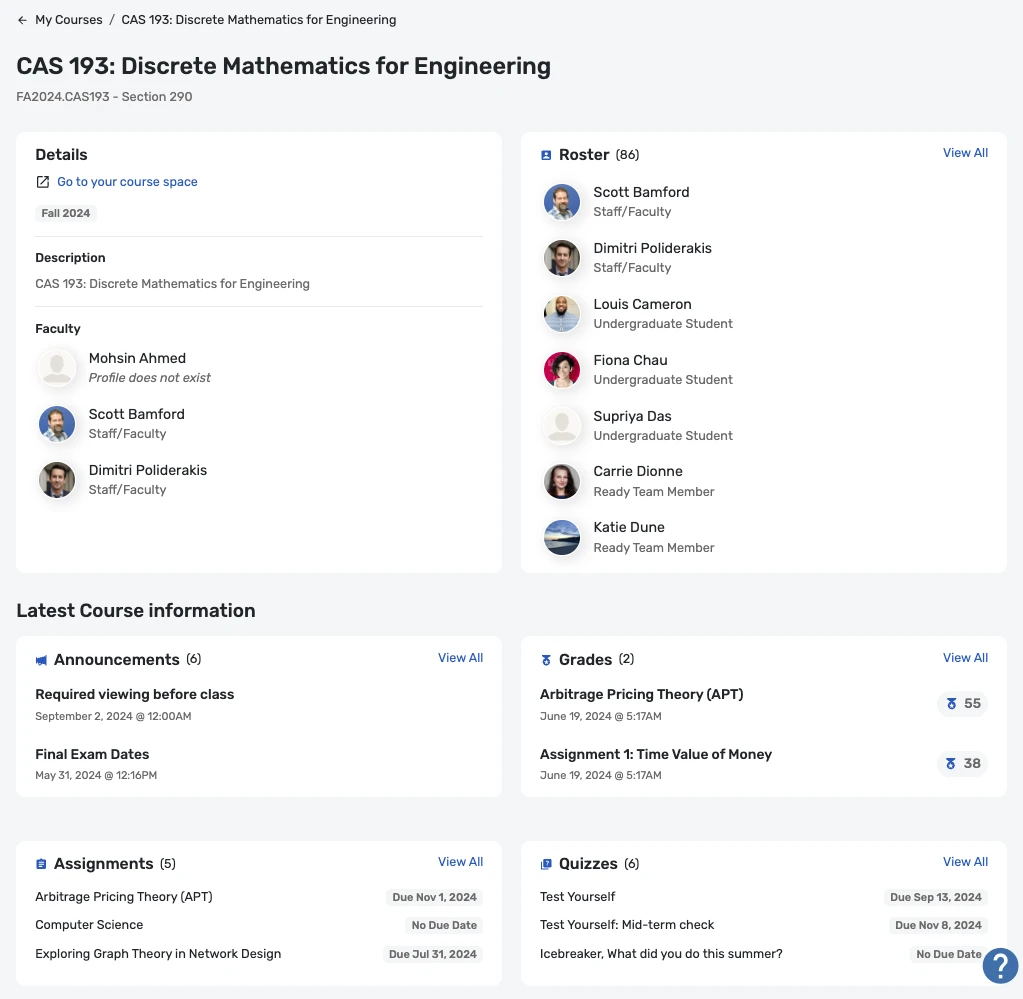
Course Details
- Location of class meetings
- Days and times for class meetings
- Course description
- Faculty member assigned as the instructor (which will connect to the instructor’s profile in your CampusGroups instance if the email address matches)
Roster
- List of users enrolled in the same course
- If a user’s email address matches an existing profile in CampusGroups, students can click/tap to pull up the profile in a modal window.
- From here, users can “connect” and/or “message” with their classmates.
- If any user in CampusGroups has their privacy settings set to prohibit their profile from displaying in lists such as these, their Roster item will not be mapped to their profile.
Course Announcements
- The two most recent announcements posted to the student’s online course space display in the overview, with a link to the full list of announcements.
Grades
- The two most recent grades posted to the students' online course space display in the overview, with a link to the list of all grades available for that course.
- This is designed to show assignment and quiz grades only (as opposed to a final course grade calculated by the LMS or entered into your SIS).
Note: Due to the sensitive nature of grades, when impersonating another user in the system Impersonating Another User, the name and date of the grade are both visible, but the actual score is obscured.
Assignments
- Upcoming assignments display in the overview, with a link to the full list of assignments.
- Assignments are listed in order of upcoming due date with those due next listed first. If there were assignments due in the past, they are listed from the most recent due date to the least recent due date.
- Where available, each assignment includes a link to that specific item in the LMS, which will open in the browser (on web and mobile).
Quizzes
- Upcoming quizzes display in the overview, with a link to the full list of quizzes.
- Quizzes are listed with the next upcoming due dates first. If there are assignments due in the past, they are listed from the most recent due date to the least recent due date.
- Where available, each quiz includes a link to that specific item in the LMS, which will open in the browser (on web and mobile).