.png?width=500&height=91&name=CG-Logo-Blue%20(1).png)
This type of logic Page Logic is used to show the user a specific page (or hide a page) based on their answer to the current question.
Note: Question Logic is similar, but shows the user a specific question, rather than a page.
The pages included in the logic must already be created, and questions Pages can be added to these pages later, if needed. To ensure that page logics work correctly, the last page of the form must be visible. (For multi-page forms, we recommend using the last page for final verification before submitting.)
When Creating a Form, or editing a form from the Surveys & Forms list Creating a Form, pages can be added by clicking Insert Page.
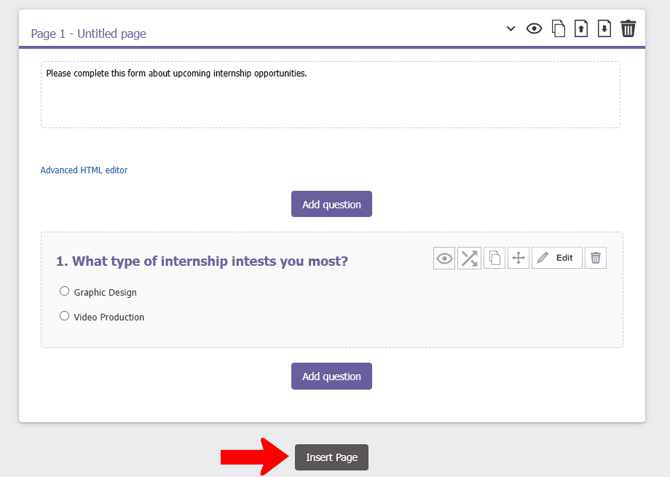
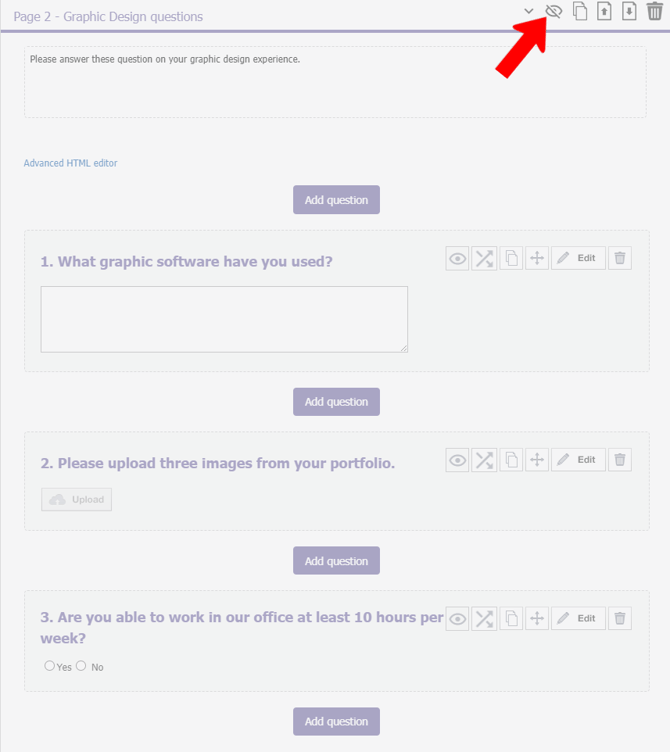
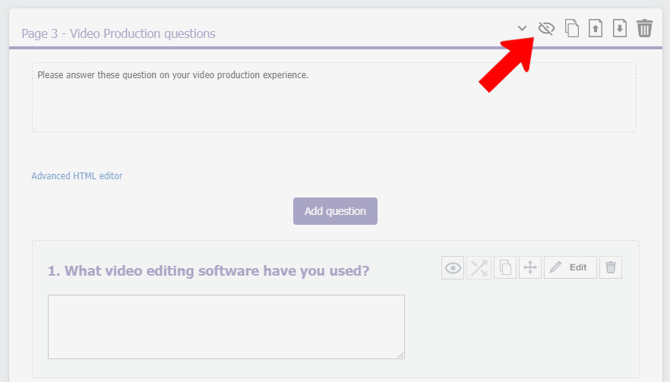
The most common way to apply Page Logic is to start by hiding any page whose display is logic-based. (In other words, hide any pages that not all users will see).
The example below uses the following setup:
- Page 1 has one single-selection, multi-choice question.
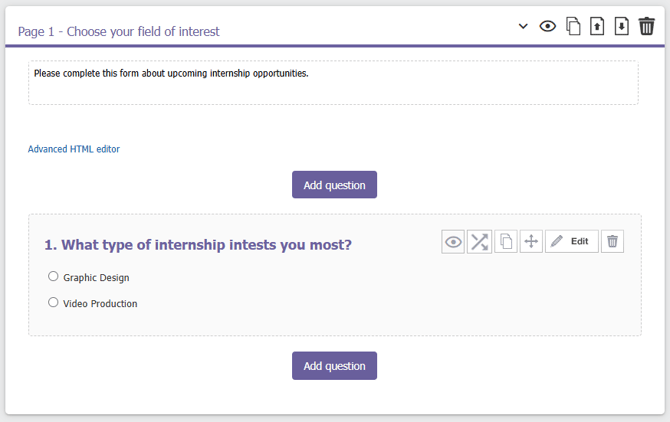
- Page 2 will be shown only to users who answer Question 1 on Page 1 with "Graphic Design." This page is hidden because not all users will see it.
- Page 3 is similar to Page 2, and will be shown only to users who answer “Video Production” to Question 1 on Page 1. This question is also hidden.
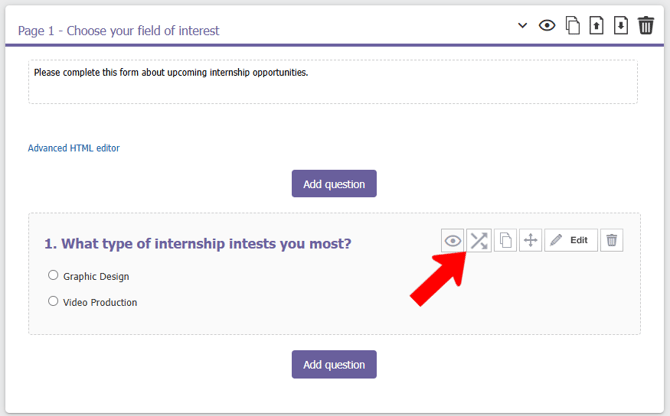
To apply the logic for Question 1 on Page 1, click its Logics icon.
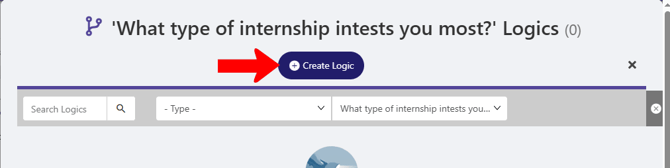
Click Create Logic.
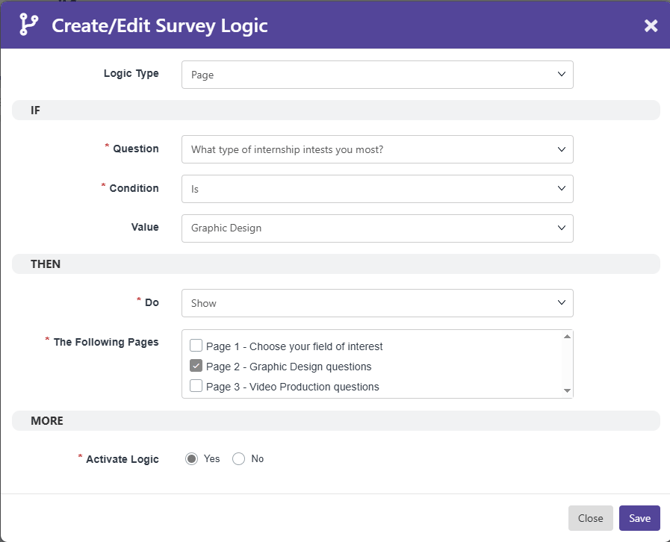
In the Create / Edit Survey Logic popup:
- Set the Logic Type to Page.
- In the IF section, define the Condition: the event that triggers the logic. In this example, the logic is triggered when the answer to Question 1 is “Graphic Design.”
- If the THEN section, define what happens when the logic is triggered. In this example, the user will be shown Page 2.
Notes:
- There are several types of logic conditions, including “is not,” “contains,” “starts with,” “ends with,” etc. for text answers, and “greater than,” “less or equal to” etc for numbers.
- The other THEN option is to hide a page. This means that rather than start with hidden pages, you could start with all visible pages, and choose what to hide.
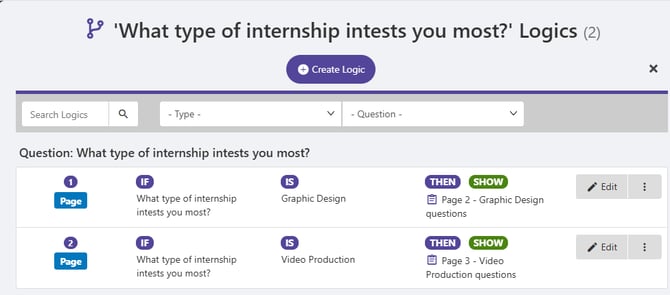
After saving, the logic is listed on the Logics page for the question. In this example, a second logic was added to bring “Video Production” users to Page 3. Any logic can be edited or deleted.
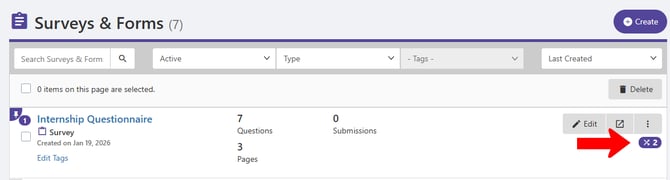
In the Surveys & Forms list, a form’s total number of logics are listed on the right.
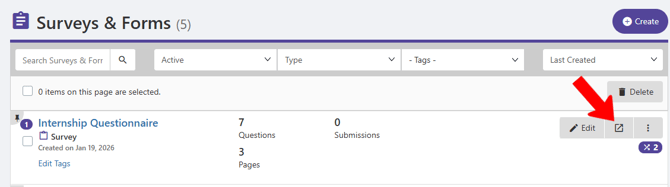
You can test your logics by previewing the form.
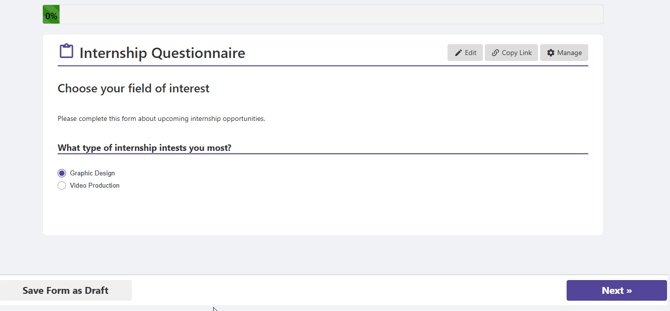
In this example, this is what the user would see when starting the form. Page 1 and its one question are first. If they choose “Graphic Design” and click Next . . .
. . . they are brought to Page 2.
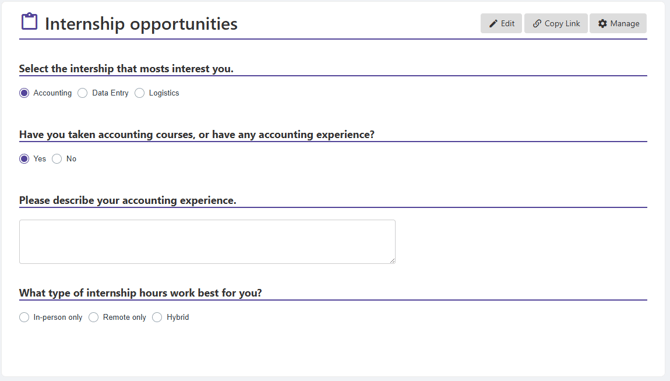
If the user chooses “Accounting” for Question 1, they are shown Question 2.
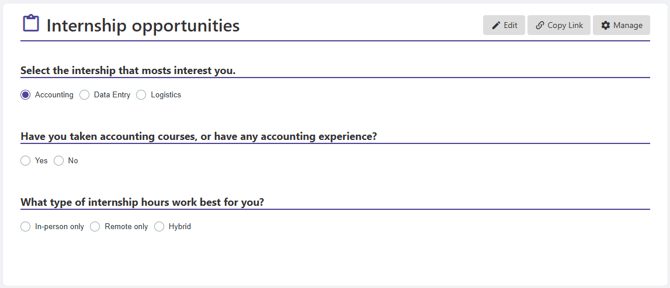
If the user chooses Yes for Question 2, they are shown Question 3.