.png?width=500&height=91&name=CG-Logo-Blue%20(1).png)
To increase engagement, and foster a sense of platform gamification, admins can set up a point award system for users or groups after they complete specific tasks. Points accumulations are shown in User and Group Leaderboards, and users can view their own points, as shown later in this article. Group points are shown in the Group Page.
Note: You can decide whether points will accumulate over time or reset each year
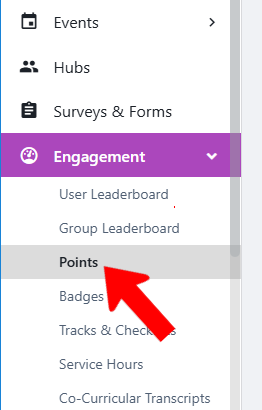
To set up a point structure, switch to Admin mode if needed. Open Engagement on the left, then choose Points.
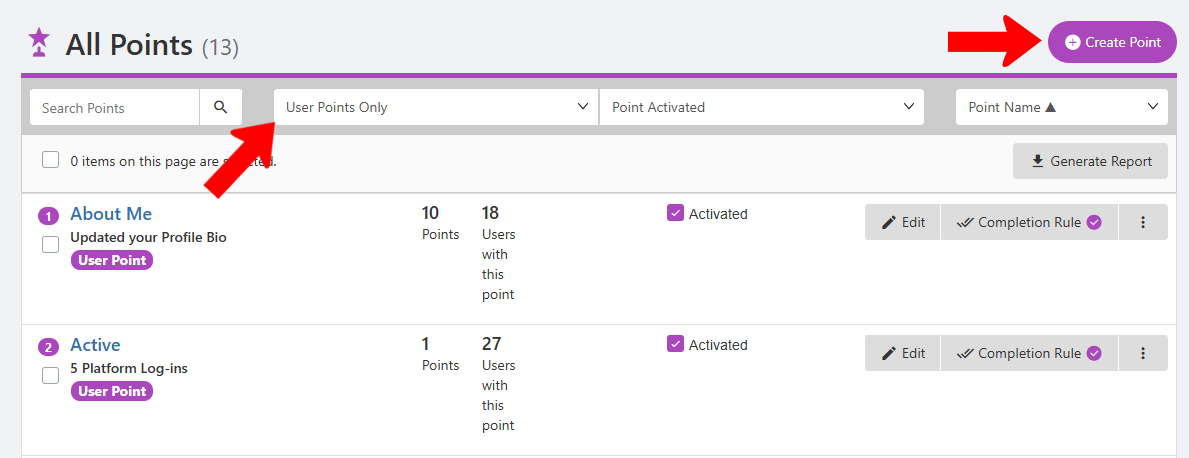
The All Points list comes with several default points, which can be customized as needed. Note that if you change points, and need to recreate any lost points, reach out to help@readyeducation.com.
The list can be searched and filtered, and you can display either User Points or Group Points. Each point is listed with the number of users or groups who have earned it. Any existing point can be edited, or click Create Point for a new one.
Assign a point name, optional description, and number of points.The point will be a User Point unless Group Point is enabled. You can also determine whether the user / group can earn these points multiple times.
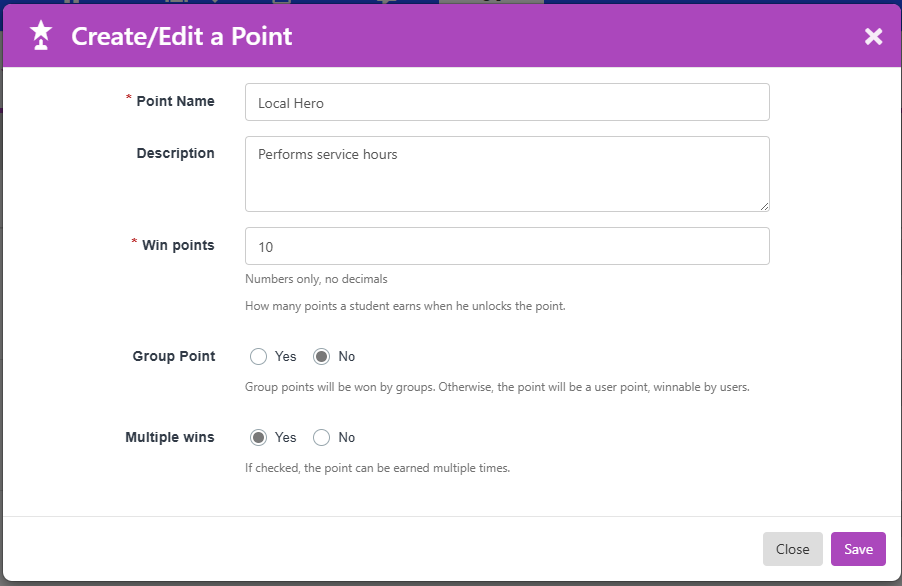
Note: Point values can be negative. This is typically done to remove points when students or groups “cash in” points for a prize.
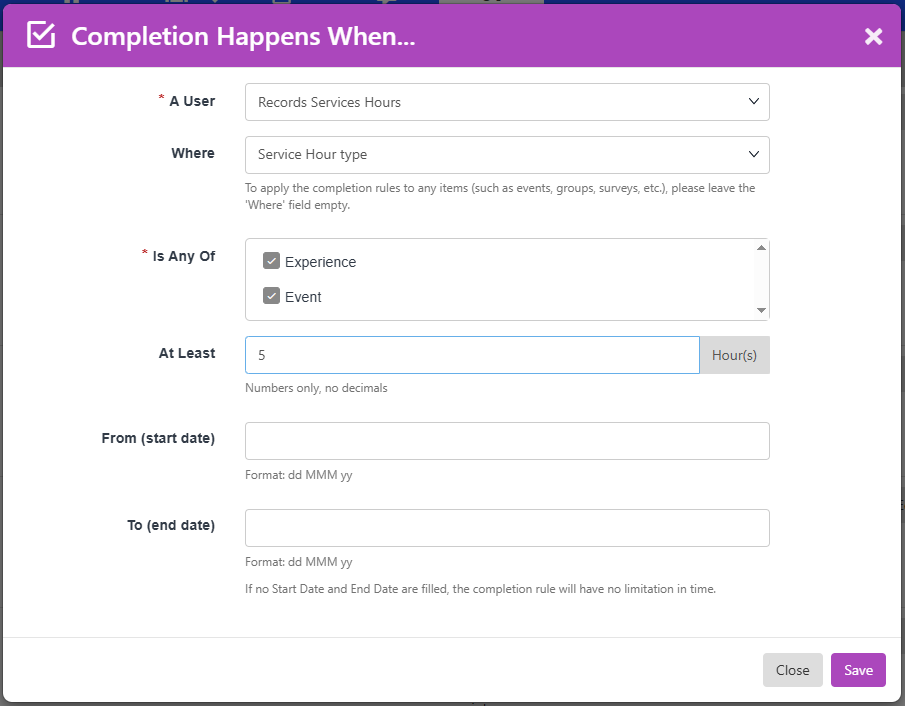
After the point is created, it will appear on the list of User Points or Group Points. Points are activated by default but can you disable this. To define how the point is earned automatically, click Completion Rule.

Note: If no completion rule is assigned, the point will have to be awarded manually by an admin.
Available completion rules vary between User Points and Group Points.
- For User Points, there are standard rules (registers to an event, takes a quiz, becomes a group member, etc.), advanced rules (completes a checklist,earns a badge, sends an email, etc.), feed rules (posts, responds, likes), and other rules including logging in, downloading the app, and using the chat.
- For Group Points, standard rules include organizing an event, creating a survey etc., while advanced rules include co-hosting, bringing a speaker to an event, writing a news article, etc. Groups also can earn points when at least one officer has submitted a survey or form.
In this example, User Points will be assigned when a user logs at least five service hours.
When the completion rule is added, the Completion Rule button has a checkmark. Clicking the More (three-dot) icon for a point enables you to manually award points to users / groups, add a private note (to be seen by other admins), duplicate, download users with this point, reset points to zero Duplicate Users, and delete.
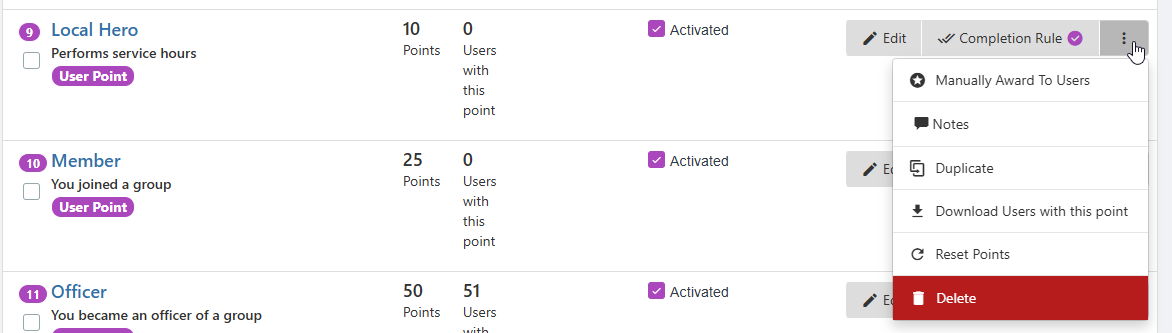
Note: Resetting a point permanently removes the point value from all users or groups who previously earned it, but the point remains active and can still be earned going forward. Deleting a point also removes all earned points, and removes the point. Deactivating a point stops further point accumulation, while retaining point values for previous earners. A deactivated point can be reactivated.
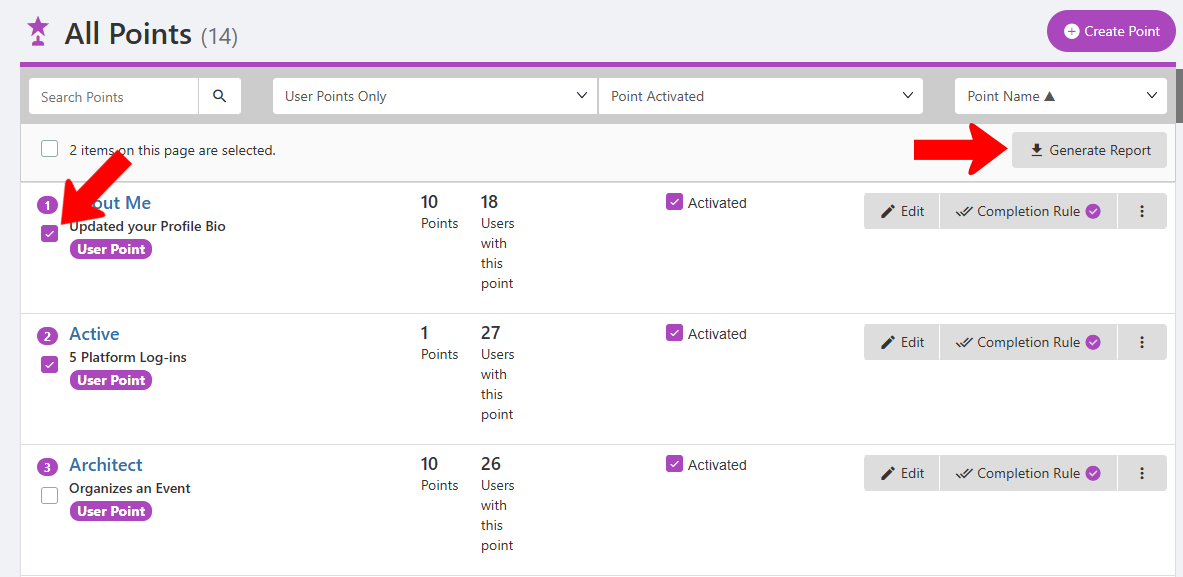
When one or more points are selected, clicking Generate Report downloads a spreadsheet with details on each user or group who earned the point.
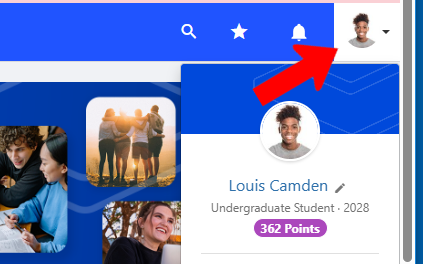
On the web version, users can view their points by opening their User Profile.
The My Activity Menu hub menu My Activity also includes a M points submenu.
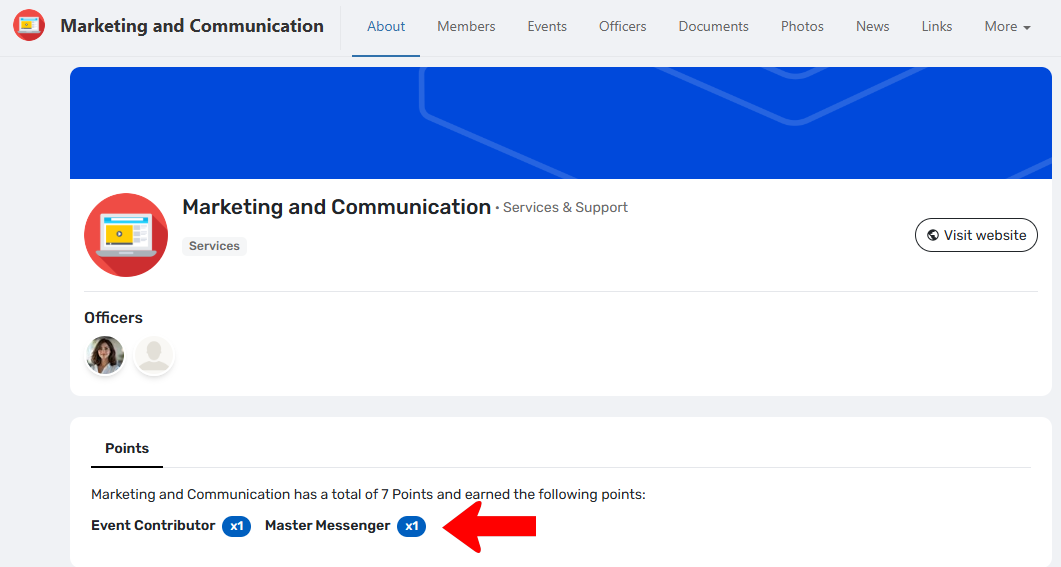
Group points appear on the About section of the Group Page.
Cumulative vs Yearly Points
As long as a point value is activated, user or group points will reflect the cumulative total from year to year. This is appropriate for ongoing incentive programs, or for assigning badges.
For other types of points, you may want to use a year-by-year system, such as for an annual incentive program. In this case, you could create a new point for each year. For example, you could create a point called “2026 - 2027 Event Attendance,” whose completion rule includes the correct date range. You would then create similar points for subsequent years.
If you prefer to keep things simple, with just one point for use each year (such as “Event Attendance”), you can reset this point for all users at the end of the year. But if you want to save a record of point earners from the year that ended, then before resetting, first generate a report for that point.