.png?width=500&height=91&name=CG-Logo-Blue%20(1).png)
As an Administrator, you can quickly and easily export data in the form of a .csv file to further manipulate, filter/sort, and share. You can access a list of canned reports in the Reports Library. If you need a different set of data, Report Builder provides the ability to customize reports from a group, user, event and badges level.
Both features can be found in the "Data" section, from the top menu. There are two report options: Report Library and Report Builder.
Choosing Reports Library opens a list of standard downloads and reports.
The Downloads list contains several commonly-requested download lists, such as events, groups, members, and officers.
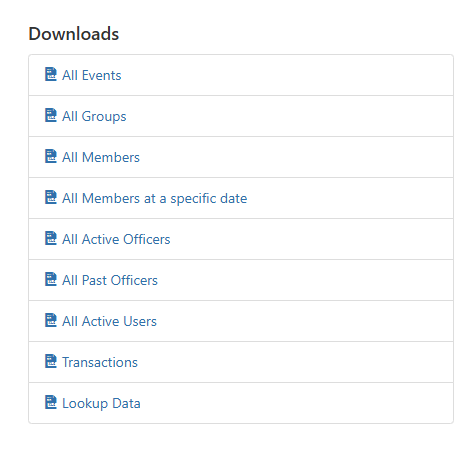
For some download options, simply click and start the download. For example, clicking Lookup Data downloads a list of all Custom Values.
Other downloads require additional filtering details. For example, before downloading All Events you can specify a date range and filter by Group Types.
The Reports list contains several filtered data sets. For example, you can get a count of members by group, or count of events by group and time.
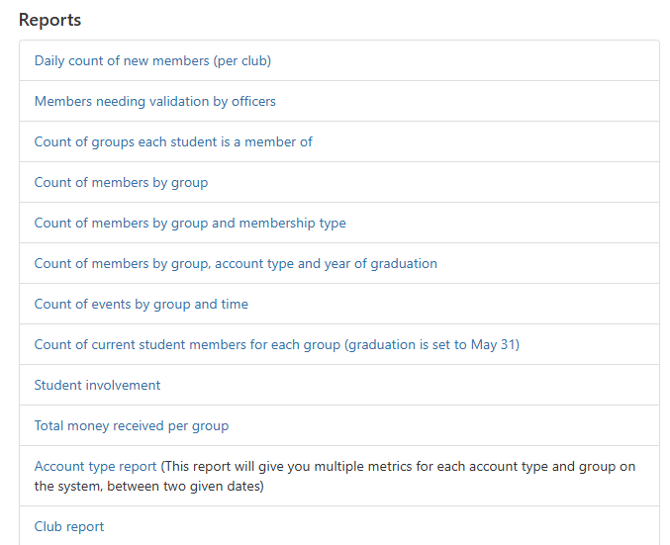
As with downloads, some of these reports can be generated straightaway, while others can be filtered further.
If you want a customized report, open the Report Builder. The report can be generated for users, groups, members, active and past officers, events and event attendance, or Badges.
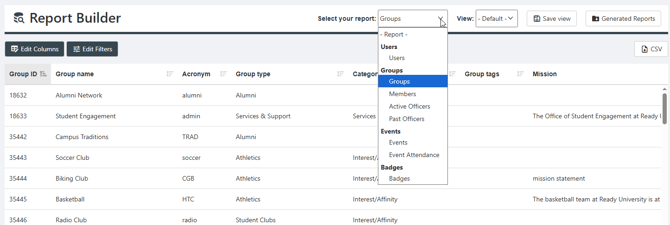
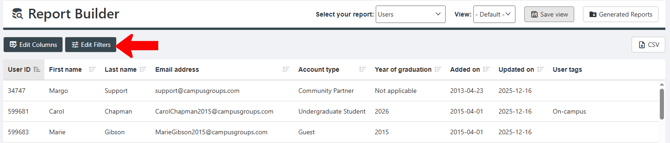
Once the report base is defined, you can edit columns and / or edit filters.
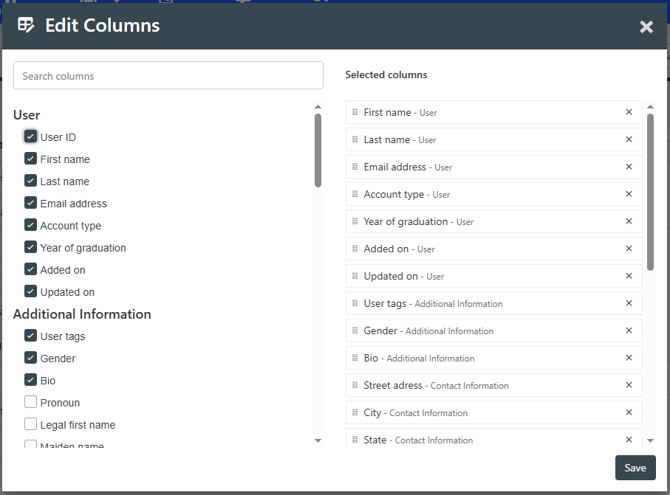
In the Edit Columns popup, select on the left the columns to include. On the right you can set column order.
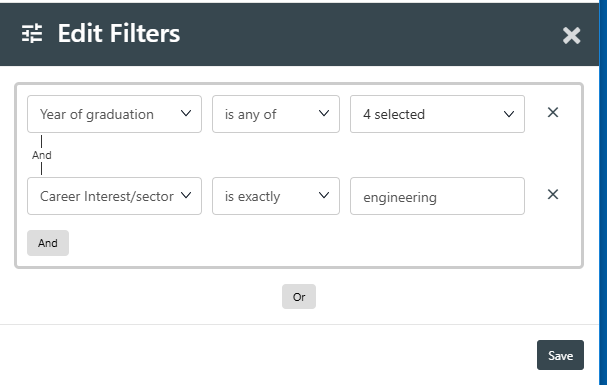
In the Edit Filters flyout you can limit the data to include. For example, you can query for students with specific graduation years, and have specific career interests.
If you want to save a custom report, click Save view and assign a report name.

A saved view can be accessed from the View drop-down.

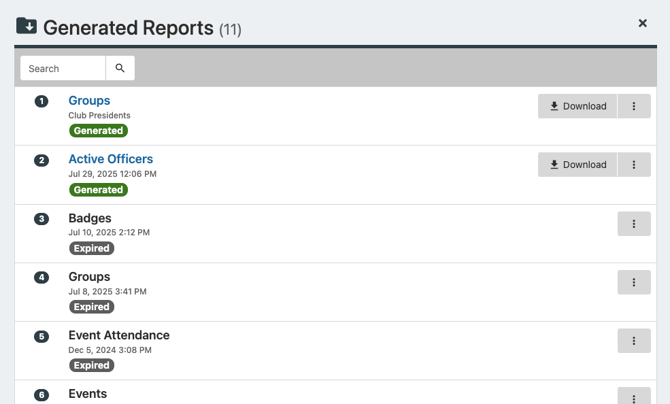
Clicking Generate Reports displays a list of the last set of reports you downloaded via the CSV button. From this list, you can download the report within its expiration period, or generate a fresh report.