.png?width=500&height=91&name=CG-Logo-Blue%20(1).png)
Kiosk requirements
The Self Check-In Kiosk lets walk-up attendees register and check in on the spot. It only works for events with a simple, free registration.
To use the kiosk, your event must:
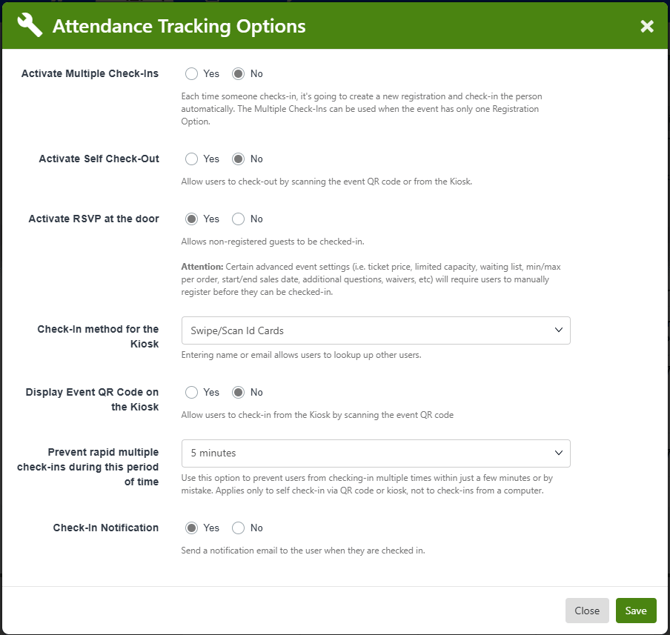
- Have Activate RSVP at the door turned on (Attendance Tracking → Settings)
- Have only free registration options
The kiosk isn’t available if your event has donations, a waiver, custom questions, time slots, registration open/close dates, ticket limit, or a post-registration redirect. It’s also unavailable if any registration option has a price, a waiting list, a min/max per order, or sales start/end dates.
If the kiosk is unavailable
If your event doesn’t meet these requirements, the Self Check-In Kiosk option appears greyed out. You can use one of the other check-in and attendance tracking methods instead. We recommend the Self Check-In QR Code.
Setting up the kiosk
Start by managing your event.
Click Check-in Attendees at the top of the event page.

Choose Self Check-In Kiosk.
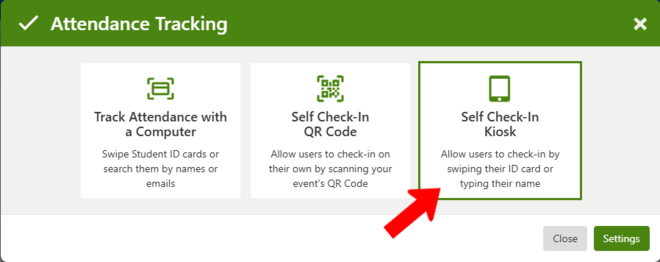
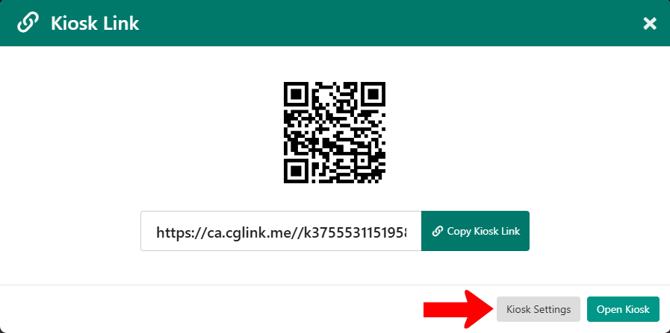
Click Kiosk Settings.
In the Attendance Tracking Options popup, configure the kiosk settings.
Click Save.
Starting check-ins
When you're ready to start check-ins, open the Kiosk Link popup.
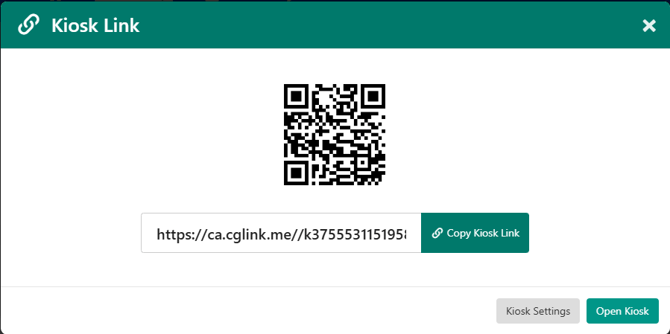
From here, you can:
- Open the kiosk on the current device.
- Copy the kiosk link to open it on another device.
Depending on your kiosk settings, attendees check themselves in by doing one of the following:
- Entering their name.
- Swiping their ID card.