.png?width=500&height=91&name=CG-Logo-Blue%20(1).png)
Self check-in with a QR code lets attendees check themselves in by scanning a code you display at your event, instead of waiting for someone to check them in one at a time. It's one of several check-in and attendance tracking methods, and it's a good fit for large events where a check-in line would slow entry.
Who can do this: Group officers with event management access.
Turning on the QR code
Start by managing your event, then click Check-in Attendees at the top of the page.

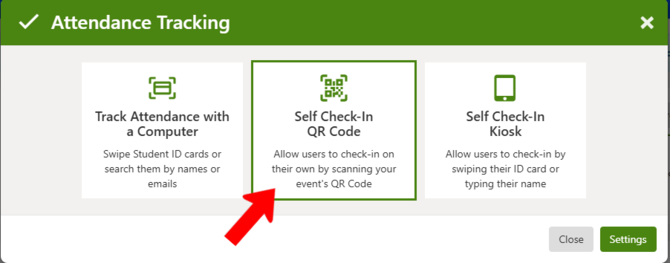
Choose Self Check-In QR Code.
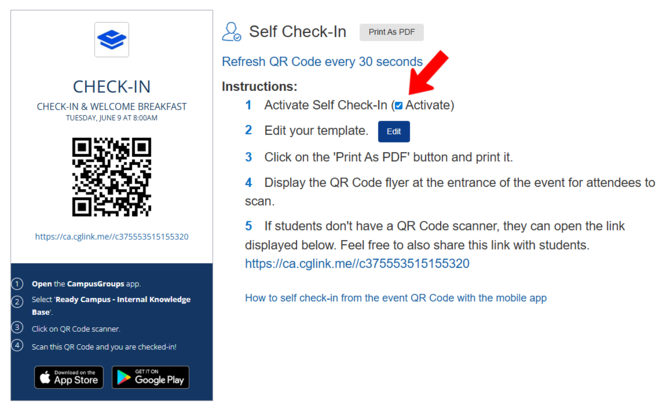
Confirm that the Activate checkbox is selected. The code isn't available to attendees until it's activated.
Adjusting the check-in flyer
A preview of the event check-in flyer appears next to the setup options. To change the wording of the instructions on the flyer, click Edit in Step 2. The flyer also includes a URL, so attendees who don't have the mobile app can still check in from a browser.
Optionally, select Refresh QR Code every 30 seconds. This generates a new code twice a minute, which stops one attendee from screenshotting the code and sharing it with people who aren't at the event.
To display printed copies at your event, click Print as PDF.
⚠️ Caution — Don't use Print as PDF together with Refresh QR Code every 30 seconds. A printed code is fixed, so it stops working as soon as the code refreshes.
How attendees check in
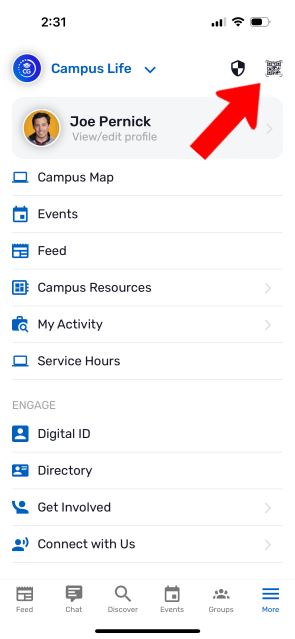
Attendees open the mobile app and tap the QR code icon, then tap Scan QR Code and point their camera at your code.