.png?width=500&height=91&name=CG-Logo-Blue%20(1).png)
If enabled in your account, group emails are a great way to stay in touch with your members.
Note: In addition to emails, the other ways to communicate with group members are notifications channels and channels. You can also send emails to event attendees.
Start by managing your group Managing Your Group, Group Dashboard.
One way to send a group email is to click Members menu on the left, to open the list of Current Members.
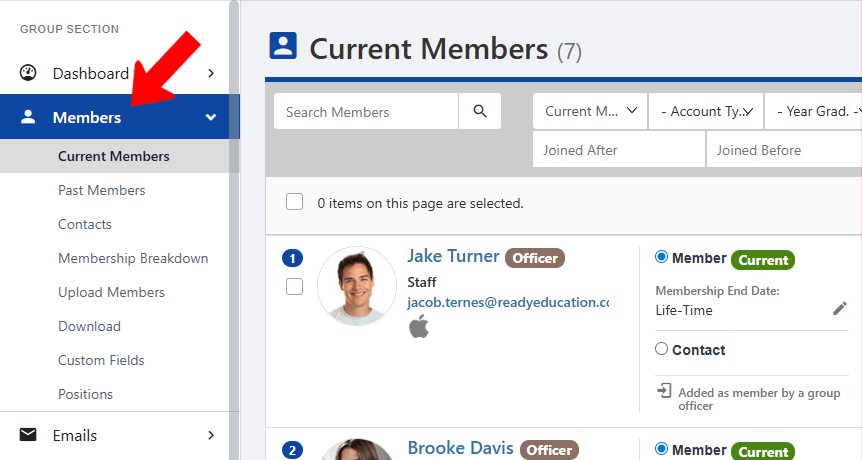
If needed, filter or search the list. For example, you can filter to see past members or contacts, members with specific Account Types or User Tags, etc.
Check the selection boxes for the people to receive emails, or select all. Then click Send Email.
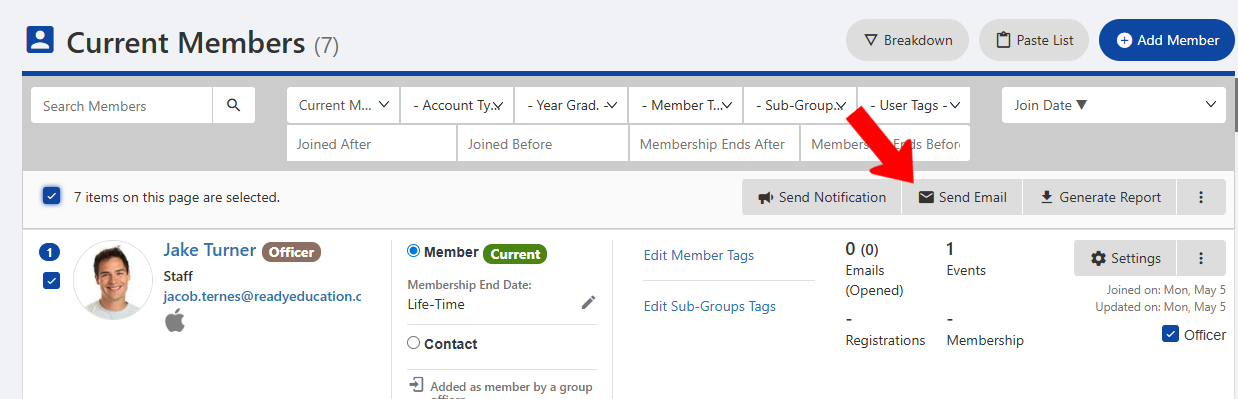
Note: To send a single email, click a member’s More (three-dot) icon and choose Email.
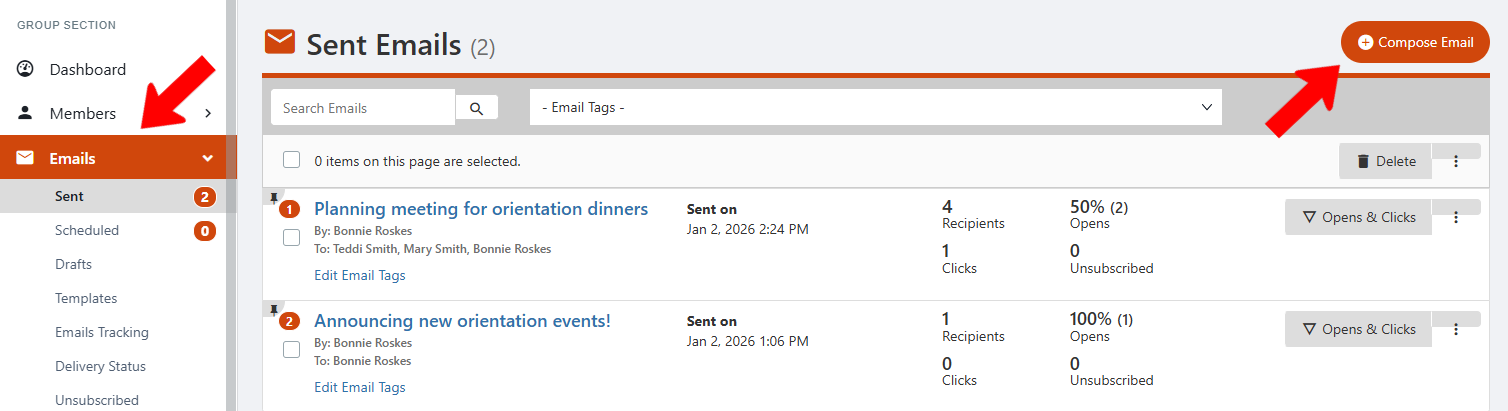
Another way to send an email is to click Emails along the left, then click Compose Email.
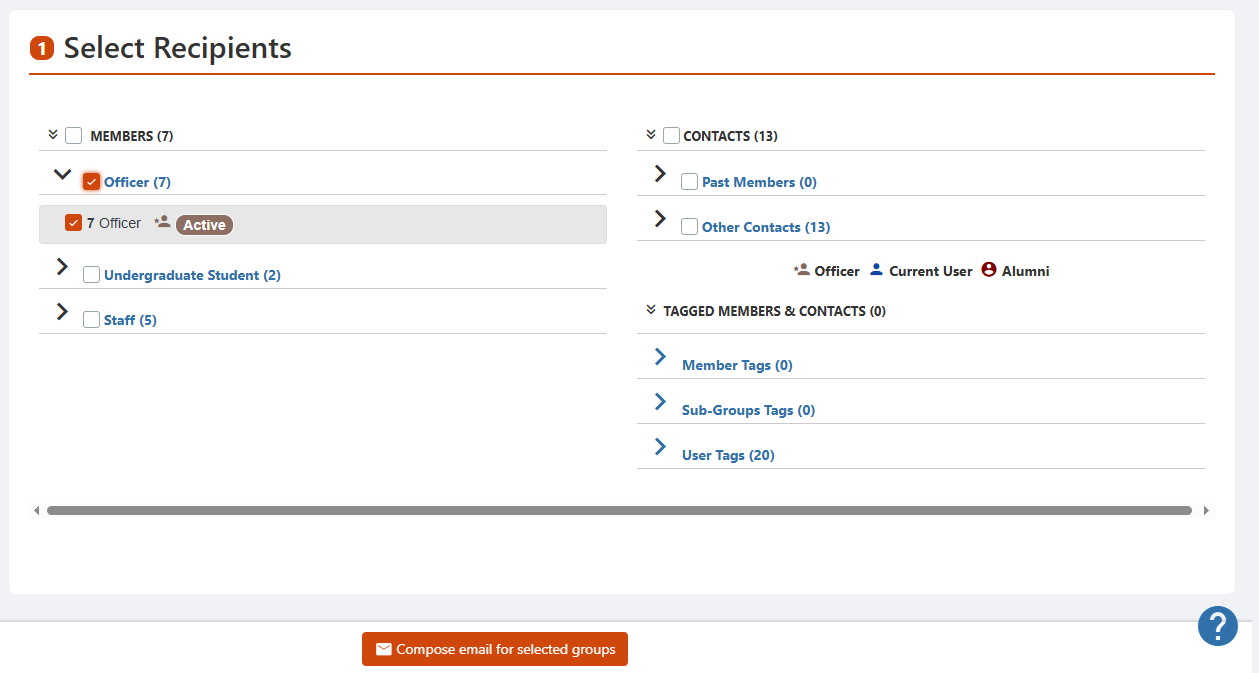
Choose the recipients you want, and click Compose email for selected groups.
Note: If enabled in your account, another way to send emails is via Mailing Lists.
There are two choices for email design:
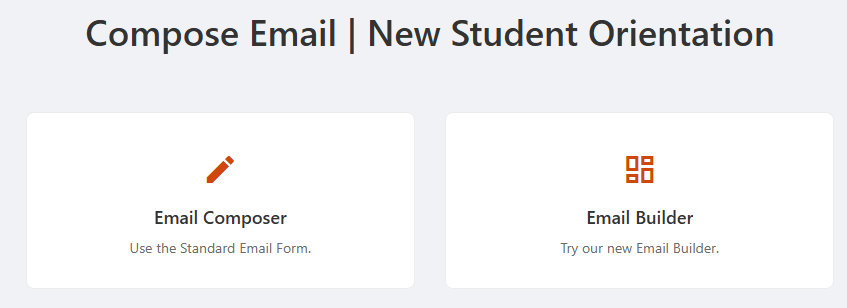
- Email Composer Using Email Composer: Creates standard emails with text and images, similar to what you might send via Gmail or Outlook
- Email Builder News: For emails with a newsletter feel, a user-friendly, drag and drop interface based on email templates and dynamic content
After an email is sent, you can:
- View all sent and draft emails Delivery Status
- Track opens and clicks Opens & Clicks
- View email Delivery Status