.png?width=500&height=91&name=CG-Logo-Blue%20(1).png)
This type of logic Tags is used to assign tags to form submissions, based on how users answer a specific question.
Note: Submitter Tag Logic is similar, but applies a group Member Tag (or User Tag if you are an admin), rather than tag their submission.
You must create all Forms / Survey Submission Tags in advance before applying logics.
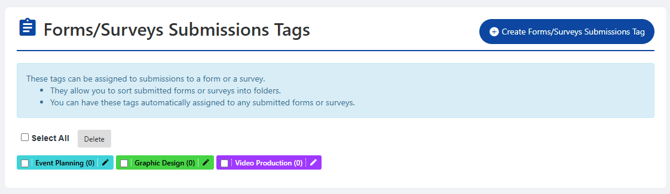
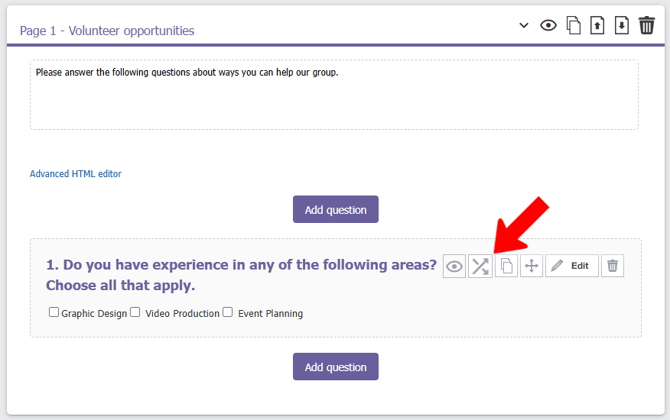
In this example, Question 1 is a multiple selection, multi-choice question. To apply the submission tag logic, click its Logics icon.
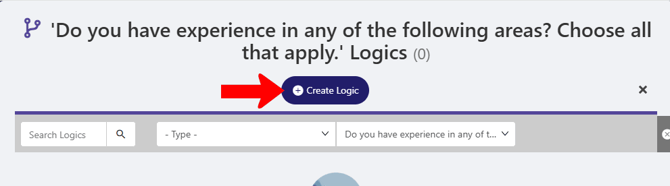
Click Create Logic.
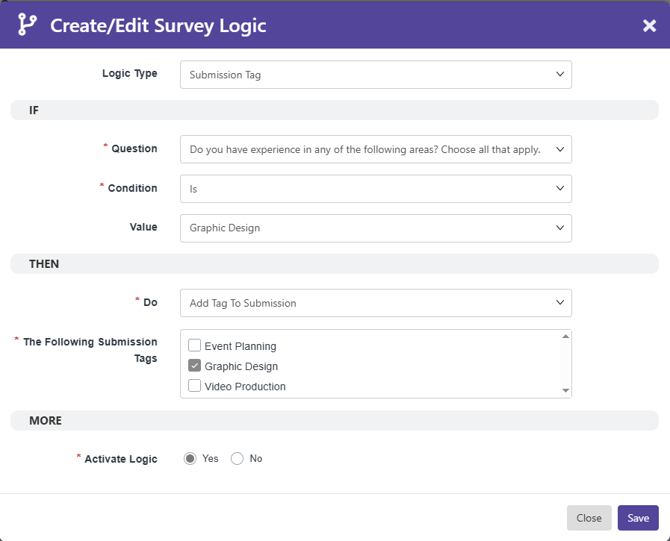
In the Create / Edit Survey Logic popup:
- Set the Logic Type to Submission Tag.
- In the IF section, define the Condition: the event that triggers the logic. In this example, the logic is triggered when the answer to Question 1 is “Graphic Design.”
- If the THEN section, define what happens when the logic is triggered. In this example, the “Graphic Design” tag will be added to their form submission.
Note: There are several types of logic conditions, including “is not,” “contains,” “starts with,” “ends with,” etc. for text answers, and “greater than,” “less or equal to” etc for numbers.
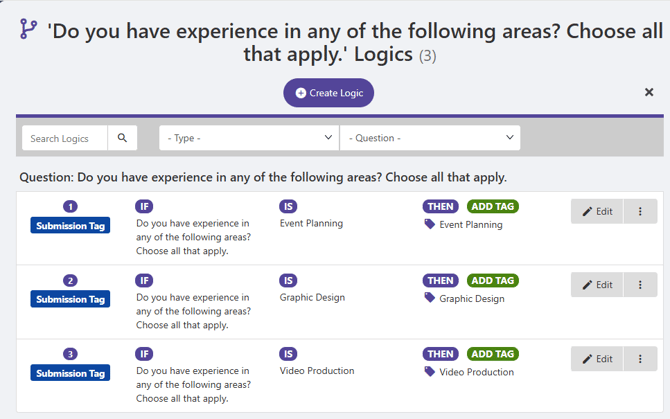
After saving, the logic is listed on the Logics page for the question. In this example, two more logics were added, to apply the “Event Planning” tag for that answer, and the “Video Production” tag for that answer. Any logic can be edited or deleted.
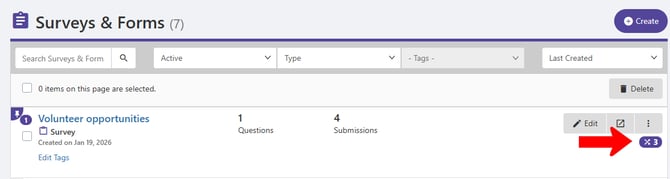
In the Surveys & Forms list, a form’s total number of logics are listed on the right.
When managing the survey Tags to track submissions, the relevant tags are applied to each submission.
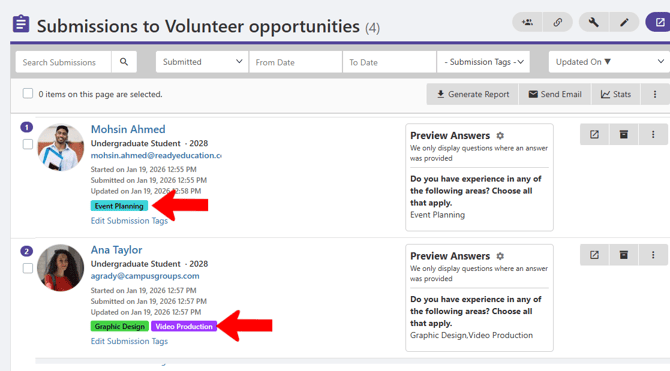
Note: Clicking Edit Submission Tags enables you to change tags or create and apply new tags.