.png?width=500&height=91&name=CG-Logo-Blue%20(1).png)
In addition to the internal, platform-facing group page Managing the Group Page, your public-facing group website is another way to showcase your group and attract new members.
Note: The Website feature is an add-on module. Contact your Client Success Manager to learn more.
Viewers of your group page can access your group website by clicking the Visit Website button.

Note: To configure this button to lead to an external website instead, open the Group Settings to the Contact Information tab, and enter the external site in the Website field. You will also have to open the Website Settings Website and Webpage Settings and set Primary Website to No.
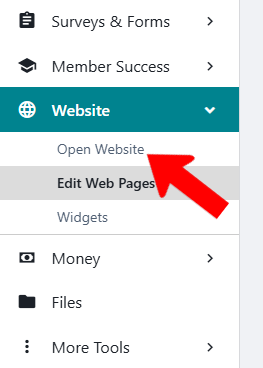
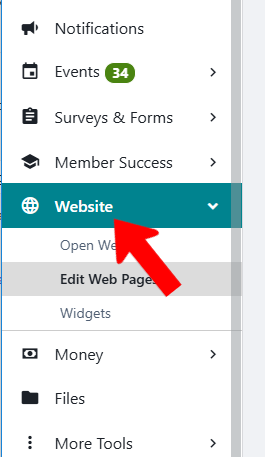
To manage your website, start by managing your group Managing Your Group, Group Dashboard, and open Website along the left.
In the Website Menu and Pages list Pages, several webpages are provided by default. These can all be customized Pages, but they are designed to get you started with a well-designed site with minimal changes needed. The information that appears on these pages comes from your Group Settings, as well as other sources including your list of officers, membership, events etc.
The website URL is listed at the top, and the page designated as Home will be the landing page. Pages with Publish enabled will be visible.
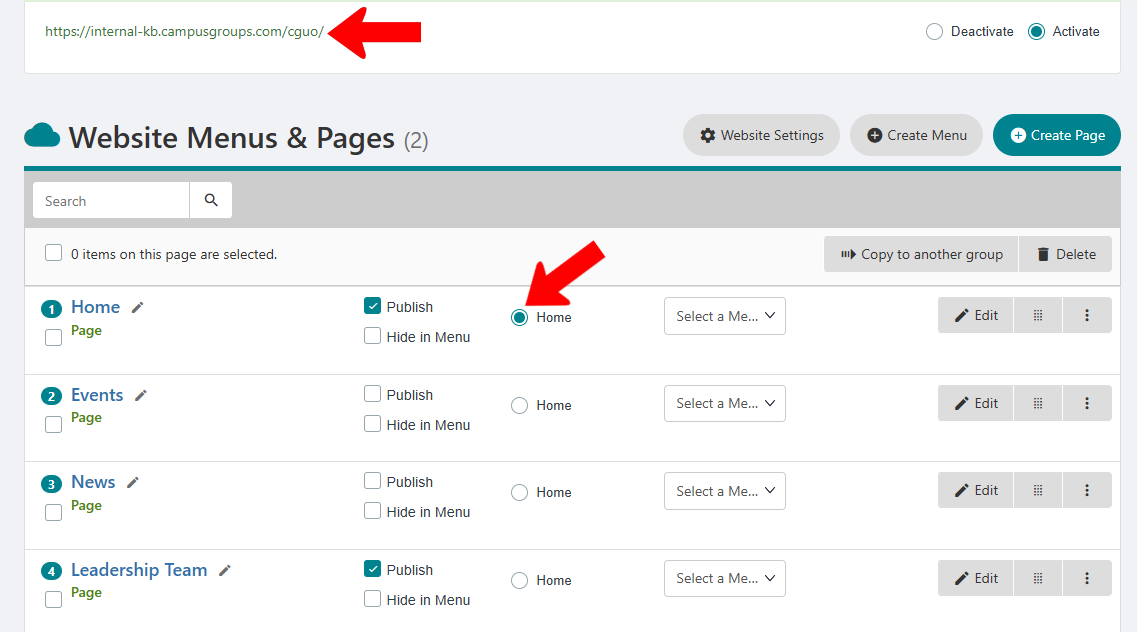
Note: The URL for the website is based on the Group acronym entered on the Basics tab of the Group Settings.
You can view your website at any time by choosing Open Website on the left.