.png?width=500&height=91&name=CG-Logo-Blue%20(1).png)
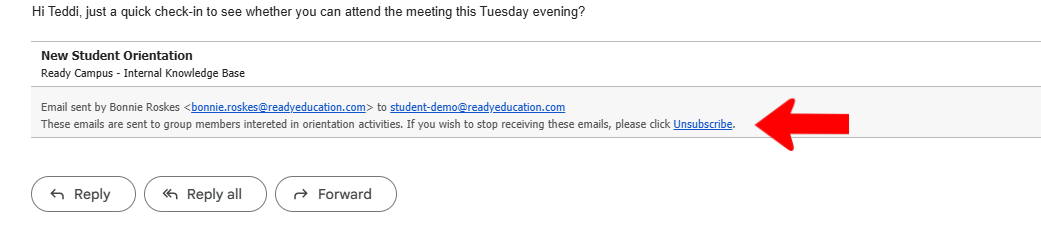
Every email you send has an unsubscribe link in the footer.
Any group member who uses this link to unsubscribe will be listed on the Unsubscribed page.
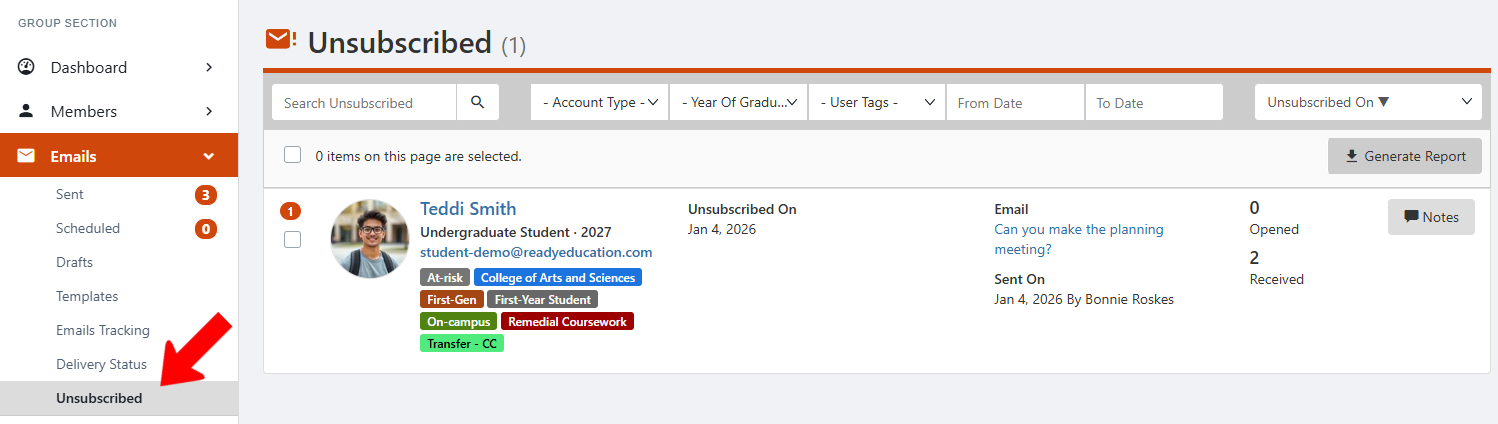
You can also track unsubscribes on the Emails page Viewing and Tracking Group Emails.
CampusGroups provides a generic unsubscribe message, which you can customize. Start by managing your group Managing Your Group, Group Dashboard, and open the Settings. Click the More tab.
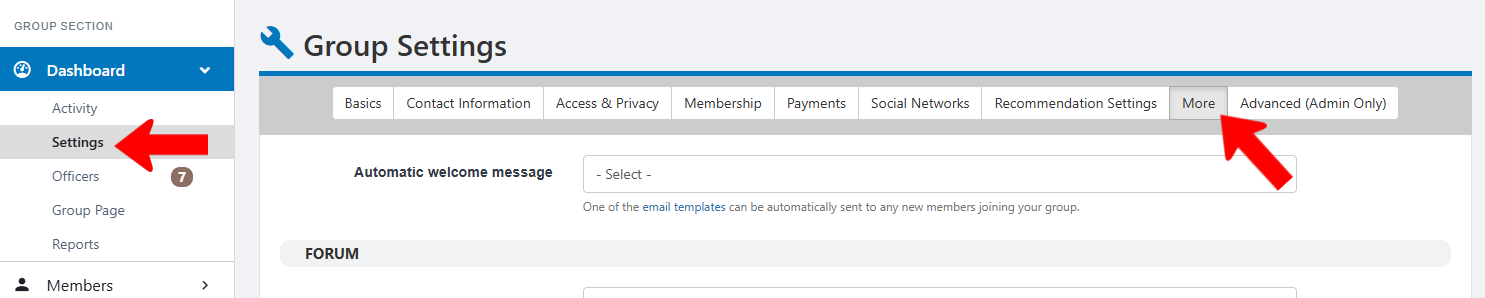
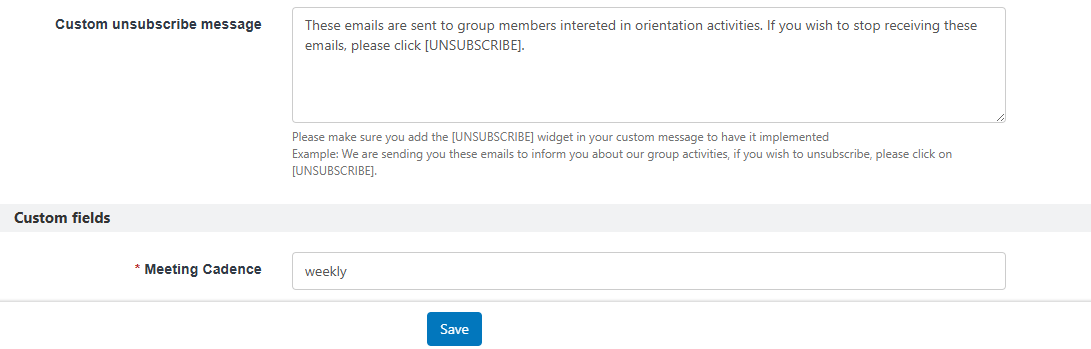
Enter the message you want to appear. Be sure to include [UNSUBSCRIBE] somewhere in your message so that the link will be added. Click Save at the bottom.
The custom message will appear in the footer of each sent email.
Note: Officers cannot re-subscribe a user. But an unsubscribed user can re-subscribe themselves from the My Membership tab of the Group Page.