.png?width=500&height=91&name=CG-Logo-Blue%20(1).png)
In addition to the ways users can join your group Exploring and Joining Groups, officers can also add members from a spreadsheet. This list may come from collecting names at an event, completed interest forms, etc.
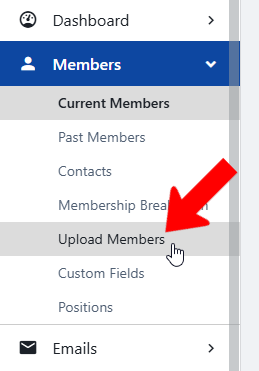
Get started by managing your group Managing Your Group, Group Dashboard, then open Members on the left and click Upload Members.
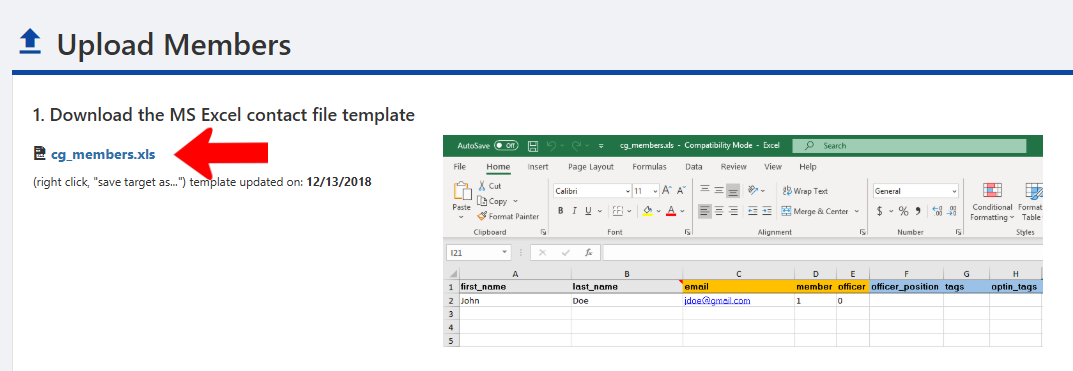
Download the member template file by clicking the file name in Step 1.
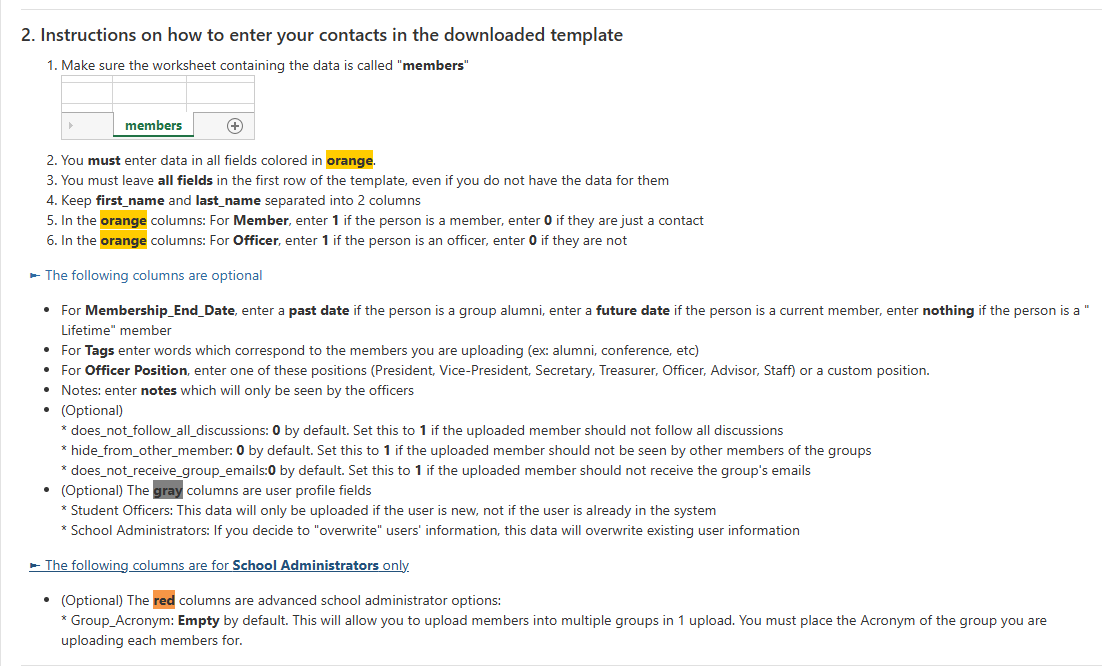
Be sure to read the detailed instructions in Step 2, explaining how to work with the template file.
Important points:
- Do not remove or rename any columns, even if some columns have no data.
- The worksheet containing the data must be named "members."
- First name and last name go in separate cells.
- You must enter data in all orange fields. Any additional information can be entered in blue fields.
- The member and officer cells must have a 1 or 0. If 0 is entered for member, the user will be added as a contact Group Contacts. A 1 for officer means the member is an officer.

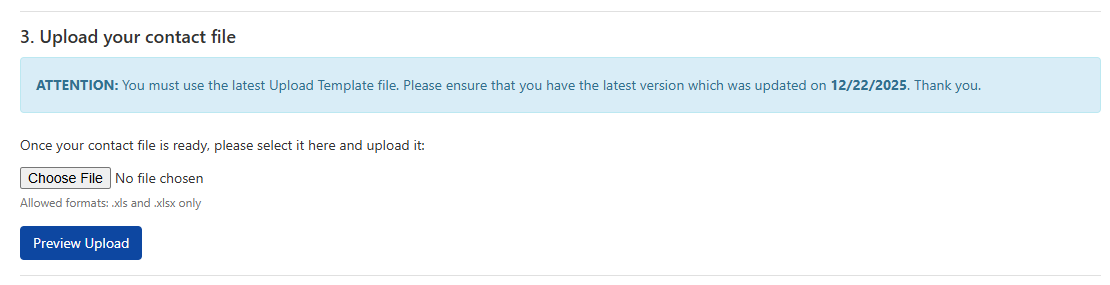
When your file is ready, save it and upload it in Step 3.