.png?width=500&height=91&name=CG-Logo-Blue%20(1).png)
Instead of adding users one at a time, you can add many users to CampusGroups (CG) at once by uploading a spreadsheet of their details.
Who can do this: Platform admins.
💡 Tip: Before you build your file, review the recommended user attributes to decide which details to import.
Switch to the Admin tab, if you aren't already in it. For help, see accessing admin features.
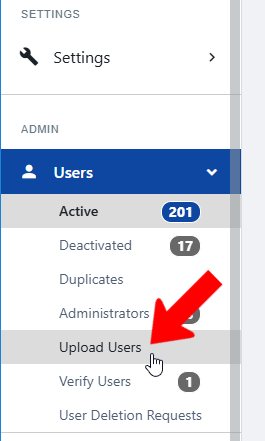
Click Users in the left menu.
Click Upload Users.
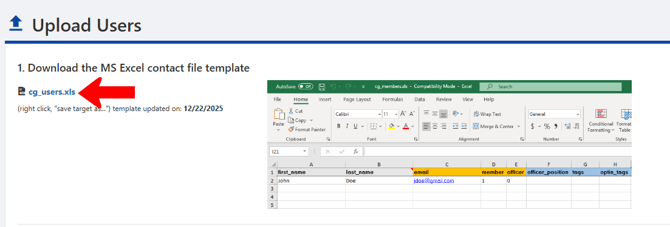
In Step 1, click the file name to download the user template.
Read the instructions in Step 2. They explain how to fill in the template.
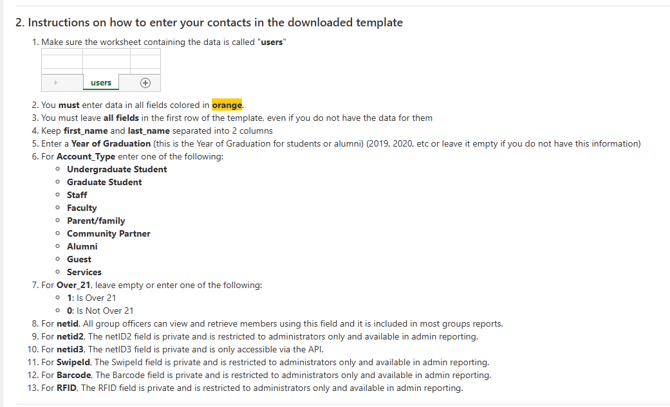
As you fill in the template, follow these requirements so the upload works:
- Don't remove or rename any columns, even columns you leave empty.
- Name the worksheet that holds your data users.
- Enter first name and last name in separate cells.
- Fill in every required field (orange columns). Optional details go in the blue columns.

Save your completed file.
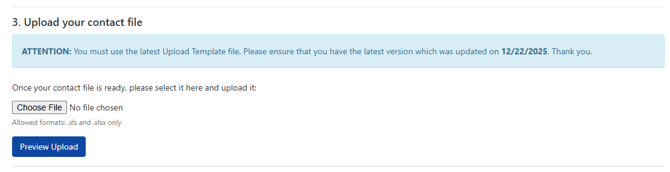
Upload the file in Step 3.
ℹ️ Note: You can also bulk-upload profile photos and resumes.