.png?width=500&height=91&name=CG-Logo-Blue%20(1).png)
User onboardings define the steps a new user needs to take when first logging into the platform. Onboardings are typically used to collect data used for user profiles User Onboardings.
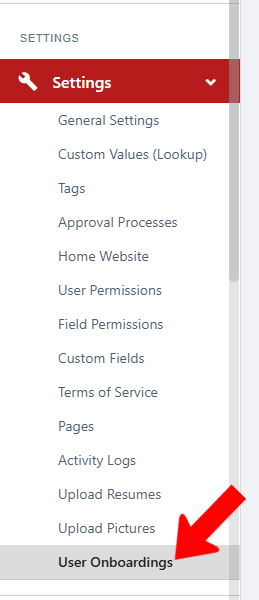
To configure onboardings, switch to Admin mode if needed. Open Settings on the left, and choose User Onboardings.
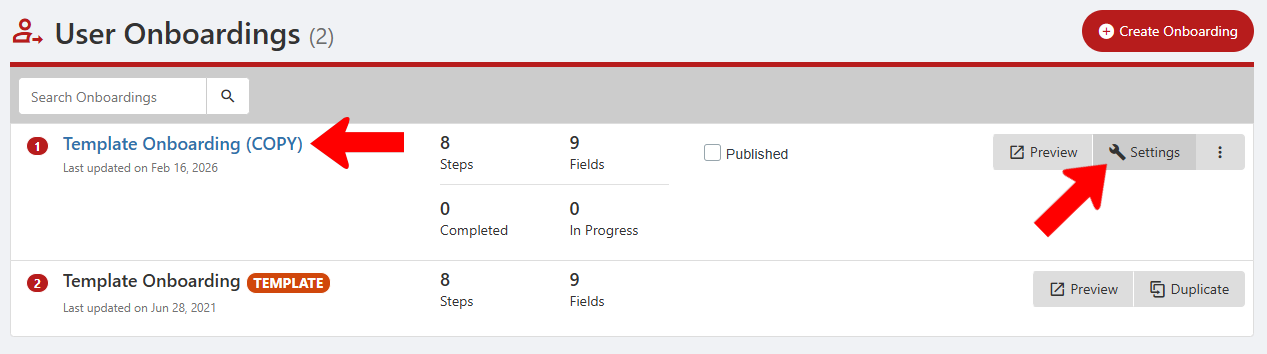
One onboarding template is provided. You can click Create Onboarding to start an onboarding from scratch. But an easy way to familiarize yourself with onboardings is to Preview the template to see how the steps look. Then click Duplicate.

This creates a template copy, which you can rename in the Settings.
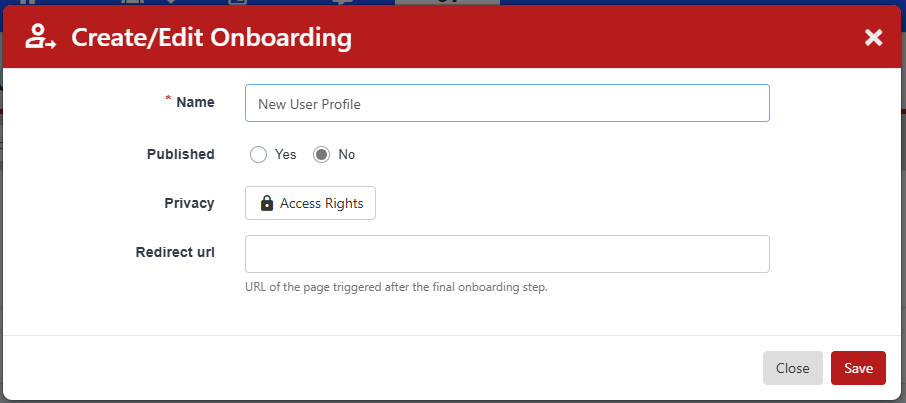
In the popup, assign a new name and configure Access Rights. Publishing an onboarding activates it for new users. If you want users to land on a specific page once the steps are complete, you can enter that URL. Otherwise users will land on the home page of the their Community Hub home page.
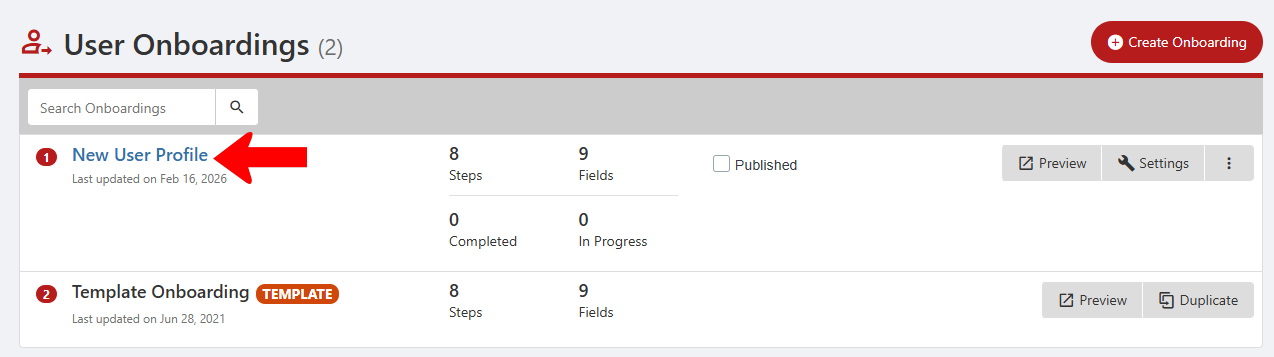
Each onboarding consists of steps, and each step consists of one or more fields. To start editing the onboarding, click its name.
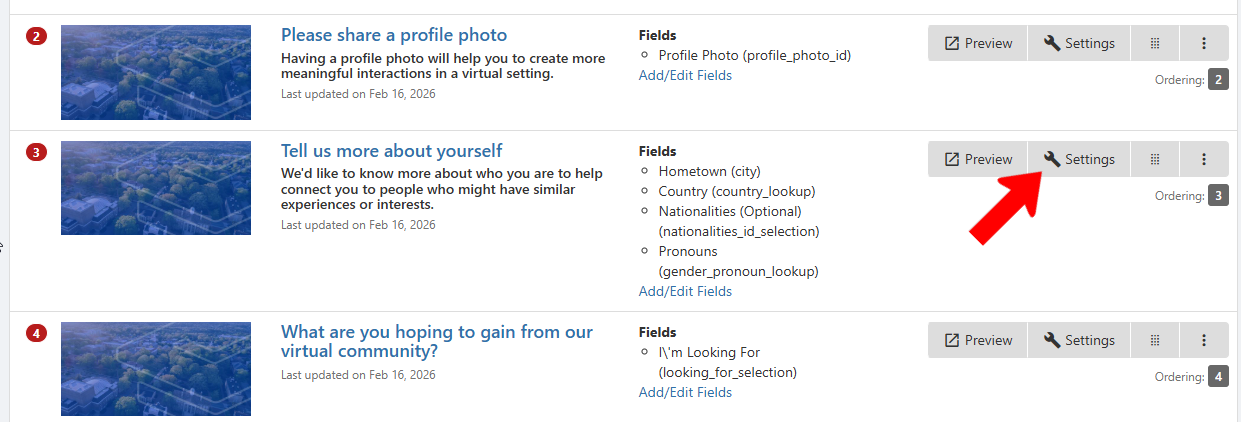
In the list of steps, you can see each step’s name, subtitle, and fields. To change step details (other than fields), click Settings.
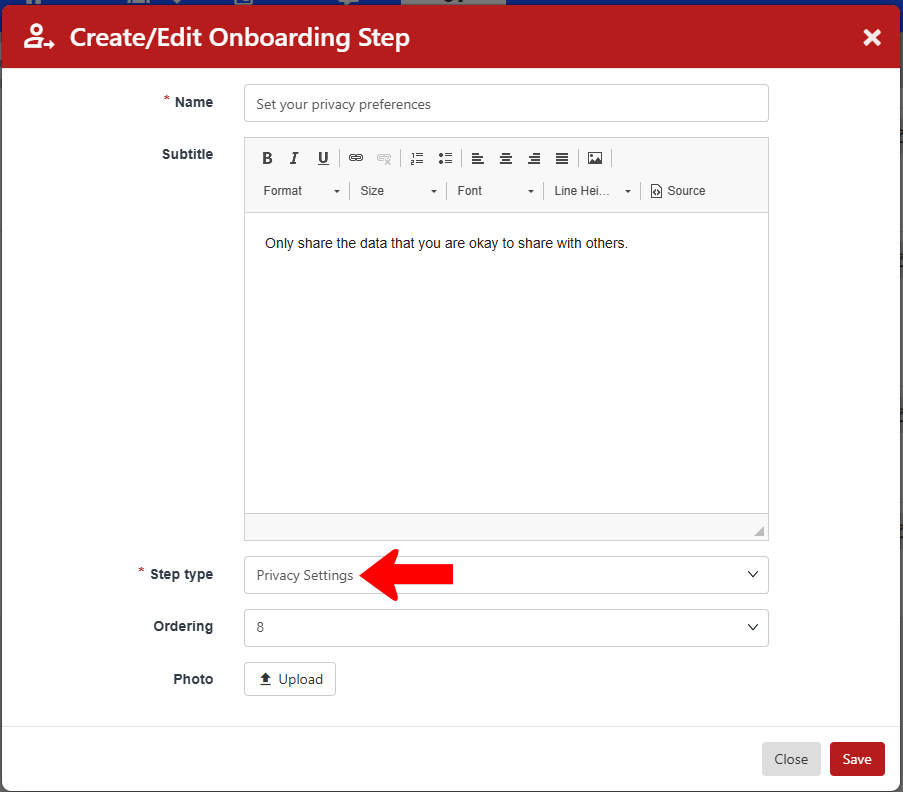
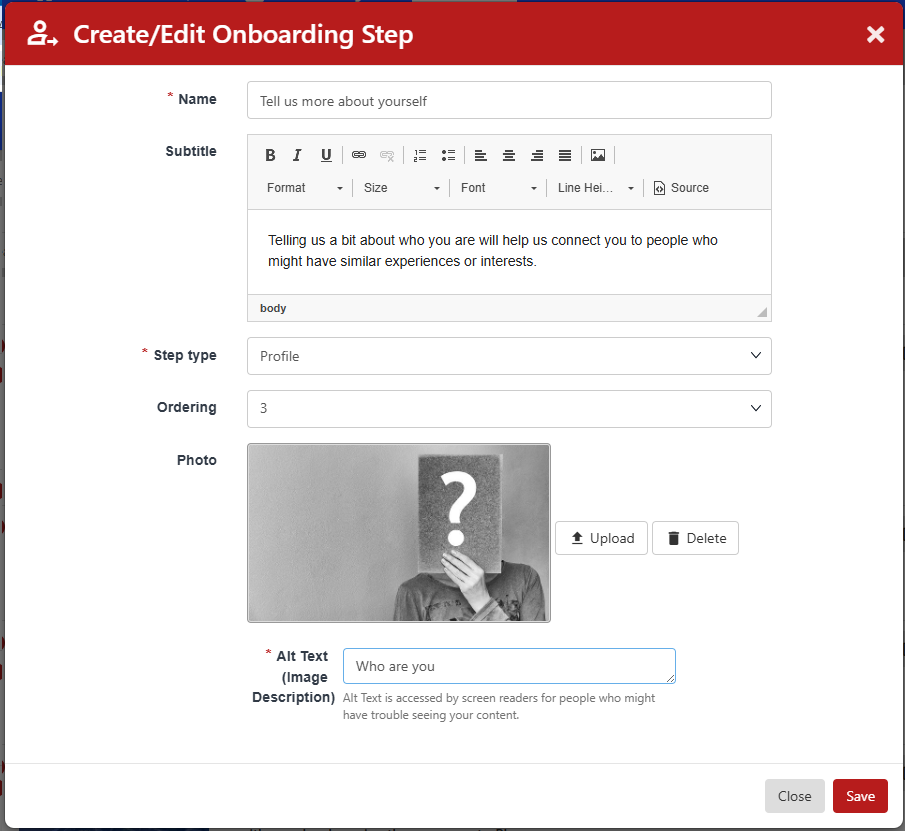
Set the name or subtitle, and Step type is Profile except for the last step which should remain Privacy. You can also replace the default step photo.
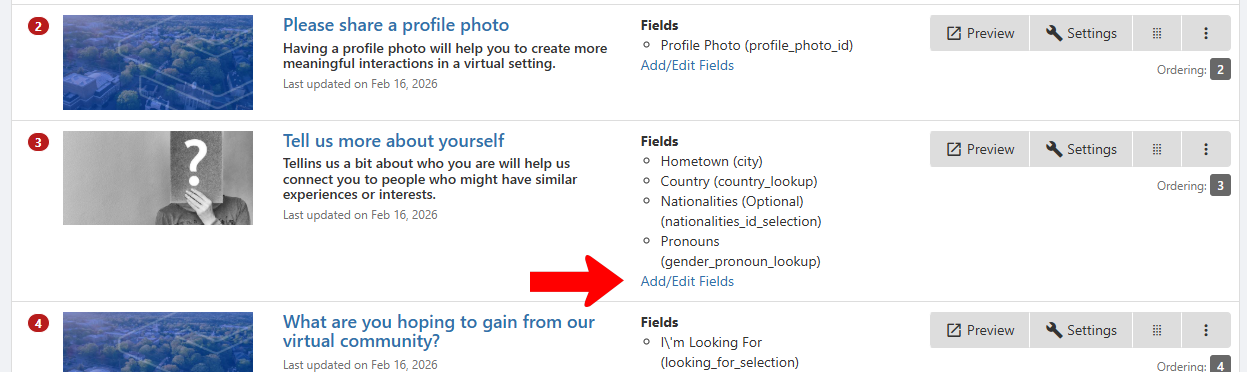
To change the fields in a step, click Add/Edit Fields.
Each step has a three-dot icon that provides options to duplicate or delete a step. You can also add a new field.
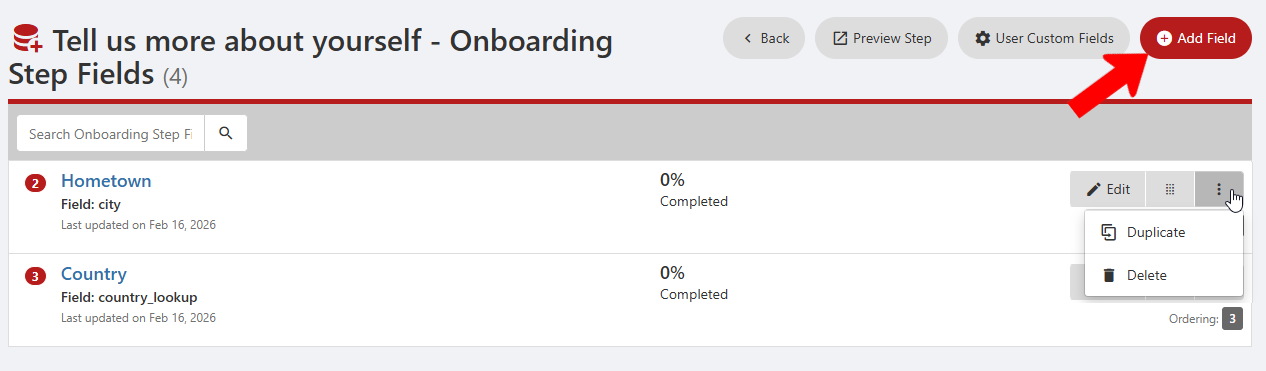
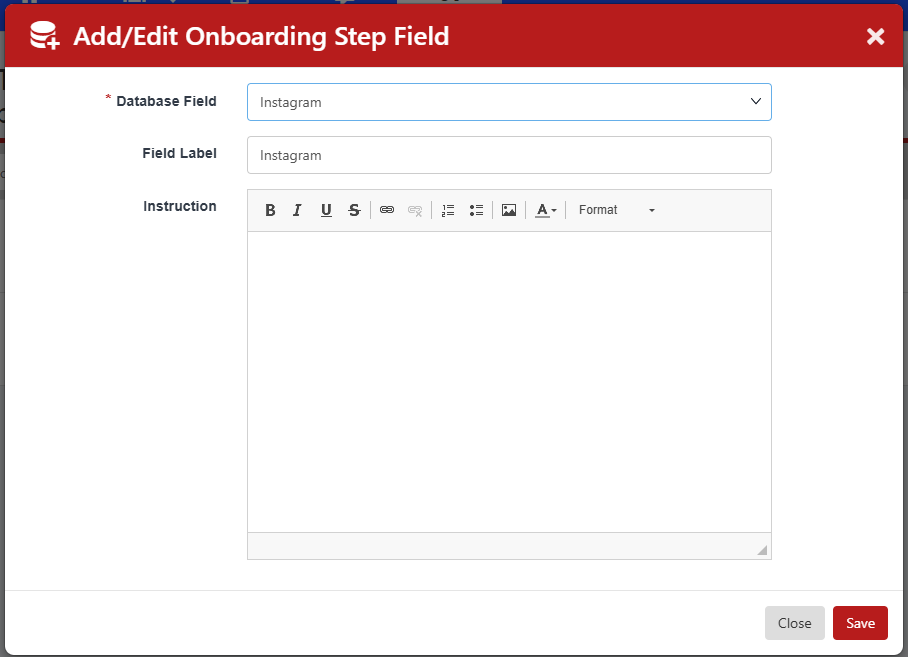
There are many predefined fields, including social media profiles, interests, sports, vocational interests, languages, phone, etc. Any User Custom Fields you have set up can also be added here.
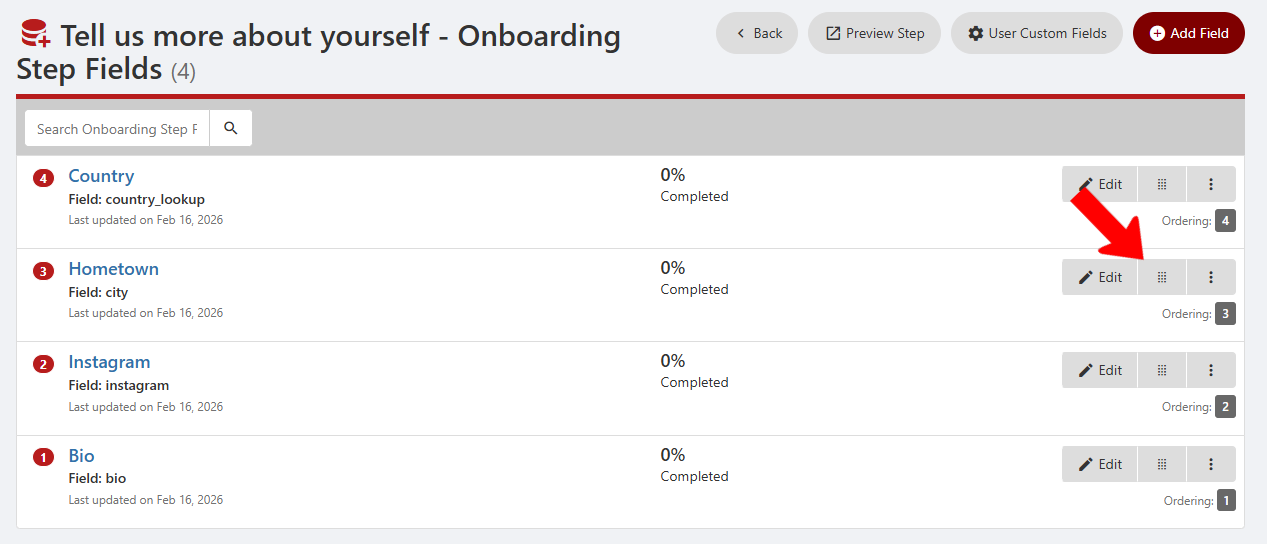
When all fields are added, use the Move icons to set the correct order.
Be sure to include one step that has the Privacy Settings type. This is the last step of the provided template.