.png?width=500&height=91&name=CG-Logo-Blue%20(1).png)
Once a Virtual Fair is created Group Settings, each participating group should edit booth settings and booth content.
The group hosting the fair can manage the fair Group Settings, and click Booth Settings for any group.
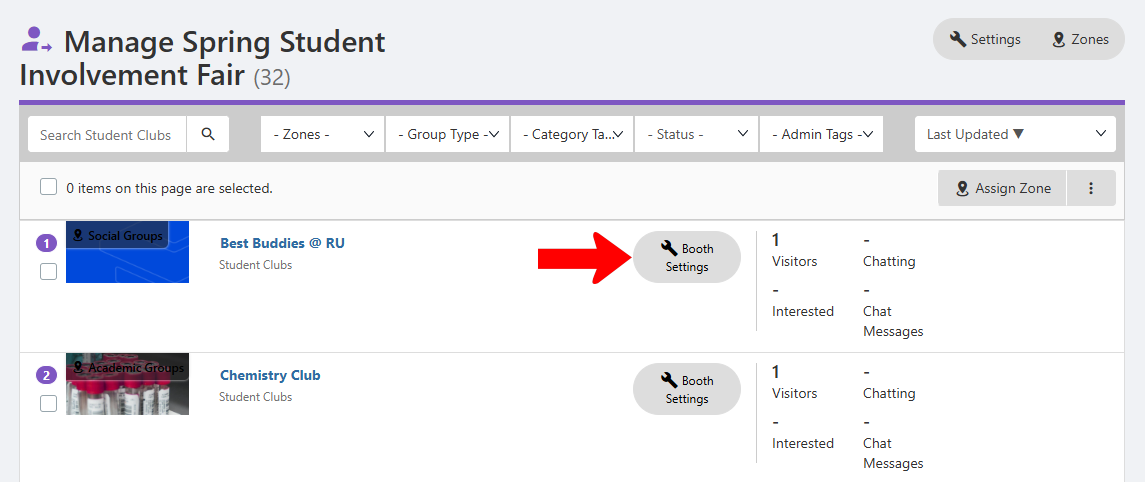
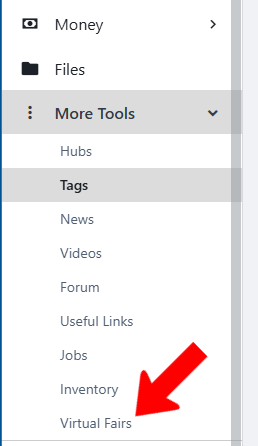
Officers of participating groups can start by managing their group Managing Group Officers, opening More Tools along the left, and choosing Virtual Fairs.
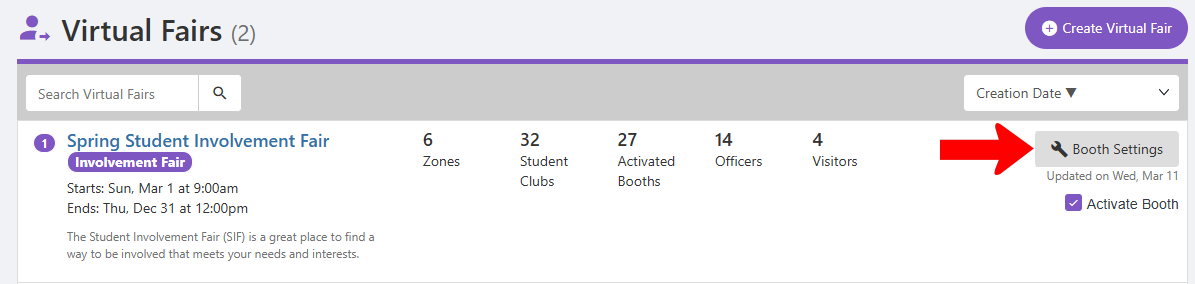
They would find the correct fair, and click Booth Settings.
The Booth Settings popup has a wide range of fields that help describe your group and attract new members. Complete as much as you can; booth placement in group listings is affected by booth completeness.
Fields here include:
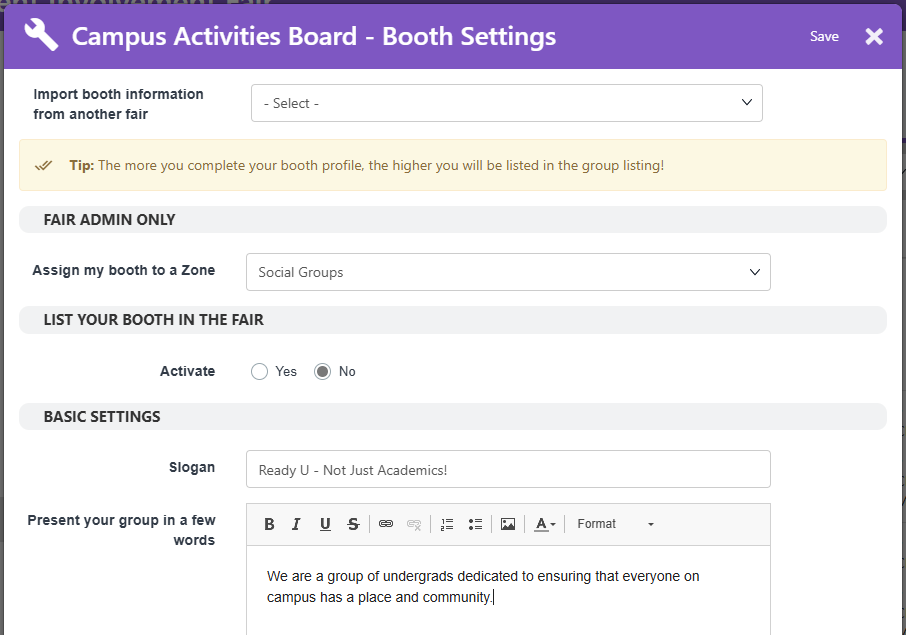
- Import booth information: If your booth has participated in a previous Virtual Fair, and you want to fill fields with previous details, choose the fair to import.
- Assign my booth to a Zone: Available to the host group only. (Zones are assigned when managing the fair.)
- List Your Booth in the Fair: Choose whether you want your group to appear to visitors.
- Basic Settings: Enter a group slogan, description, main photo and video, and upload any documents. Enabling the “I’m Interested” button is a great way to track visitor interest, as described below.
- Chat: Set options for group public and private chats, and which officers will be available for each.
- Live Video Conferencing: If you plan to host a virtual info session, enter the meeting link and date / time. These meetings enable group members to virtually “staff” their booth, and serve as contact points other than the Info Booth.
- Group Suggestions: Specify interests, sports, and / or industries to which your group is related. Visitors with similar choices in their profiles will see your group in Suggested Student Clubs.
- Add More Photos, Videos, Links: If you have more content to share, list those here.
Note: Industries are Custom Values created by admins; sports and interests are admin-created Tags.
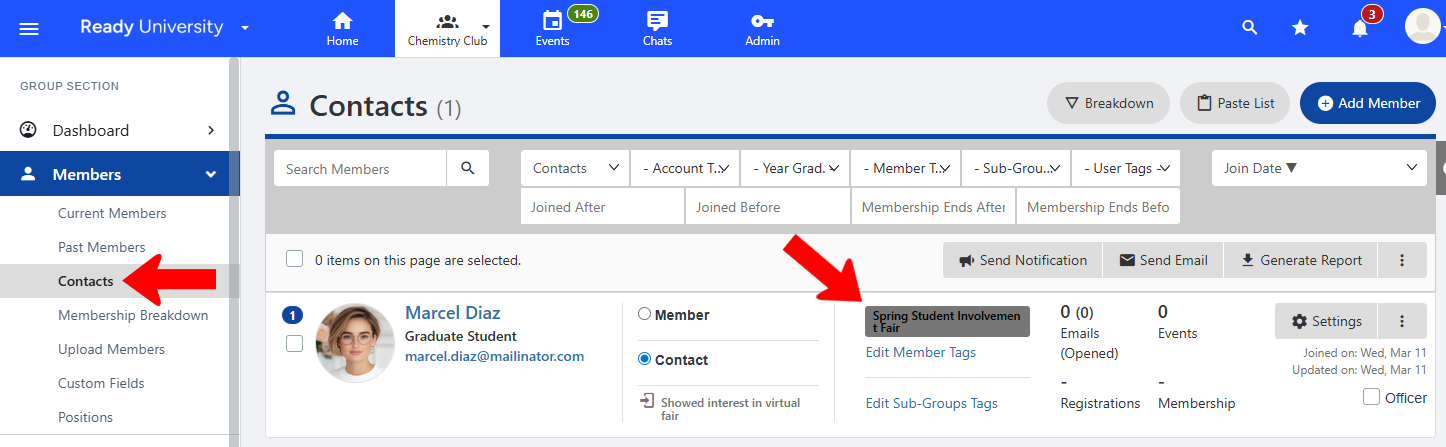
Any visitor that clicks a booth’s “I’m Interested” button is added to the list of Group Contacts. A custom Member Tag is added, reflecting the name of the fair.
Note: The fair host can also generate a Participants Report or a Booth Visits Report Virtual Fair Reports. These reports can be filtered for any booth.