.png?width=500&height=91&name=CG-Logo-Blue%20(1).png)
Settings are available for your entire website, and for each individual page. Among other things, these settings are designed to help with site analytics and search engine optimization.
To configure website-wide settings, open your Website Menus & Pages list Pages and click Website Settings at the top.
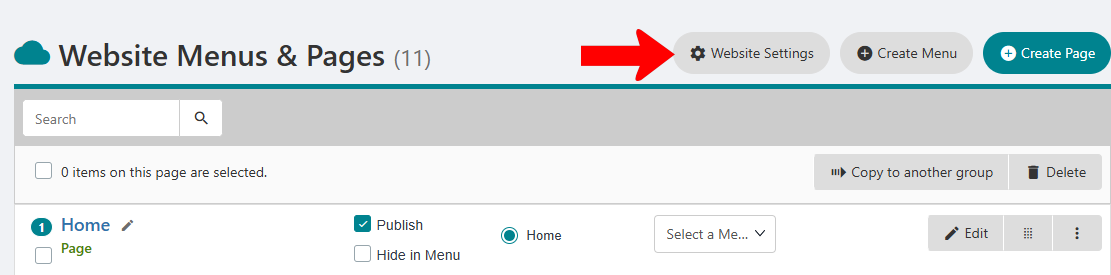
The Edit Website Settings popup contains the following options:
- Web logo: The default logo or image used in pages and widgets
- Primary website: If you want to use an external website for your group, instead of the one set up in CampusGroups, set this to No. The URL for the external site must be listed in your Group Settings, in the Website field in the Contact Information tab. (You can also link an individual webpage to an external site, as described farther on.)
- Publish website: If disabled, the website and all pages will be inactive.
- Google Analytics: To connect your site to Google’s web analytics service, enter your Google Analytics ID
- Website Custom CSS, Website Custom JavaScript: Advanced web design features generally used only by platform admins.
For page-specific settings, find the page in the Website Menu & Pages list. Click the page’s More icon and choose Settings.
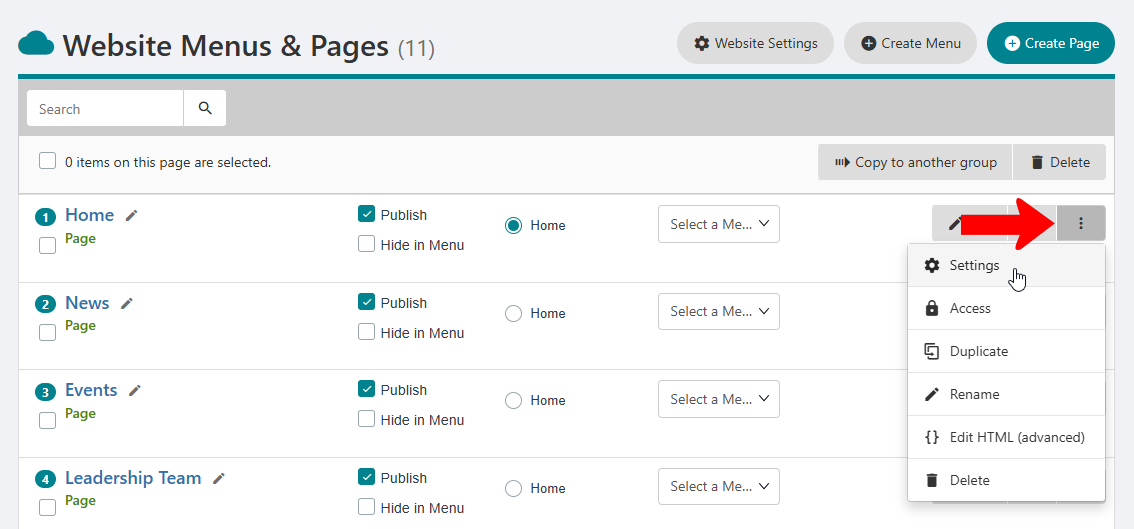
Note: Each page also has an Access Rights option, which enables you to restrict access to the page.
The Edit Webpage Settings popup contains the following options:
- Menu page name: The name of this page that appears in the menu at the top of each webpage.
- Title of page: A 6-10 word phrase, 75 characters or less, that describes the page. Be sure to include one or two keywords, and avoid special characters. This content is used by the search engines to better categorize your webpage.
- Description: A general description of page content of your webpage. In some cases, this text will be displayed as a description of the page under the link to it. (This field is optional. If left blank, a short description will be automatically generated. Here are some tips for the description field:
- Keywords: A comma-separated list of 6-10 terms that describe page content. This field is optional but recommended, as some search engines do actively use keywords. (Tip: Avoid variations of the same keyword, such as “management" and "manager.")
- URL name: The part of the URL after the “/”. This is the Menu page name by default but can be changed.
- Robot index: This optional field is used to determine whether the page can be indexed by search engines. Set this to No if the page contains sensitive information you don’t want made public.
- Redirect URL: If you want the link to this page to open an external site, list that URL here. You can also have the link open predefined content. For example, if this is a “Members” page, you can have it open the list of members.
- Call-to-action: Adds a background for impact
- Password protect: If page content is private, enter the password needed to open the page.